
How to Sign In to the Hadley App

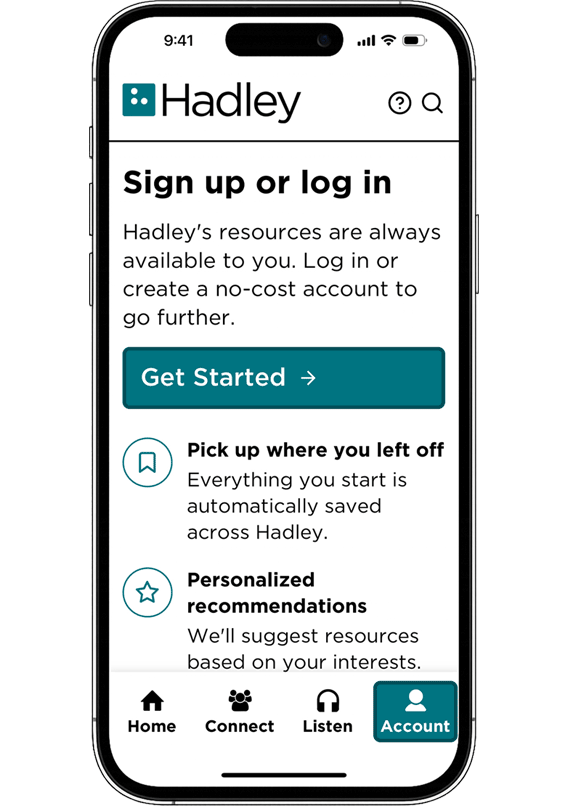
Hadley app Account tab showing the Get Started button.

Whether you’re joining Hadley for the first time or returning to your account, follow these steps to sign in through the Hadley app.

  1. Open the Hadley app on your phone or tablet.
  2. Select the Account tab at the bottom of the screen.
  3. Select Get Started.
  4. Choose how you would like to sign in.

Please note that you are choosing either phone or email, and you only need to sign in using one of these methods.

Sign in with your phone number
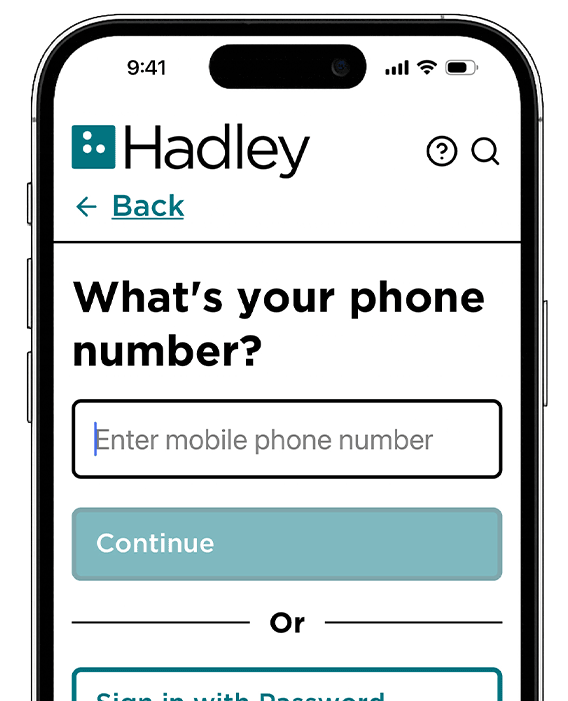
Hadley app screen with a mobile phone number field and Continue button.
  1. Hadley will send a six-digit verification code to both the email address and mobile number associated with your account.
  2. Enter the six-digit code.
  3. Select Verify Code.

You are now signed in to your Hadley account.

Sign in with your Email
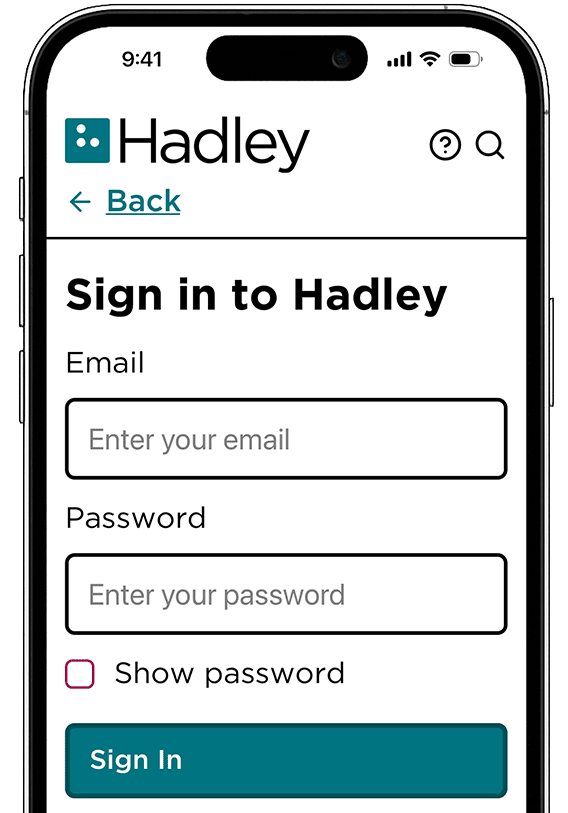
Hadley app sign-in screen with email and password fields and a Sign In button.
  1. Select Sign in with Password.
  2. Enter the email address connected to your Hadley account.
  3. Enter your password.
  4. Select Sign In.

You are now signed in to your Hadley account.

Join the Hadley Community

Hadley's resources are always available to you. Create a no-cost Hadley account to go further:

  • Pick up where you left off Everything you start is automatically saved across Hadley.
  • Personalized recommendations We'll suggest resources based on your interests.
  • Join live discussions Live and lively discussions on technology, cooking, and more, all geared toward the community of people living with vision loss.
  • Find peer support Connect with people who understand what you're going through.

Need some help?

1-800-323-4238 Mon - Fri 8am - 5pm Central

or