
AirTags Low Vision: Finding Items Further Away
Hello, my name is Douglas Walker. You know, when I'm out and about, it seems like I'm always double-checking to make sure I still have all of my stuff. Well, now if something happens to go missing, I no longer panic because I can easily find it with my AirTag. Yeah, AirTags are a super easy way of keeping up with all of your items.
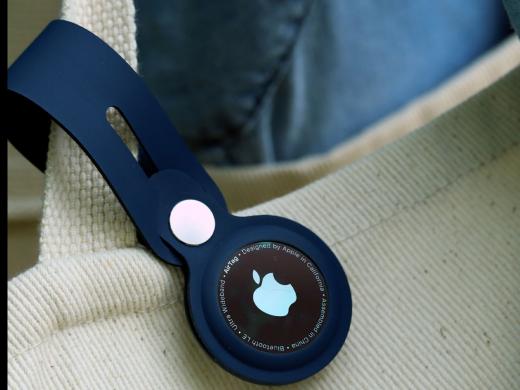
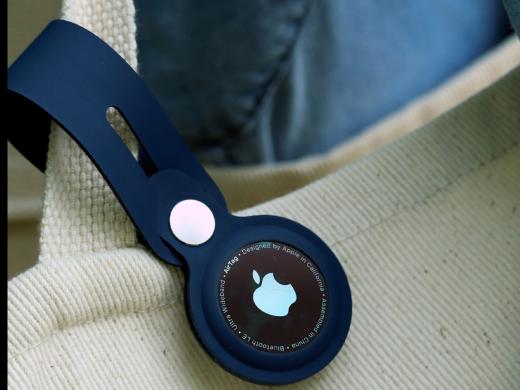
An AirTag is about the size of a quarter and there are tons of accessories that will allow you to attach one to your backpack, put one on your keys or umbrella, or even slip one in your purse or luggage. Then you're all set, you'll use your iPhone, iPad, or iPod touch to track down all of your favorite items from right there in your Find My App.
Okay, first things first, we'll want to make sure that we're running Apple's latest software. We'll also want our location services, our Find My and our Bluetooth settings to be turned on, and of course, we'll find those things in our settings app. Okay, how about we jump right in and check out how to find items further away?
Okay, let's say that I have been out and about today. I'm now back home and I suddenly discover that I no longer have my backpack. Well, after the initial shock, I realize that I could just locate my AirTag to find it, and like we said, we will find all of the items that we have placed our AirTags on right in our Find My app. So we will just tap to open our Find My app.
Great, our Find My app is open, and we will find all of our items in our items tab here in the bottom of our screen, so we will just tap our items tab. Yeah, our items tab is open. We have been given a map of our location here at the top of our screen and just below that, all of our items are listed. Yeah, I have an AirTag on my keys and one in my wallet and of course, there's my backpack.
All right, since my backpack is missing, we will just tap our backpack item here and we'll go ahead and tap that. Yeah, our backpack screen has opened. Now, we still have our map here at the top and we've been given some options for finding our backpack here at the bottom of our screen. I tell you, this is super cool because we have been given a directions button, and when we tap our directions, our Maps app will open and we will be given directions right to our backpack, so let's do it. We will just tap directions here.
Great, our Maps app has opened and it looks like my backpack is at my friend's house. Yeah, that makes sense. You know, I'll probably call my friend and ask her to hold it for me, but if I wanted to go get it, I could simply tap our go button here to start navigation and head over to get my backpack. Now, I think I know where I left it, but if I still can't find it when I get there, I might have to use my Find My app again and tap my nearby button to find it, but no worries, because we just so happen to have a workshop in this series called Finding Items Nearby that explains exactly how to do just that, so you're probably going to want to check out that workshop as well.
All right, that pretty much covers how to find an item further away. Yeah, it is such a relief to know that if one of my items happens to go missing, I can grab my iPhone and with just a few taps of the finger, easily get directions right to it. Again, my name is Douglas Walker, take care, and I'll see you next time.
Apple AirTags: Low Vision Series
- Video · 5 minutes
- Video · 6 minutes
Explore
-
Managing Diabetes and Vision Loss
Audio · 23 minutes
-
A family member has vision loss
Resource guide
-
Using Your Phone without Reading the Screen
Article · 5 minutes
-
Book Nook
Discussion
- Explore more
Members also liked
- Video · 3 minutes

- Video · 10 minutes

- Video · 12 minutes

- Video · 3 minutes
Join the Hadley Community
Hadley's resources are always available to you. Create a no-cost Hadley account to go further:
-
Pick up where you left off Everything you start is automatically saved across Hadley.
-
Personalized recommendations We'll suggest resources based on your interests.
-
Join live discussions Live and lively discussions on technology, cooking, and more, all geared toward the community of people living with vision loss.
-
Find peer support Connect with people who understand what you're going through.