
Exploring the Seeing AI App for Apple VoiceOver
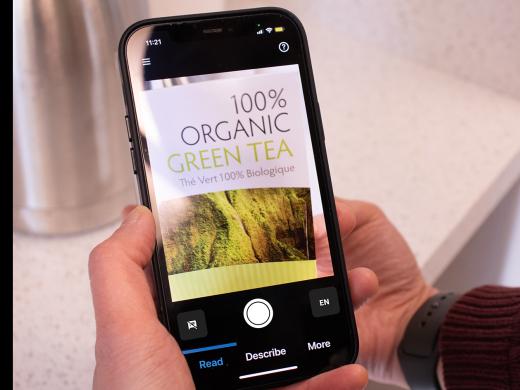
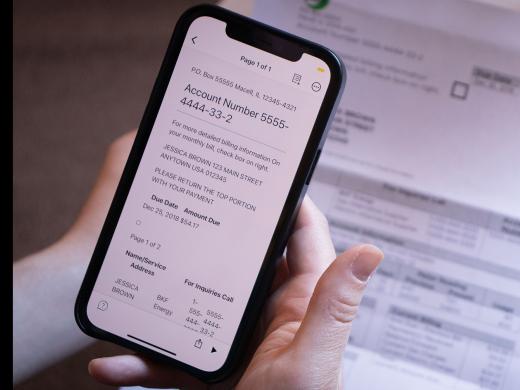
[Ricky] - Today we're gonna check out how to use an app along with the camera on our phone to read, text and identify things around us. The app is called Seeing AI and we can use it to read street signs and room numbers, menus, mail, and even to figure out the money in our wallet and the products in our pantry. With this one little app, our phone can speak aloud. So much useful info about what's around us. It's really cool.
We are using VoiceOver in this workshop so that we can do everything on our phone without looking at the screen. If you'd rather do things on your Apple device without voiceover, check out our series on using Seeing AI with Low Vision. And if you're using Android, we have a couple series just for you as well. Now, if you're checking out these workshops and you've not used voiceover much before, it may help to get a little more familiar with it before you dive into this series. And hey, we've got you covered with a great group of workshops on learning everything you need to know to get up to speed with voiceover.
Alright, so let's talk about seeing ai. The app is totally free, and if you don't have it yet, head over to the app store on your phone, type in seeing ai, and it should come right up. Seeing AI is already open on this phone, so we're gonna explore the app a little bit just to get familiar with how it all works. Then in the next few workshops we'll take it for a spin by reading some short text, reading a longer document, identifying products and reading some money.
If you're opening seeing AI for the first time, there's probably gonna be a quick little tutorial that pops up. The tutorial will give some great info, plus there will be instructions on how to get through the tutorial and on to using the app. The quickest way to get started is to use the voiceover swipe right gesture to find the skip button and double tap that to skip the tutorial
[VoiceOver] - Skip button.
[Ricky] - There will be a couple more things after that, like accepting terms of service and giving, seeing AI permission to use your camera to read and recognize things. So again, just use the voiceover swipe gestures to move through the screen. Then double tap to select those options to agree to terms and camera access. One last thing and then we're done with the complicated stuff. If you get through the tutorial and find yourself in a help screen, there's a done button at the top right corner of the screen. Double tap that and now we're ready to start exploring seeing AI
[VoiceOver] - Done button, menu button.
[Ricky] - So here we are in our app. After the tutorial is all done, seeing AI is actually active right now and looking for info. So I'm just gonna set my phone down on a flat surface to make sure that the camera isn't gonna spot some texts and start reading it. Okay. Now to explore the app, we'll start at the top left of our screen. We'll touch the menu button, which is right below the clock. That's a great way to find it actually, is just to touch the top corner
[VoiceOver] - 2:13 PM status bar item.
[Ricky] - And now just slide down a bit.
[VoiceOver] - Menu button.
[Ricky] - Great. There's lots of cool stuff in this menu, like settings help information, and a feature for browsing photos and getting them described To open the menu, we would just double tap. We're gonna keep exploring though, so let's swipe right
[VoiceOver] - Quick Help button.
[Ricky] - Seeing AI has several different modes called channels for reading text, reading money, identifying products, and lots more. This quick help option is where we'll find info about the specific channel we're in. We can always swipe to it, but it's in the top right corner of the screen so we can get right to it just by touching the screen there. Okay, for the next couple of buttons, we'll learn a little more about them in future workshops, but we'll go ahead and find them now so that we know where they are. Let's swipe right.
[VoiceOver] - Document detection off button.
[Ricky] - Great. This will let us take a picture of a document in order to read it. We'll dive into that in our workshop on reading. Okay, we'll swipe right,
[VoiceOver] - Take picture button.
[Ricky] - Yeah, and again, we'll learn more about this one in our workshop on reading. So let's swipe right,
[VoiceOver] - Recognizing English button.
[Ricky] - Cool. Seeing AI can actually read multiple languages and right now we're set for English. This button will change depending on which channel we're in. Right now we're in the read channel. When we switch to our currency channel, for example, this button will let us choose which currency we wanna recognize. Okay, what's next? We'll swipe right
[VoiceOver] - Tab bar selected. Read tab one of three.
[Ricky] - Great. We've made it to the buttons that let us choose the kind of task we wanna do. This first one is the read tab. Yeah, we'll be using this one a lot for reading, text and documents and we'll swipe right again.
[VoiceOver] - Describe tab two of three.
[Ricky] - This is really awesome. If we explore this tab, seeing AI will let us take a picture and then we'll get an AI description of it. We can even ask more questions about the image and get specific details described. Okay, we'll swipe right again,
[VoiceOver] - More tab three of three.
[Ricky] - So this tab is where seeing AI has put a number of features that don't fit into the read or describe categories. We're gonna check this out, so let's double tap to select the tab.
[VoiceOver] - Selected more tab three of three product.
[Ricky] - Awesome. Here we have a list of modes or channels to do specific things. This is the product channel, which lets us scan a barcode to identify what product we're holding. We'll learn exactly how to do that a little later in the series to go into this channel. We double tap it to select. We won't do that today since we're just figuring out what channels are available. Now. All we need to do to move to the next channel is to, you guessed it. Swipe right, so let's do it. We'll swipe right person. This channel is for teaching, seeing AI to recognize specific faces, and again, we'll swipe right
[VoiceOver] - Currency.
[Ricky] - That's our channel for reading money, and we'll swipe right again,
[VoiceOver] - Find my things.
[Ricky] - This is really cool. We can teach seeing AI certain objects like a water bottle or a remote, and then use our camera to scan around the room and find it. It's a preview channel, which means Microsoft is still working on it, but it's perfectly fine to take it for a spin. Alright, again, let's swipe right world. This channel is for exploring what's around us and hearing announcements of objects like doors or chairs in our camera's view. This channel is only available on certain phone models though, so if you're not seeing it, it just means that it isn't currently supported on your phone. We'll swipe right again.
[VoiceOver] - Color.
[Ricky] - Yep. This one will tell us the color of what our camera is pointing at and let's swipe right. One more time, light. This will give us a tone to indicate the brightness of the available light in a room. The higher the pitch, the brighter the light. Wow. There are so many amazing features in this one app. Next up in the series, we'll dive in to how a few of these features work. So to get ready for next time, let's move back to our read tab. To do that, we'll touch the bottom left corner of our screen. If we don't immediately land on the read tab, we'll just slide up a tiny bit from that bottom left corner. Here we go.
[VoiceOver] - Tab bar, read tab one of three.
[Ricky] - Great. And now we're ready to learn how to use seeing AI to read text on envelopes, signs, product boxes, documents, and more. Join me for the workshop on reading and we'll find out how it works.
I'm Ricky Enger and I'm glad you could spend a little time with me today exploring the Seeing AI app. See you next time.
-
Websites
Download the Seeing AI App (iOS)
Link to the Seeing AI app
Seeing AI Apple VoiceOver Series
- Video · 8 minutes
- Video · 8 minutes
- Video · 7 minutes

- Video · 5 minutes

Explore
-
Be My Eyes
Audio · 22 minutes
-
I was just diagnosed
Resource guide
-
5 Top Questions After a Macular Degeneration Diagnosis
Article · 5 minutes
-
Writers' Circle
Discussion
- Explore more
Members also liked
- Video · 3 minutes

- Video · 12 minutes

- Video · 8 minutes
- Video · 10 minutes

Join the Hadley Community
Hadley's resources are always available to you. Create a no-cost Hadley account to go further:
-
Pick up where you left off Everything you start is automatically saved across Hadley.
-
Personalized recommendations We'll suggest resources based on your interests.
-
Join live discussions Live and lively discussions on technology, cooking, and more, all geared toward the community of people living with vision loss.
-
Find peer support Connect with people who understand what you're going through.