
Zoom: Join By Computer
Hello, my name is Ricky Enger, and today we're going to join a Zoom meeting using our computer. So we'll use our computer to get connected, and then we'll go through a couple of really important things we need to know about for a typical Zoom meeting.
This workshop will be helpful if you're checking out the screen visually, or if you're using a screen reader to speak the text like I am. In fact, you'll hear the screen reader speak up from time to time as we do things. The concepts we'll learn today will apply if you're using a Windows computer. If you're using a Mac, the general concepts are the same but the keyboard shortcuts are a little different. So be sure and check out the resources area for this workshop to grab those shortcuts.
If you want learn about joining a Zoom meeting by dialing in or from an app on your smartphone, check out the other workshops in our Zoom series to get up to speed.
Okay, so in order to get connected to our meeting, let's open our email that contains the information about the meeting we're going to attend. And now let's look for our Zoom link. It's going to be down a few lines from the top of our email because first we've got the name of the person inviting us, the meeting topic, and then the meeting time.
Below all that we'll find our link, and it's blue with an underline. So if we're looking for it visually, it's gonna stand out a little. Also, it starts with https:// followed by a bit more information.
Screen Reader: Link: https://us02web.zoom.us/j.
Ricky: Yep, there it is. So let's open it. We can either press Enter here or click the link with the mouse. Whichever feels more comfortable.
Now, if this is the first time you've joined a Zoom meeting on this computer, a page is going to pop up and the Zoom program will download. Once it's downloaded, go ahead and follow the instructions to run the program and get it installed on your computer.
All right, so from this point, we'll assume that the Zoom program is installed on the computer. When we open the Zoom link from our email invite, it displays in our browser and we have a couple of options here. The first one is actually a Cancel button in case we don't wanna join the meeting.
Let's press the Tab key on our keyboard and focus on our next option. It's a box giving us the option to always open the Zoom program anytime we have a Zoom link instead of needing to see this set of options and then go over to the Open option every time. We can click the box or press the space bar to check this box so we won't see these options again. Or we can leave it alone. Most people prefer checking the box and letting the program just open automatically, but either choice is fine. Okay, let's Tab one more time to find our Open Zoom Meetings button. We can click that or press the space bar on it.
Screen Reader: Launch meeting Zoom. Banner land, Zoom Cloud Meetings window.
Ricky: And now the Zoom program will open.
Screen Reader: Connecting, window.
Ricky: We're almost in our meeting, and remember we can make things a little easier by checking that box to run our Zoom program every time we open a Zoom link in our browser. All right, so Zoom is open and we're actually on the button we need, which is Join with Computer Audio.
Screen Reader: Join with Computer Audio.
Ricky: We'll select that, again with our mouse or with our space bar.
Screen Reader: Audio now unmuted alert. You are using the computer audio alert, Zoom meeting.
Ricky: Yay, we made it! Okay, now that we're in, let's talk about a couple of important things that will be really useful in Zoom meetings.
First, let's talk about muting and unmuting. We all have background noise sometimes, right? The dog starts barking or the TV is on, or we just need to say something to another person in the house. So being able to keep that stuff from being heard by everyone else in the meeting is really helpful.
Now, every person who hosts a Zoom meeting might approach this differently. Some hosts will make sure everyone is muted when they come into the room and some will start with everyone unmuted. So to figure out what our mute status is, let's find our button for muting and unmuting. It's going to be in the very bottom left of our screen. The icon for it is a microphone, which makes sense, right? If we're not muted, the text on our button will say Mute My Audio. And if we are muted, it will say Unmute My Audio. We can just click that to toggle our mute status.
But if we don't want look for it visually, that's okay too. We've got a great keyboard shortcut to mute and unmute. So let's try that now. We'll press the Alt key and the letter A. A as in audio.
Screen Reader: Unmute, currently muted. You are muted.
Ricky: And there we go, we're muted now. Our text has changed to say Unmute My Audio. Our icon has changed as well, because the microphone now has a little line through it that shows it's not on. So clicking our button or using this Alt + A shortcut will work exactly the same way. Each time we do this, our button will change to the opposite of what it was before. And we can just pay attention to that text as well as how the button looks to figure out our status.
Perfect, now in some meetings, it's kind of informal and we can unmute ourselves and just speak up whenever we want. But for many meetings, there are lots of people in the room and our host needs to keep things organized and moving along smoothly. So in this case, it's really great to notify our hosts that we have something to say and then our hosts can slot us in for a turn to speak. So how do we do that?
Well, it's kind of like being in a classroom. We'll raise our hand to let the host know we've got something to say. The easiest way to do this is with another lovely little shortcut key. This time we'll use the Alt key plus the letter Y. Y, as in yes, I have a question. We can also head down to the bottom of our screen and click the button called Participants. That will open up a little panel with a few options. So once that's open, we can look for the Raise Hand button and click that. So let's try it, either with our keyboard shortcut or by finding our Raise Hand button.
Screen Reader: Hand now raised alert.
Ricky: Okay, great. Our hand is raised and now the host will see that we have something to say. At some point the host will call on us to speak, and either we'll be unmuted by the host or the host will ask us to unmute. So just be ready to press Alt + A or click that mute button at the bottom left of the screen if the host asks us to unmute.
Now, if for some reason we change our mind or maybe our question gets answered before we get called on, we can lower our hand. Just like our mute function, we can use the same keystroke or click the same button we use to raise our hand. And this time, our hand will be lowered. We'll do that now. I'm going to use my keyboard shortcut, so Alt + Y.
Screen Reader: Hand now lowered alert.
Ricky: And there we go. Our hand is lowered. Now all good things must come to an end, and at some point our Zoom meeting will be over. When we're ready to leave the meeting, we can do that by selecting the Leave button, and that's gonna be at the bottom right of our screen. And if you're thinking that there's probably a keyboard shortcut for it too, you're right. It's Alt + Q, as in quit. So let's click our button or press Alt + Q.
Screen Reader: End meeting or leave meeting window.
Ricky: Okay, so now Zoom is just making sure that we really do wanna leave. So we can press Tab to find our Leave button.
Screen Reader: Leave meeting button.
Ricky: And we'll click or press the space bar.
Screen Reader: Host/Attendee Zoom Google Chrome.
Ricky: And we're out. It really was a great meeting, wasn't it? I'm Ricky Enger, and I want thank you for joining me to learn about using the Zoom app on our computer to get connected to a Zoom meeting. See you next time.
-
Handouts
Join By Computer Keyboard Shortcuts (PDF)
This handout lists keyboard shortcuts so you have an alternative way to do something that you'd typically do with a mouse.
Join By Computer Quick-Start Guide (PDF)
This quick-start guide helps you join a Zoom meeting by computer.
Zoom Series
- Video · 6 minutes

- Video · 8 minutes
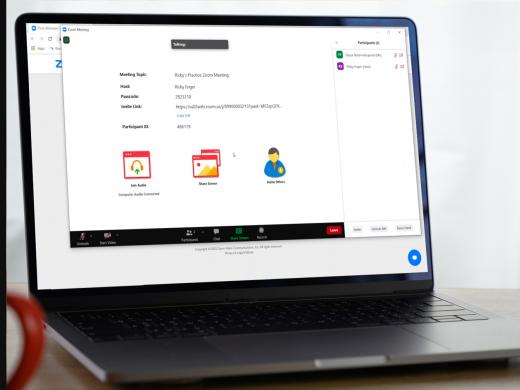
- Video · 8 minutes

- Video · 7 minutes
Explore
-
Bioptics for Driving and More
Audio · 25 minutes
-
I can’t drive anymore
Resource guide
-
5 Free Apps to Help After Vision Loss
Article · 5 minutes
-
Tech It Out
Discussion
- Explore more
Members also liked
- Video · 3 minutes

- Video · 3 minutes

- Video · 6 minutes

- Video · 10 minutes

Join the Hadley Community
Hadley's resources are always available to you. Create a no-cost Hadley account to go further:
-
Pick up where you left off Everything you start is automatically saved across Hadley.
-
Personalized recommendations We'll suggest resources based on your interests.
-
Join live discussions Live and lively discussions on technology, cooking, and more, all geared toward the community of people living with vision loss.
-
Find peer support Connect with people who understand what you're going through.