
iPhone/iPad Low Vision: Accessibility Reader
[Vikki] - Hi, my name is Vikki Vaughan. In today's workshop, we are going to learn how to use a helpful feature that makes reading text a lot easier.
It's called Accessibility Reader and it's built right into our iPhone and iPad. Accessibility Reader is available on iOS 26 and later. This feature displays text on a screen where we can customize our background color spacing, font size, and color. Best of all, the accessibility reader reads text aloud from within different apps such as a long email or a news article in our browser, let's find out how.
We'll start at our home screen. Then tack the settings button to open the menu. From here, we'll swipe up to bring the accessibility option into view. Let's tap accessibility to open its menu. We'll move down to our next control, read and speak. Now let's tap, read and speak and at the top we find Accessibility Reader. Let's tap Accessibility Reader to open. Then we'll tap Accessibility Reader once again to turn on the control.
Okay, we've turned on Accessibility Reader and coming up we'll use our accessibility shortcut to activate it. If you need more information about how to add Accessibility Reader to your accessibility shortcuts, be sure to check out the resources below this workshop. Now we'll return to our home screen, then open our browser. We've landed on a busy website that gives us the perfect opportunity to try out the accessibility reader. I have already set up my phone to have the Accessibility reader as a shortcut.
To activate the shortcut, let's press the button on the right side of our device. Three times, voila, we've turned on Accessibility Reader. A new screen appears with controls. At the bottom of the screen, we press the play button to have the text read aloud.
iPhone VO - Find Accounting software. Capterra Learn more. Cnet, why you can trust cnet, our Wellness.
Let's press it again to pauses playback. We also have controls that allow us to rewind fast, forward, and change the speech rate. We tap the one X at the far right of our controls for options to control how fast our text is. Read aloud, let's slow it down a bit by choosing 0.8. We'll tap the 0.8 again to close this control.
Isn't it amazing that we can use Accessibility Reader with any app on our iPhone? Reading just got a lot easier with this handy tool. I'm Vikki Vaughan and I thank you for joining me.
iPhone/iPad: Low Vision Features Series
- Video · 6 minutes
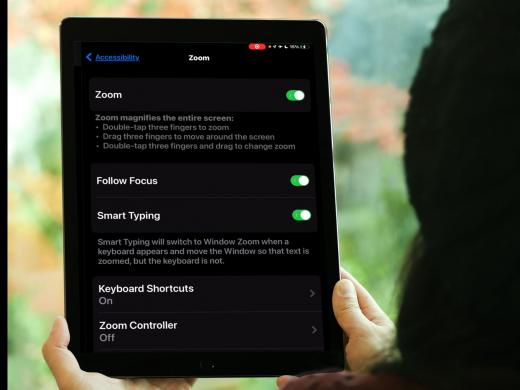
- Video · 4 minutes
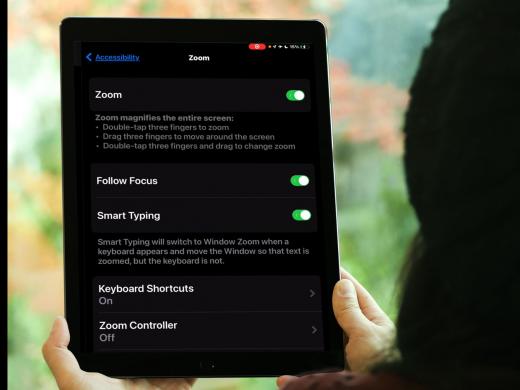
- Video · 3 minutes
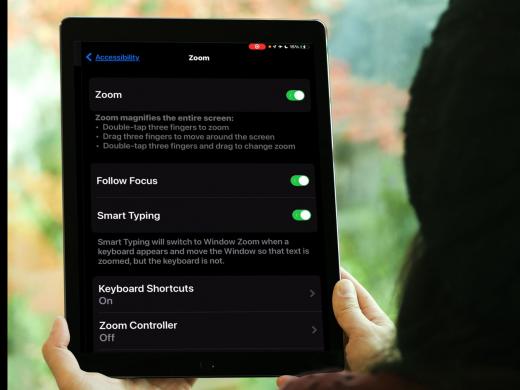
- Video · 3 minutes
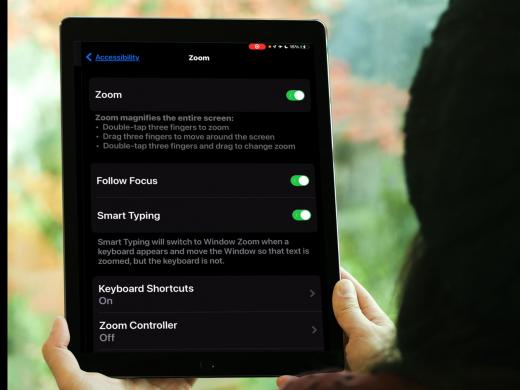
Explore
-
Meta AI Smart Glasses: What Can They Really Do?
Audio · 29 minutes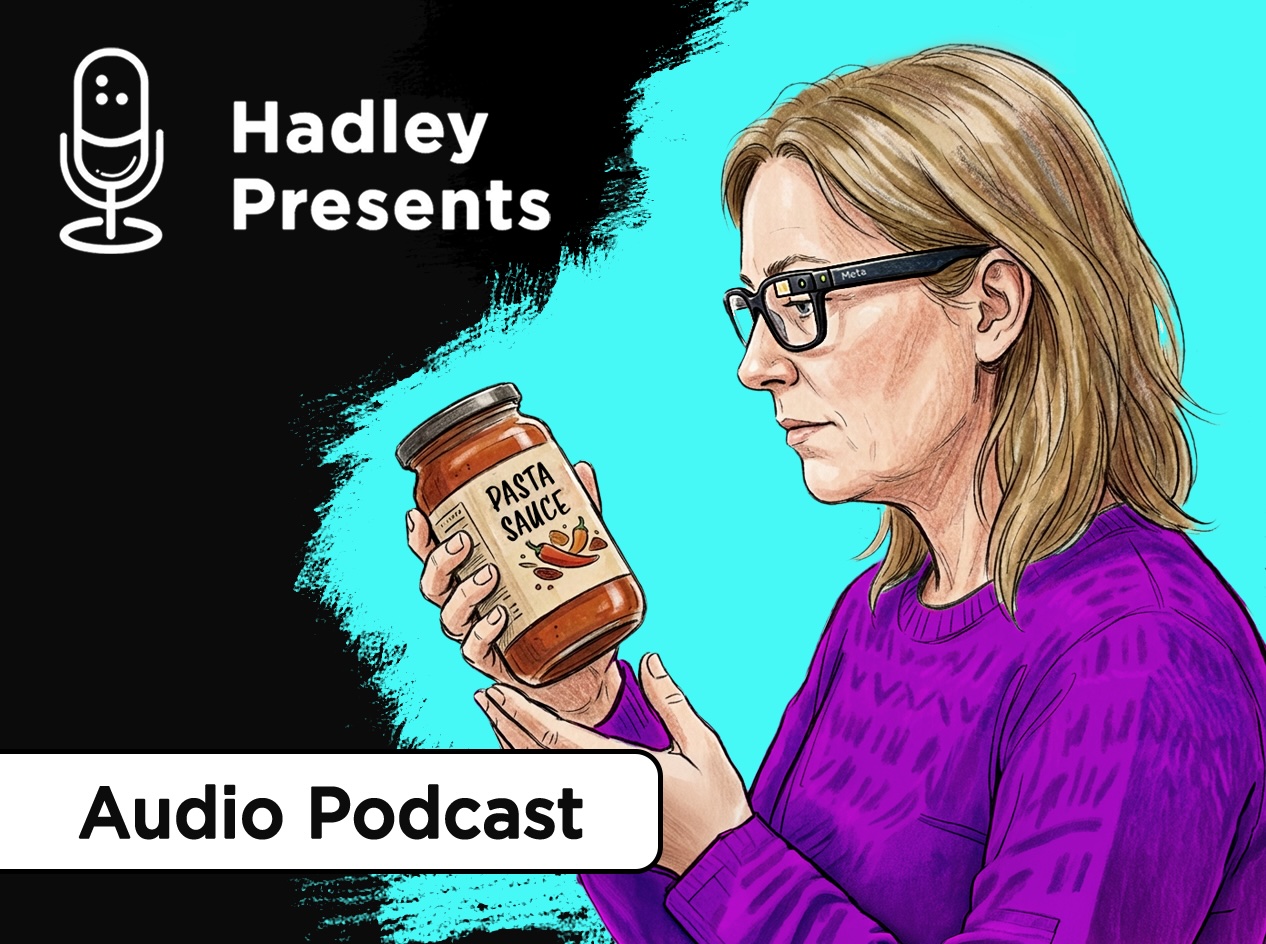
-
I'm having trouble reading
Resource guide
-
Glaucoma: After Diagnosis
Article · 5 minutes
-
Writers' Circle
Discussion
- Explore more
Join the Hadley Community
Hadley's resources are always available to you. Create a no-cost Hadley account to go further:
-
Pick up where you left off Everything you start is automatically saved across Hadley.
-
Personalized recommendations We'll suggest resources based on your interests.
-
Join live discussions Live and lively discussions on technology, cooking, and more, all geared toward the community of people living with vision loss.
-
Find peer support Connect with people who understand what you're going through.