
The Remote
[Vikki] Hi, my name is Vikki Vaughan, and in this series we'll learn all about the Amazon Fire TV Stick. This handy device allows us to watch online streaming services like Netflix, Hulu, and Amazon Prime.
In this series, we'll focus on the accessibility options that are built into the Fire TV Stick. These options include both low vision and screen reading features. There are several different Amazon Fire devices that allow us to stream online services, such as the Fire TV Stick, the Fire Cube, and the Fire TV.
In this series, we'll focus on the most popular of the Amazon Fire devices, the Fire TV Stick. It's an inexpensive device that we connect to our TV through a port on our television. This port is called an HDMI Port, and if you have a flat screen TV, it very likely has an HDMI port. You also need a wireless internet connection, or WiFi, to connect to the streaming services. If you'd like more information about setting up your Amazon Fire TV Stick on your TV, check out the resources below this workshop.
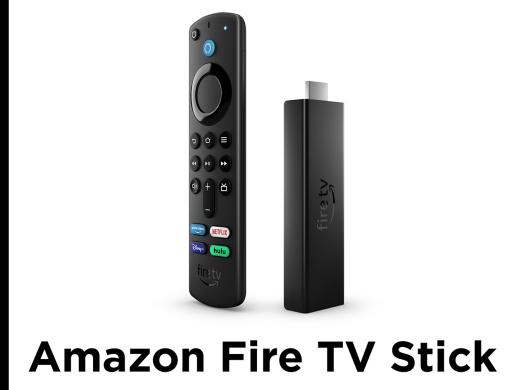
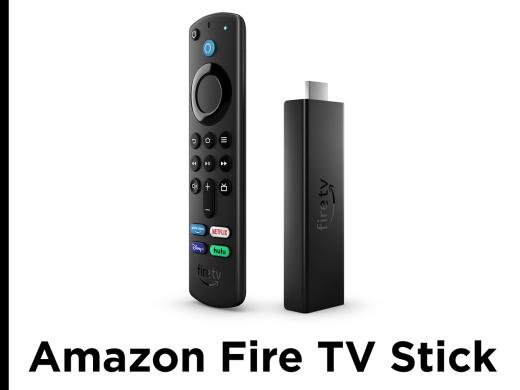
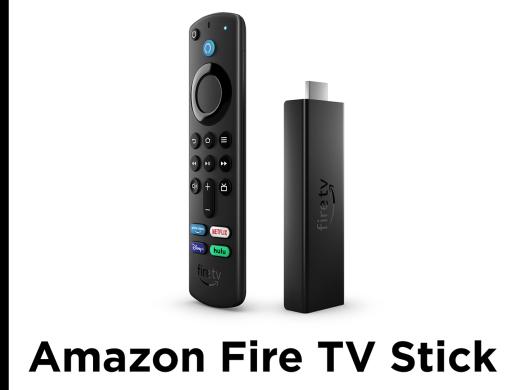
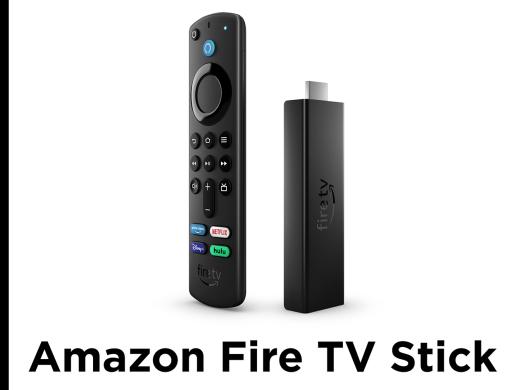
In this first workshop, we'll explore the remote that comes with the Amazon Fire TV Stick. The remote has nice tactile buttons with ample space between each button. Let's review the buttons on our remote, so we can more easily use our device.
There are several different Amazon Fire TV Stick models, so if you find that the buttons on your remote don't match what's in the workshop here, scroll down to find the resources section where we'll have links with descriptions of other remotes. In the top left corner of the remote, we find our Power button. This button allows us to turn on and off our Amazon Fire TV Stick.
Moving to the right, at the top center of our remote, we find the Alexa voice button. We use this digital assistant to find and launch shows. We'll learn more about the voice button later in this workshop. Moving down our remote, we find a round four-way directional pad. We press the top of this round pad to go up and we press the bottom of the pad to move down.
Pressing the left side of the pad moves us to the left, while pressing the right side of the pad moves us, you guessed it, to the right. The center of the pad is the Select or OK button. Below the pad from left to right, we have the Back button, the Home button, which has a little tactile nub, and the last button on this row is the Menu button.
The next row down, we find the Rewind, Play/Pause, and Fast Forward buttons. Moving down to the next row, we find the Mute button, then an oval shaped volume button with up and down. The final button on this row is the Play/Pause, Guide button. The bottom two rows are app buttons. We find the Amazon Prime Video and Netflix buttons on the top row and DirecTV and Peacock buttons on the bottom row. The Fire TV Stick has a really neat feature for screen reader users. It's called Explore Your Remote, and it does exactly that with the help of the Fire TV Stick's screen reading feature.
Explore your Remote announces the names of your Fire TV remote buttons when you press them. If you'd like to learn more about how to turn on Explore your Remote, check out the resources below this workshop. I promised we'd check out the voice button on our remote. Let's do that now. First we'll press and hold the voice button. We hear a friendly tone that lets us know that our digital assistant is listening. Let's say open Prime Video. Open Prime Video.
- Here's Prime video.
- [Vikki] Once we finish speaking to our remote, we release our voice button. A little side note. The first time we open a streaming platform like Prime Video, we will need to download it to our Fire Stick. After we select the button to download it, we're set to play our favorite shows. Prime Video is now open on its main menu. We can use our voice button to move through our viewing options. Let's give it a try. We'll press and hold the voice button. When we hear the tone, we'll say, play "The Carol Burnett Show" season one. Play "The Carol Burnett Show" season one.
- [Alexa] Getting "The Carol Burnett Show" from Prime Video.
- [Vikki] Our show opens and starts playing where we last left off.
- Welcome to-
- [Vikki] Let's say we wanna go back to the beginning of this episode. We hold down the voice button, wait for the tone, and then say go to beginning. Go to beginning.
- Welcome to our our first show that we're doing.
- [Vikki] Voila, our show starts over from the beginning of this episode. Currently, there are over 40 commands that we can use with the voice button on our remote. Amazon is adding new commands all the time. If you'd like to learn more about the voice commands, check out the resources below this workshop. In today's workshop, we explored the remote for our Amazon Fire TV stick. We also became acquainted with the voice button on our remote. I'm Vicki Vaughan, and I thank you for joining me.
-
Handouts
Connecting Your Amazon Fire TV Stick to Your TV (PDF)
Directions for Connecting Your Amazon Fire TV Stick to Your TV.
Setting Up Your Amazon Fire TV Stick for the First Time (PDF)
Directions for Setting Up Your Amazon Fire TV Stick for the First Time.
Amazon Fire TV Stick: Remote Quick Start Guide (PDF)
This quick-start guide introduces you to the Fire TV Stick's built-in accessibility options for both low vision and screen reading.
-
Websites
Link to Purchase Amazon Fire TV Stick 4K on Amazon Website.
40 Alexa Fire TV Commands [2023]
A list of 40 commands that you can issue to the Fire TV through Alexa.
List of all Fire TV Stick Remotes
List of all Fire TV Stick Remotes and Specs.
Amazon Fire TV Stick Series
- Video · 6 minutes
- Video · 8 minutes
- Video · 11 minutes
- Video · 8 minutes
Explore
-
Guide Dogs and Vision Loss
Audio · 28 minutes
-
It’s hard to ask for help. Now What?
Resource guide
-
Organizing Your Kitchen with Vision Loss: Taming the Freezer
Article · 4 minutes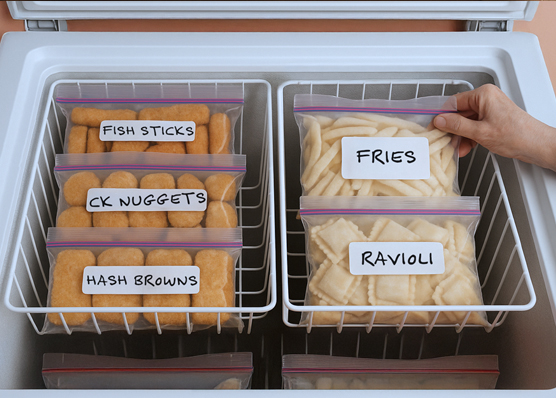
-
Resource Roundtable
Discussion
- Explore more
Members also liked
- Video · 6 minutes
- Video · 5 minutes
- Video · 4 minutes

- Video · 3 minutes

Join the Hadley Community
Hadley's resources are always available to you. Create a no-cost Hadley account to go further:
-
Pick up where you left off Everything you start is automatically saved across Hadley.
-
Personalized recommendations We'll suggest resources based on your interests.
-
Join live discussions Live and lively discussions on technology, cooking, and more, all geared toward the community of people living with vision loss.
-
Find peer support Connect with people who understand what you're going through.