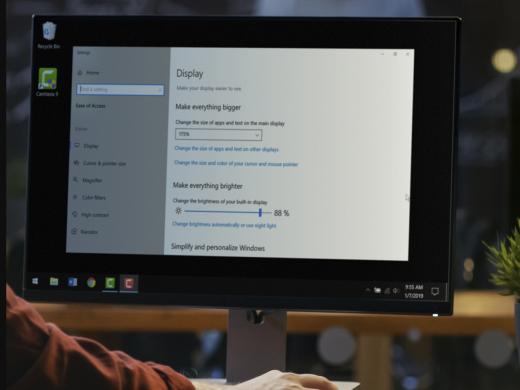
Do you struggle with the computer screen that's too bright or difficult to see? If so, you're not alone. I'm Vikki Vaughan and together we'll look at Windows' built-in color filters. We'll learn how to use a keyboard shortcut to open Windows' ease of access and find the color filters menu. Many people with low vision are super sensitive to light and the glare from their monitor. Others find the colors on their computer distracting. For people with conditions such as macular degeneration, glaucoma, diabetic retinopathy, or retinitis pigmentosa, looking at a computer screen for even a short time can prove difficult. The brightness of the screen often leads to visual fatigue and eyestrain. For others, certain color things make it difficult to focus. Research shows that various filters can improve contrast and eye comfort. They can also help users focus on a particular task.
Thankfully, Windows has convenient builtin options that let us apply color filters. These filters change the color palette of the screen. The right filter can soften the harsh brightness of our screen or help us tell different colors apart.
I bet you're wondering where can I find these free filters? And it's no surprise that these filters can be found in ease of access. Let's open it and have a look. We use the keyboard short cut of Windows and the letter U to activate the ease of access settings. Let's try that command now. First we hold down the Windows key and then we tap and release the letter U. A handy tip, think of the word usable. Since the options we're talking about make our computer more usable, this will help us remember our shortcut.
Now let's explore the low vision options. On the left side of our screen, under settings we find a list of customizing tools. This list is grouped into categories, and we see our first category is vision. Halfway down the list we see color filters, our focus for today. When we choose this option on the left side, various color filter controls appear on the right side. We've opened the color filter menu, so let's explore our options. We see our first control, a toggle switch to turn on and off the color filter. We can use either our mouse pointer or the space bar to activate this control. Immediately, the appearance of our screen changes dramatically. This is the inverted color filter where all colors are reversed. Let's leave it in this setting as we move our next control.
We find a checkbox that, when selected, let's us use a keyboard shortcut to toggle our desired filter on and off. And this is handy when we need to quickly apply a filter on the fly. The keyboard shortcut to toggle it on or off is Windows + control + C. With this shortcut, we hold down the Windows key and the control key together, then tap the C key to toggle the control on and off.
Windows provides us with a color wheel for comparison. Let's first view the wheel with no color filters and then see how it changes as we apply our various filters. The next three controls are filters that improve contrast for some users. The first button is a filter we viewed earlier, inverted. This setting reverses colors on the screen. Applying this filter changes that bright white screen to black and greatly reduces the glare. The next radio button is gray scale. This filter removes all color from the screen, leaving us with various shades of gray, black and white. The final radio button in this section is gray scale inverted. It applies the inverted features and removes the bright colors to give us another choice in our color scheme.
Now that we've looked at color filters that make our screens easier to see, let's explore other options for computer users with impaired color perception. Using a computer can be challenging for these users. For example, websites often use color to emphasize important links or required information on forms. People with impaired color perception often find websites frustrating to use. The next three color filters help those of us with color perception issues.
The first selection is for individuals who have difficulty perceiving red and green, and for some users gray, violet and blue green. This is the most common type of color perception impairment. The next selection is for people who have trouble distinguishing between red and green, and blue and green. When we choose this filter, we see the differences in our color wheel. Our final filter selection is for people who have trouble telling blue and green apart, as well as yellow and violet. Let's have a look at our color wheel then we'll apply our filter to look at the difference.
With these various filters, anyone can change the color scheme and help overcome specific challenges in color perception. Windows' ease of access tools lets us customize our color settings to meet our personal preferences.
I'm Vikki Vaughan and I thank you for joining me today as we looked at color filter options.
Color Filters Quick-Start Guide (PDF)
This quick-start guide helps you use Ease of Access, Microsoft Windows' low vision options, to apply color filters.
Hadley's resources are always available to you. Create a no-cost Hadley account to go further: