
Getting Online Low Vision: Interacting with Websites
Hi, I'm Vikki Vaughan and in this series we've explored how to locate and open our browser and we've explored using a search engine to search for information. This workshop is intended for users for low vision. If you use a screen reading program, be sure to check out our screen reading version of this workshop.
When we visit a website, we often find various controls or elements with which we can interact. They allow us to enter information, make choices to gain access or to perform an action. Today we'll have a closer look at those controls.
Let's have a look at this banking website for an example of several types of common controls. We'll start off with edit fields. This control, also referred to as an edit box, allows us to type in required information such as our first name, our last name, password, user ID in the like. We click inside the edit field to begin entering text into the form. We see two edit fields on this webpage, one for our user ID and the other for are password.
We can easily move to the next edit field by clicking in the edit box or by using our tab key. I'll use my tab key to move to the password edit field. When we wish to move back to a previous edit field, we can either click inside the edit box or use the keyboard shortcut of shift plus tab to move back.
As I mentioned, this banking website contains several examples of different controls. Below our edit field we see a small box, a checkbox. Check boxes come in two different forms as solitary boxes or in combination with other boxes. When we have a single check box, this control is asking us to choose a yes/no answer. We also find them on some websites with instructions such as check all that apply. There are a couple of ways to check a check box. We can either click it with our mouse pointer or press the space bar to change the state of the checkbox.
If the check box is checked, that means yes and unchecked means no. If the box is already checked, I can uncheck it by clicking on the box.
Let's visit a pizza website to explore the other types of checkbox control. Multiple check boxes are used when there are a list of options to choose from. A good example is the toppings for our pizza. We see we can check any number of topping choices. With this type of control each checkbox is independent of all the other boxes in the list, so checking one box doesn't uncheck the others. When we have multiple check boxes, we can move between them using either our mouse pointer or our tab command.
Now let's discuss a different type of control we find on the pizza website, the radio button. They're called this because they look like the old buttons or knobs on a radio that one would use to select a different station. Radio buttons are a special type of button. They are used when only one item can be selected from a group. In a group of radio buttons, when one item is selected the rest are automatically unselected. We see here that we can only select one option when choosing the size of pizza we wish to order. We also have radio buttons when choosing the thickness of the crust and extra options. We simply use our mouse pointer to select the desired radio button. Radio buttons can also be checked or unchecked by using our arrow keys and then pressing the space bar once we are on our desired selection.
There's one more element on this page to discuss. Here we have another type of control simply called a button. Buttons are often used to submit, sign on, continue or cancel out of a form filling process. In the case of our pizza website, we click on one of these two buttons to either cancel our order or add to cart for purchase. We see that when we hover over the button, it appears as a hand with a pointing index finger and the user can click to select the button. We activate a button control by using either the space bar or clicking the button with our mouse pointer.
Let's talk about three similar controls. First we'll go back to our banking website and here we find several dropdown list. These controls display various options under a certain topic heading and we can only select one at a time. When we hover over the topic heading, a list appears. We can use either our mouse pointer or arrow keys to move down and select the desired item.
Our next control, the list box, shows us many options at once, but with this control we can pick multiple items, much like our multiple check boxes. A similar control is the combo box, whereas the list box displays all the items at once, combo boxes only display one item at a time. As with our other controls, we can select our option with our mouse pointer or arrow keys.
Today we discussed various controls we find on a webpage. I'm Vicky Vaughan and I thank you for joining me. This is one in a series of workshops called Getting Online.
-
Handouts
Interacting with Websites Quick-Start Guide (PDF)
This quick-start guide helps you learn about the various controls or elements you interact with when you visit a website.
Getting Online: Low Vision Series
- Video · 6 minutes

- Video · 5 minutes

- Video · 5 minutes

- Video · 6 minutes

Explore
-
White Cane Safety Day
Audio · 15 minutes
-
I'm having trouble reading
Resource guide
-
Organizing Your Kitchen with Vision Loss: Taming the Freezer
Article · 4 minutes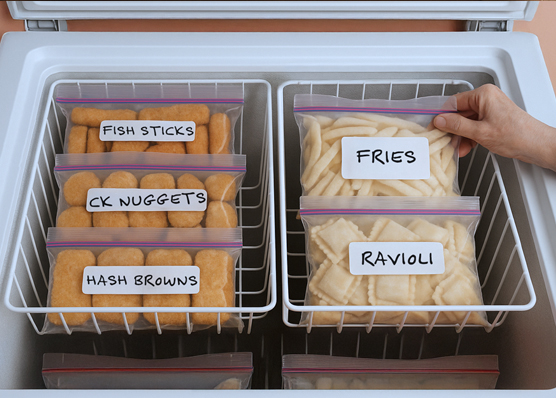
-
What's Cooking?
Discussion
- Explore more
Members also liked
- Video · 5 minutes

- Video · 5 minutes
- Video · 3 minutes
- Video · 8 minutes

Join the Hadley Community
Hadley's resources are always available to you. Create a no-cost Hadley account to go further:
-
Pick up where you left off Everything you start is automatically saved across Hadley.
-
Personalized recommendations We'll suggest resources based on your interests.
-
Join live discussions Live and lively discussions on technology, cooking, and more, all geared toward the community of people living with vision loss.
-
Find peer support Connect with people who understand what you're going through.