
Getting Online Low Vision: Navigating Websites
I'm Vikki Vaughan and today we'll explore opening and navigating between multiple webpages. We'll also explore sidebars as a way to navigate within a web page. This workshop is intended for users for low vision. If you use a screen reading program, be sure to check out our screen reading version of this workshop.
A word we hear a lot these days is multitasking. All of us can relate to having several different things going on at once, and it's no different when browsing the web. In our previous workshop; Website Basics, we learned how to open a webpage using links and the address bar.
Let's start from the NLS website to pick up where we left off. Let's say we want to open a new browser session to search for information on our favorite author, but we don't want to close the NLS website. We have two ways we can accomplish this. In the first method, we use our mouse pointer to click on the plus sign to the right of our folder to open a new tab.
Let's do that now. Since Google is my homepage, whenever I open a new session the Google webpage opens. Yours might look different. Our other method to open a new browsing session is to use the keyboard shortcut of control and the letter T for tab. Now that we had two tabs open, let's learn how to move between two. We also have a couple of ways to do this. We can use our mouse pointer to simply select the tab on the lift, or we can use the handy keyboard shortcut of control plus tab. Let's give this keyboard shortcut a try. I'll hold down my control key and tap and release the tab key once. This action moves me to the next open window, which is Google. I'll use control plus tab again to move back to our other open window. As we can see, when we've opened multiple browsing windows, we can quickly move between each window with our keyboard shortcut, control plus tab.
If we wish to close the current window, we use the keyboard shortcut control plus F4. This command closes the current browser window without closing our browser. Our final topic for today; examine sidebar menus. Many websites use vertical menus to highlight links, a directory, or service offering. The NLS website is a good example, we can find these sidebar menus on either side of the webpage. We navigate through sidebar menus just like we do when they're located along the top of the page, or in headings. By clicking on the link, we are directed to a new browsing window with details about a particular topic. Today, we discussed advanced webpage navigation. I'm Vikki Vaughan and I thank you for joining me. This is one in a series of workshops called Getting Online.
-
Handouts
Navigating Websites Quick-Start Guide (PDF)
This quick-start guide helps you learn simple ways to navigate between multiple web pages.
Getting Online: Low Vision Series
- Video · 7 minutes

- Video · 5 minutes

- Video · 5 minutes

- Video · 6 minutes

Explore
-
Vision Loss and Navigating the Aftermath of Natural Disasters
Audio · 35 minutes
-
I'm having trouble reading
Resource guide
-
5 More Talking Devices People with Vision Loss Find Helpful
Article · 5 minutes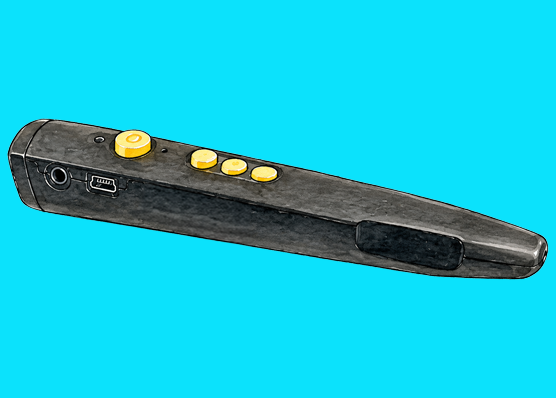
-
Resource Roundtable
Discussion
- Explore more
Members also liked
- Video · 5 minutes

- Video · 5 minutes

- Video · 5 minutes
- Video · 8 minutes

Join the Hadley Community
Hadley's resources are always available to you. Create a no-cost Hadley account to go further:
-
Pick up where you left off Everything you start is automatically saved across Hadley.
-
Personalized recommendations We'll suggest resources based on your interests.
-
Join live discussions Live and lively discussions on technology, cooking, and more, all geared toward the community of people living with vision loss.
-
Find peer support Connect with people who understand what you're going through.