
iPhone/iPad Low Vision: Speak Screen
[Vikki] - Hi, my name is Vikki Vaughan and in today's workshop we'll learn about a feature on our phone that reads Text Out Loud. Speak screen allows us to read a small amount of text, like a text message, or a longer amount of text, like an email or website. It's as easy as swiping down from the top of our screen. Let's jump right in and try it out. We'll start from our home screen. Then tap settings to open this menu. Let's swipe up to bring the accessibility option into view.
We'll tap accessibility. Then we'll tap, read and speak. We've opened a new screen where we find several options for reading text aloud. The first one, accessibility Reader is discussed in another workshop in this series. The next two options speak screen and speak selection. Allow us to read either an entire screen or text that we select for today's workshop.
We'll focus on the speak screen option. If you'd like to learn more about the using the Speak Selection option, be sure to check out the resources below this workshop. Our next step is to tap Speak screen. We've opened a new screen and at the top we find a toggle switch for speak screen. Let's tap it to turn it on. Our next control highlighting let's us highlight text when it's spoken aloud. Let's tap this control. We're now in a new screen with a toggle switch for highlighting. We'll tap the control to turn it on. Now let's tap the back button In the top left corner of our screen. We'll move down to our next Control. The show controller Toggle Switch.
This control gives us quick access to audio playback tools such as the play, pause, button, rewind, and fast forward and speaking rate. Let's give it a tap to turn it on for about 10 seconds. We see our control. Then it collapses into a small button. When we're listening to Text out loud, we can tap the button to open these controls. Let's open an email and try out the new Speak screen feature. First, swipe up from the bottom To return to the home
iPhone VO - Screen, let's tap the mail app, then tap again to open any email.
Vikki - Next, swipe down from the top of the screen with two fingers to start the read aloud feature. If it doesn't activate right away, try spacing your two fingers a bit farther apart.
iPhone VO - Embracing Braille address to Vikki Vaughan. Reply to Hadley. Discussion groups 10:10 AM with braille for the holidays.
Vikki - As we heard, our email began reading aloud from the top of the page. To pause the playback, we tapped the speak screen icon, which looks like a speech bubble with three boxes inside it. Tapping this icon will expand the control bar, then selected the play pause button. The control bar also lets us rewind fast forward and adjust the speech rate.
When we're done, we tap the minimize button to hide the controls. We can also touch and drag the button to place it anywhere on the screen that's most convenient. It's amazing to think we can use this neat feature to read our text, emails, and websites out loud. I hope you'll give it a try. I'm Vicki Vaughn and I thank you for joining me.
iPhone/iPad: Low Vision Features Series
- Video · 6 minutes
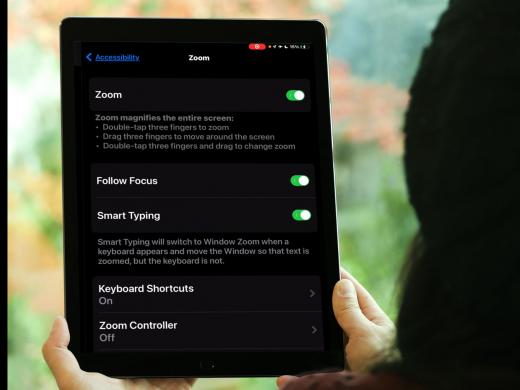
- Video · 6 minutes
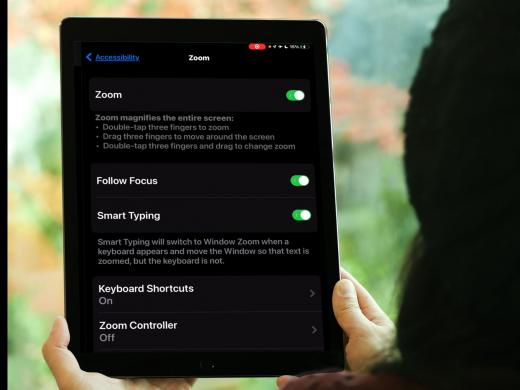
- Video · 4 minutes
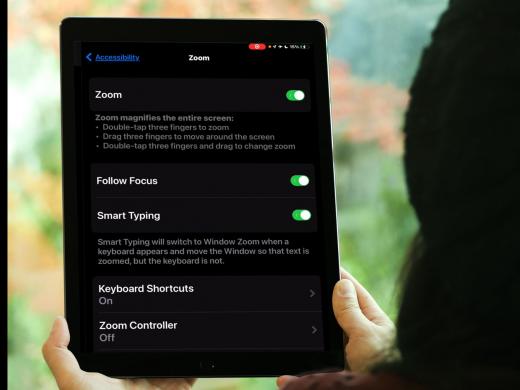
- Video · 3 minutes
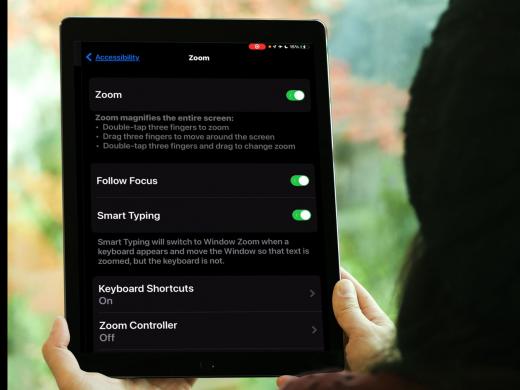
Explore
-
"I had to deal with the reality of the situation"
Audio · 11 minutes
-
It's hard to ask for help
Resource guide
-
How to Choose the Right Magnifier for Low Vision
Article · 7 minutes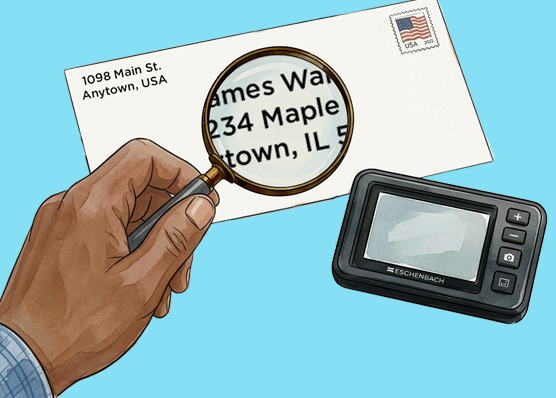
-
Tech It Out
Discussion
- Explore more
Members also liked
- Video · 3 minutes

- Video · 12 minutes

- Video · 10 minutes

- Video · 9 minutes
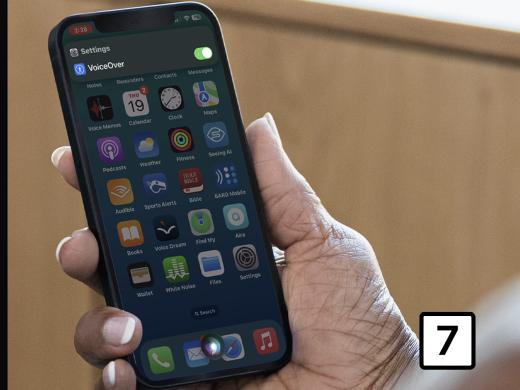
Join the Hadley Community
Hadley's resources are always available to you. Create a no-cost Hadley account to go further:
-
Pick up where you left off Everything you start is automatically saved across Hadley.
-
Personalized recommendations We'll suggest resources based on your interests.
-
Join live discussions Live and lively discussions on technology, cooking, and more, all geared toward the community of people living with vision loss.
-
Find peer support Connect with people who understand what you're going through.