
Advanced Talking Book Player: Getting to Know Your NLS Player
Hi, I'm Vikki Vaughan, and today we'll explore the NLS Advanced Digital Talking Book Player. If you're unsure about which player you're using, there's an easy way to distinguish between the standard and advanced players.
You'll want to locate the round speaker on the front of your player. If there are five keys below the speaker labeled info, previous, menu, next, and mark, you have the advanced player. The standard player does not have these five buttons.
If you have the NLS Standard Digital Book Player, check out Hadley's version of this workshop especially designed for your player. If you have the advanced player, you're in the right place for learning everything your player can do.
Let's start off by discussing the features found on your player. To begin, we'll place our player on a desk or tabletop with the handle facing toward us. Just above the handle, which slides in and out for easy storage, we find our cartridge opening. This is where we insert our NLS cartridge. We insert our cartridge by holding it with the print braille label facing up and the end with the hole facing us. We push it gently into the opening. When we're ready to remove it, we place our finger through the hole and gently pull.
When the player is turned on and there's no book cartridge inserted in the cartridge slot, or USB port on the side, the player is in describer mode.
NLS Player: Player on. Press any button to learn about its function.
Vikki: When any button is pressed, we hear a description of that button.
NLS Player: Play/stop. To start or stop playing a book, use the large play/stop button. When the book is playing, press the same button to stop the player.
Vikki: This is a great way to get familiar with all the controls on our player. On the right side of our player we find a small round opening. This is where we plug in our headphones. To the right of that spot for headphones is a small rectangular opening with a plastic cover. This is where we plug in a USB drive.
Hadley offers some of our workshops on USB drives. We can also download books from the NLS BARD Library to our own USB drives. If you're interested in learning how, be sure to check out Hadley's instructional series where we take you step by step through the application and downloading process.
Let's turn our player so the handle is facing away from us. Here we find our power cord in a handy storage compartment. I love the fact that we can store our cord in this compartment when it's not in use. This makes our player super portable and easy to charge when we're on the go.
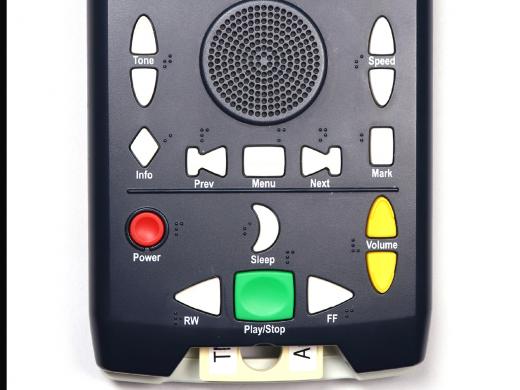
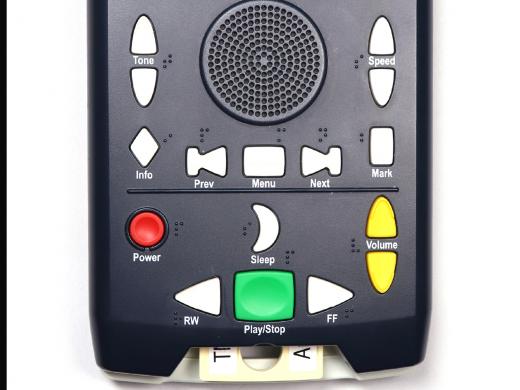
With the handle turned back toward us, let's explore our various keys. On the row closest to us, we find our rewind, or back button, our play/stop button, and fast-forward or next button. Each button on our player has a unique shape, or raised tactile marking. For example, our play/stop button is the largest rectangular button on our player. Its location in the center of the bottom row, plus its bright green color, make it easy to locate. The button is labeled play/stop in high contrast print and has a braille P placed above it. We press this button to start and stop playback of our digital book.
NLS Player: Moby Dick or The Whale by Herman Melville.
Vikki: To the left of the play/stop button, we find the rewind button. It is shaped like a left arrowhead with raised tactile lines at the arrow's point. It's labeled RW in print and below it we find the braille letter R. We use our rewind back button to rewind within a book or to move back to previous chapters or books on our storage drive.
On the opposite side of the play/stop button, we find our fast-forward/next button. It's shaped like a right arrowhead with raised tactile lines at its point, just like we found with the rewind button. This button is used to move us forward in a book or to move to the next chapter or book on our portable drive. It's conveniently labeled with the print letters FF and also has the braille letter F to the lower right of the button. With both the rewind and fast-forward buttons, we tap each once to move five seconds.
NLS Player: Forward.
Book Narrator: Captain Ahab is obsessed with killing Moby Dick.
Vikki: Press and hold to move further into the book.
NLS Player: Forward 20 seconds.
Book Narrator: And on the grimy physical details of the extraction of oil.
Vikki: Holding one of these buttons for 10 seconds will move us 15 minutes into the book. Holding for longer will move chapter by chapter.
NLS Player: Forward. New location.
Book Narrator: Contents, side one tone one, introduction by Edward W. Syed.
Vikki: We hear an audible beep for each chapter. Above and to the left of the rewind button, we find a round button that's sunken down a bit. It has a print label that reads power and a braille letter P on the right side of the button. The power button has a raised tactile circle around its edges to help us easily identify it by touch.
I'm sure it's no surprise that this is the button we use to turn our player on and off. It also can be used to reboot the player. We do this by holding the button down until a beep is heard, usually around eight to 10 seconds.
To the right of our power button and above the play/stop button, we find our sleep button. It's shaped like a crescent moon and has a braille S to its left. The button also has a print label which reads sleep. We use this button to set a timer to automatically turn off our player after an allotted time. By pressing our button repeatedly, we can add 15 minute increments to our reading session before our player powers down.
NLS Player: Sleep 15 minutes.
Book Narrator: Side one.
NLS Player: Thirty minutes.
Book Narrator: Tone two.
Vikki: To the far right of our sleep and fast-forward buttons, we find the volume buttons. They are a set of arrowheads, one pointed up and the other pointed down. The buttons are bright yellow and have raised tactile markings at the arrow's edges. As with our other buttons, they are labeled in both high contrast print and braille.
To the left of the buttons, we find a braille letter V. Between the two buttons, we see a print label that reads volume. The top button raises the volume while the bottom one lowers it. Each time we press one of the volume buttons, we hear a beep to let us know we changed the volume by one level.
NLS Player: Volume up. Volume up. Volume down. Volume down.
Vikki: It also alerts us when we've reached the maximum and minimum volume levels. Above these keys, we find a raised horizontal line that runs almost entirely across the player. Above the line, there is a row of buttons we only find on the advanced player. To the far left, we have a diamond shaped button with a raised dot at its center. This is our information button. It's labeled info in print and has the braille letter I to its right. We use this button to obtain information about our current book. By repeatedly pressing this button, we hear the title of our current book.
NLS Player: Three books. Book three title.
Book Narrator: Moby Dick or The Whale.
Vikki: Our book's total amount of reading time, the elapsed and remaining time in our book.
NLS Player: Time elapsed, two minutes. Time remaining, 25 hours, 33 minutes. Total time, 25 hours, 36 minutes.
Vikki: And remaining battery time.
NLS Player: Battery charge remaining greater than 29 hours battery powered.
Vikki: When we press and hold the info button, we initiate playback of the user guide.
NLS Player: Advanced player user guide. Section one, welcome.
Vikki: To the right of the info button, we find our previous button labeled with a braille letter P and print letters PREV. It's shaped like a left arrowhead with a vertical line at its point. It also has tactile lines at the point's edge with a tactile vertical line. The previous button allows us to move our reading position to the previous level in a book. The player refers to these levels as elements.
Moving to the right of our previous button, we find the menu button. This button allows us to set the navigation element, or level, by which we move through our book. With each press of our menu button, we cycle through various choices, such as chapter, phrase, or bookmark.
NLS Player: Front matter jump. Chapter jump. Phrase jump. Bookmark jump.
Vikki: Navigation elements can vary from one digital book to the next. As we heard, for this particular book, our navigation elements are front matter, chapter, phrase, and bookmark.
Our menu button is rectangular with a raised horizontal line across its center. It's labeled menu with a braille letter M. To the right of our menu button, you guessed it, the next button.
As with our previous button, it's shaped like an arrowhead with a vertical line at its point. It's pointed to the right to indicate that it moves us to the next navigation element in our book. It has tactile lines at the point's edge as well as a tactile vertical line. The next button is labeled with a braille letter N and the word next.
On the far right, we find the bookmark button. This rectangular button has a raised vertical line down its center. It's labeled with a braille letter B and the word mark. We use the bookmark button to insert and delete bookmarks. This handy tool is used to mark our place in a book while the previous and next buttons allow us to move between bookmarks.
Above the bookmark button, we find a set of buttons which control the playback speed. They are shaped like up and down arrowheads. To the left of the buttons, we find a braille letter S and between the two buttons, we see the label speed in print. When we wish to increase our playback speed, we press the up arrow.
NLS Player: Speed up. Speed up. Speed up.
Vikki: When we prefer to slow the speed, we press the down arrow.
NLS Player: Speed down. Speed down. Speed down. Normal.
Vikki: As with our volume buttons, we hear the beep with each press of the speed keys. The player also lets us know when we've reached the maximum or minimum playback speed.
To the left of our speed buttons, we find a large raised circle. This is our speaker. To the left of the speaker, we find another set of up and down arrowheads. These are our tone buttons. They look similar to the volume buttons, but instead of a smooth surface, the tone buttons have raised tactile lines at the point's edges. They have labels that read tone in print and T in braille. By pressing the up button, we raise the tone or pitch of the voice.
NLS Player: Tone up. Tone up. Tone up.
Vikki: Pressing the down arrow lowers the tone.
NLS Player: Tone down. Tone down. Tone down. Normal.
Vikki: As with our speed controls, our player provides a beep with every press of the button. The player also lets us know when we've reached the highest and lowest tone settings.
Today we explored the advanced version of the NLS Talking Book Player. I'm Vikki Vaughan and I thank you for joining me.
-
Handouts
Getting to Know Your Advanced NLS Player Quick-Start Guide (PDF)
This quick-start guide helps you use a digital talking book player to play audiobooks stored on portable storage devices.
Digital Talking Book Advanced Player Series
- Video · 5 minutes
- Video · 6 minutes
- Video · 7 minutes

Explore
-
The Impact of Vision Loss on Friendships
Audio · 36 minutes
-
I'm having trouble reading
Resource guide
-
5 Top Questions After a Macular Degeneration Diagnosis
Article · 5 minutes
-
Resource Roundtable
Discussion
- Explore more
Members also liked
- Video · 10 minutes
- Video · 3 minutes

- Video · 3 minutes

- Video · 4 minutes
Join the Hadley Community
Hadley's resources are always available to you. Create a no-cost Hadley account to go further:
-
Pick up where you left off Everything you start is automatically saved across Hadley.
-
Personalized recommendations We'll suggest resources based on your interests.
-
Join live discussions Live and lively discussions on technology, cooking, and more, all geared toward the community of people living with vision loss.
-
Find peer support Connect with people who understand what you're going through.