
Advanced Talking Book Player: Navigating a DAISY Book
Vikki: Hi, I'm Vikki Vaughan, and today we'll explore navigating a DAISY Book. We'll use the NLS Advanced Digital Talking Book Player for today's workshop.
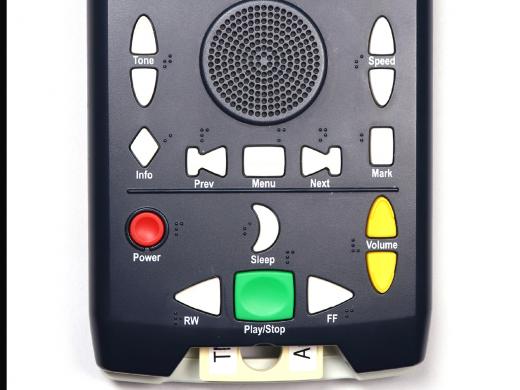
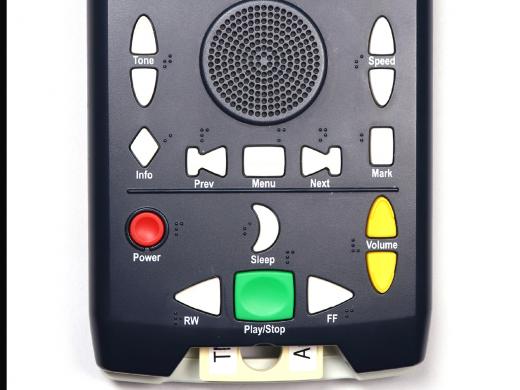
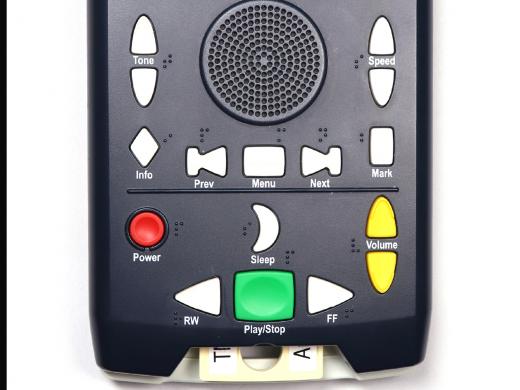
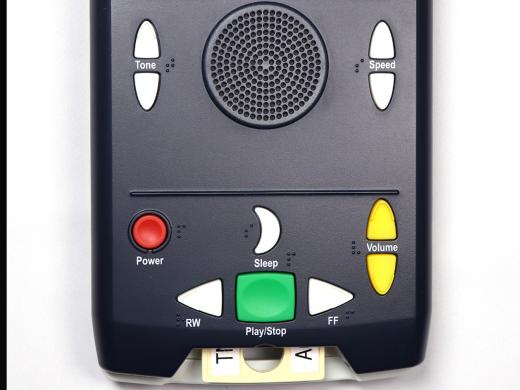
If you're unsure about which player you're using, there's an easy way to distinguish between the standard and advanced players. You'll want to locate the round speaker on the front of your player. If there are five keys directly below the speaker labeled info, previous, menu, next, and mark, you have the advanced player. The standard player does not have these five buttons. For information about navigation while using the NLS Standard Digital Talking Book Player check out our resources section.
Let's start off by discussing DAISY Books. DAISY stands for Digital Accessible Information System. It's the world standard for digital talking books for people who are blind or have a print disability. DAISY Books are designed or marked up with navigation elements that allow us to move through the book by various levels. These levels, or elements, vary from book to book, but can include chapters, sections, subsections, bookmarks, or phrases. A phrase can be a sentence, a paragraph, or an extended amount of time, depending upon the book we're reading and how it was marked up while in production. A good example might be a cookbook. Each ingredient in a recipe would be considered a phrase.
Many DAISY Books will announce the main navigation levels at the beginning of the book. It might say something like this book contains markers allowing direct access to the parts at level one and to the chapters at level two. In another workshop in this series, we discuss several of the controls that allow us to navigate through our book. We learned about the menu button, as well as the previous, next, and bookmark buttons. These navigation buttons are located just below our speaker and just above our raised horizontal line. Let's begin by selecting our cookbook in our bookshelf. We'll press and hold the play/stop button until we hear our player announce bookshelf.
NLS Player: Bookshelf, three books, three.
NLS Player: "The Journeyer."
Vikki: Next, we'll tap our rewind button to move to our cookbook.
NLS Player: Two.
NLS Player: "Diabetes and Heart Healthy Cookbook."
Vikki: Once we hear the title of the cookbook announced, we press and release the play/stop button to select this book.
NLS Player: Copyright 2004 by the American Heart Association and the American Diabetes Association Incorporated. Read by Barbara Pinolini.
Vikki: Let's press the play/stop button to pause playback. Now, let's tap our menu button.
NLS Player: Front matter, jump.
Vikki: With each tap, we move through the different navigation levels for this particular book. Our first navigation element is called front matter. This is the feature in all NLS books that allow us to move through that initial section in the book. By pressing the next button, we move to the next section, the annotation.
NLS Player: Library of Congress annotation.
Vikki: This is where we hear a brief description of the book, as well as any additional information from the book jacket. Another press of the next button takes us to the table of contents.
NLS Player: Contents.
Vikki: When we wish to go back, we press the previous button.
NLS Player: Contents.
Vikki: We move to the contents.
NLS Player: Library of Congress annotation.
Vikki: Then the annotation.
NLS Player: Within.
NLS Player: "Diabetes and Heart Healthy Cookbook."
Vikki: And then all the way back to the title with each press of the previous button. Now, let's check out other navigation levels in our book. We pause for a moment so on our first press of the menu button, we'll hear our current level.
NLS Player: Front matter, jump.
Vikki: Another press of the menu button takes us to section.
NLS Player: Section, jump.
Vikki: Our next press moves us to subsection.
NLS Player: Subsection, jump.
Vikki: Another tap and we're at phrase.
NLS Player: Phrase, jump.
Vikki: Followed by bookmark.
NLS Player: Bookmark, jump.
Vikki: One more press of the menu button cycles us back to front matter.
NLS Player: Front matter, jump.
Vikki: Let's quickly go through all of our levels again because we want to explore bookmarks a little deeper.
NLS Player: Front matter, jump. Section, jump. Subsection, jump. Phrase, jump. Bookmark, jump.
Vikki: Now, we haven't inserted any bookmarks in this book, but not to worry, every BARD book contains a bookmark about the beginning and the end of the book. By selecting bookmark--
NLS Player: Sections and recipes at level two.
Vikki: Then pressing our next button, we move to the end of our book.
NLS Player: End of book.
Vikki: When we press the previous button, we move to the beginning of our book.
NLS Player: Beginning of book.
Vikki: Bookmark is such a handy feature because it allows us to insert bookmarks wherever we wish to note important information. We can quickly jump to that information by using our menu button to select bookmark as our navigation level. Once it's selected, we use our next and previous buttons to move back and forth between the bookmarks. Just a friendly reminder that our navigation levels will differ between different books, as well as between different magazines. With some of BARD books, we're provided with helpful navigation information at the beginning of the book. One of the first things I do when I download a new book or magazine is to explore its navigation levels. Cycling through the navigation levels with our menu button gives us an overall idea of the structure of our book. Having the ability to move seamlessly through our audiobooks and magazines is one of the greatest things about digital content. With a few taps of a button, we can move to our desired place in no time. I hope you'll try out these navigation features on your BARD books. Today, we explored navigating through a DAISY Book using the navigation buttons on our NLS Advanced Digital Talking Book Player. I'm Vikki Vaughan and I thank you for joining me.
-
Handouts
Navigating a DAISY Book Quick-Start Guide (PDF)
This quick-start guide helps you easily navigate a DAISY book using your digital talking book player.
Digital Talking Book Advanced Player Series
- Video · 12 minutes
- Video · 5 minutes
- Video · 6 minutes
Explore
-
"I had a lot of anger ... and learned to let that go"
Audio · 5 minutes
-
A family member has vision loss
Resource guide
-
Alexa, How Does Hadley Help?
Article · 2 minutes
-
Resource Roundtable
Discussion
- Explore more
Members also liked
- Video · 10 minutes
- Video · 3 minutes

- Video · 3 minutes

- Video · 3 minutes
Join the Hadley Community
Hadley's resources are always available to you. Create a no-cost Hadley account to go further:
-
Pick up where you left off Everything you start is automatically saved across Hadley.
-
Personalized recommendations We'll suggest resources based on your interests.
-
Join live discussions Live and lively discussions on technology, cooking, and more, all geared toward the community of people living with vision loss.
-
Find peer support Connect with people who understand what you're going through.