
Alexa: Setting It Up
Hello, my name is Ricky Enger, and today we’re going to discuss a few things that are important to know before getting started with the Alexa Amazon Echo. Well first, what is the Amazon Echo anyway?
The Amazon Echo is a really cool device that you can talk to, and it will respond based on what you’ve said. You can listen to music with it; you can ask it for a recipe; it can tell you the news, the weather …. You can even play games with it, or it can tell you jokes. It’s pretty amazing actually. We call these devices smart assistants, or smart speakers, and they can really do a lot to make our lives easier.
Okay great, so there are a few things we should know in order to get one of these devices and get it set up. We won’t be able to walk through the exact setup process together, but we’ll go through what you need to know to get started, and we’ll have lots of information in the Resources section of this workshop that will be really helpful as well.
And you know, if setting up a device like this feels pretty overwhelming to do on your own, you might ask a friend or family member who actually enjoys all this tech stuff to get your device ready to use. After things are all set up, you’ll be doing everything just by speaking naturally, so no real tech knowledge required at that point. Yay!
Alright, so the first thing to be aware of is that there are several types of Amazon Echo. There are small ones, large ones, and even ones with a camera and a screen. Depending on which one you get, they can range in price from around $50 US for the smallest one, to around $99 US for the sort of standard one, to around $250 for one with high quality speakers and a screen. Each one looks a little different. There’s one shaped like a hockey puck, one that’s shaped like a sphere, there’s a cylindrical one, and there are a few more. We’ll show a couple of them throughout this series, and we’ve got a link in our Resources list so you can check out the different types, and choose one that’s right for you. The important thing to know is that all these devices work the same way–where we’ll speak to the device, and it will respond back. For example, we can ask about the weather. :
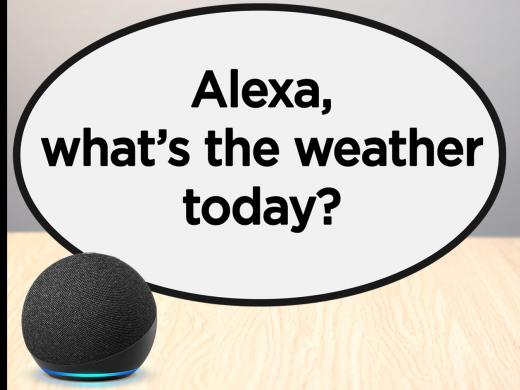
Alexa, what’s the weather today?
Alexa: Currently, in Los Angeles, California, it’s 50 degrees Fahrenheit with cloudy skies. Today, you can expect partly sunny weather with a high of 68 degrees and a low of 50 degrees.
Ricky: Also, each of these devices will need the same things in order to work. First, we’ve got to have a Wi-Fi Internet connection. Next, we need an Amazon account, which is totally free and will basically be used to let our Echo device know who we are. And finally, we’re going to need an app on our smartphone. To find it we’ll search for the term “Amazon Alexa” in the Apple app store, or the Google Play store, depending on whether we have an iOS or an Android device.
But what if you don’t have a smartphone, and you don’t want one either. Does that mean the Amazon Echo won’t work for you? Thankfully, no, it doesn’t. There are a couple of options here. The first one is: remember that lovely techie person we talked about earlier, who might be assisting in the setup process? That same person can use the app on their own smartphone to set up the Echo device. Your techie can create an account for you, and then log into that account from their smartphone to set up the device. If they don’t want to log out of their own account in order to create and set up yours, that’s okay too.
There’s just one thing to keep in mind with this approach. Our Amazon Echo has the ability to be really personalized to each of us, from calling us by name, to reading the specific news we care about.
[Alexa emits two ascending tones.]
Alexa: Good afternoon, Michael.
Ricky: If it’s not a bother to be called by someone else’s name, and you’re not so concerned with the personalized aspects of the experience, this approach will work fine. However, if that doesn’t feel like the ideal approach, there’s another way, which is to begin the setup process from a computer. Visit the website alexa.amazon.com to get the setup process started from a computer instead of a smartphone app.
Okay wow, that’s a lot of information to take in, and we haven’t even plugged in the device yet. Is the rest of this process going to be really complicated? Luckily, no, it won’t be. Once we’ve plugged our device in, and opened our smartphone app or the website on our computer , we just need to do one last thing, and then Amazon will talk us through the rest of the setup process.
We need to let Amazon know we’re ready to add a device. To do that, we’ll select the More button in the bottom righthand corner of our app screen, or we’ll open the menu at the top of our Alexa webpage on our computer. From here, there’s going to be an option called Add a Device. Once we choose that, Amazon will let us know exactly what to do to set up our particular device. It’s basically going to walk us through from beginning to end, as far as which buttons to push, how to connect to our Wi-Fi, and so on.
Now, the app and the website will change from time to time, so if you’re checking out the images in the workshop here and things seem a little different on your own device, that’s totally fine. It may take a little bit of exploring but as long as we’re able to locate that Add Device option, that’s where we need to be to get the setup process started.
So, once this awesome little device is all set up, what can we do with it? To find out the answer to that question, check out the other workshops in this series.
I’m Ricky Enger, and I’m glad you could spend a little time with me today learning about setting up the Alexa Amazon Echo. If you have questions about anything in the workshop, or if you have your own tips to share, contact a learning expert. We’d love to hear from you. See you next time!
-
Handouts
Amazon Echo: Making a Phone Call (PDF)
Here's how to set up your Amazon Echo to work as a speaker phone.
-
Products
Check out the complete line of Amazon Echo and Alexa devices on the Amazon website.
-
Websites
Alexa Series
- Video · 6 minutes
- Video · 6 minutes
- Video · 7 minutes
- Video · 8 minutes
Explore
-
Life, Law, and Vision Loss with Judge Tatel
Audio · 24 minutes
-
I'm having trouble reading
Resource guide
-
Getting Started with BARD: A Friendly Guide for Readers with Vision Loss
Article · 4 minutes
-
Resource Roundtable
Discussion
- Explore more
Members also liked
- Video · 3 minutes

- Video · 6 minutes
- Video · 3 minutes

- Video · 3 minutes
Join the Hadley Community
Hadley's resources are always available to you. Create a no-cost Hadley account to go further:
-
Pick up where you left off Everything you start is automatically saved across Hadley.
-
Personalized recommendations We'll suggest resources based on your interests.
-
Join live discussions Live and lively discussions on technology, cooking, and more, all geared toward the community of people living with vision loss.
-
Find peer support Connect with people who understand what you're going through.