
Other Helpful Features
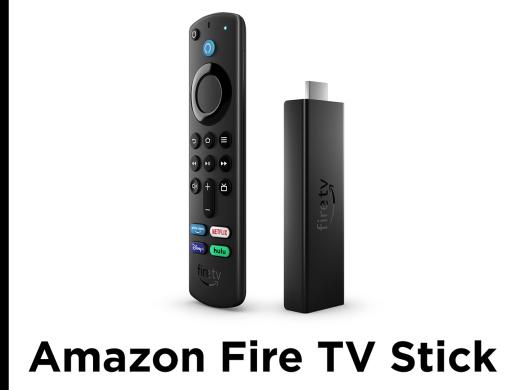
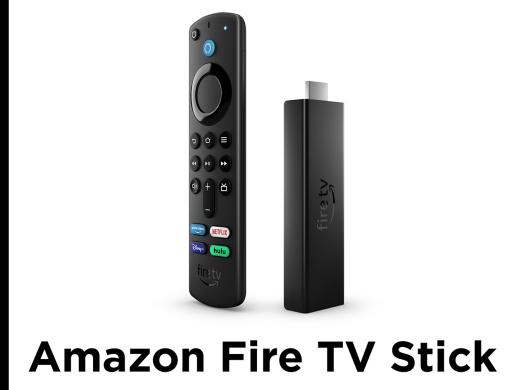
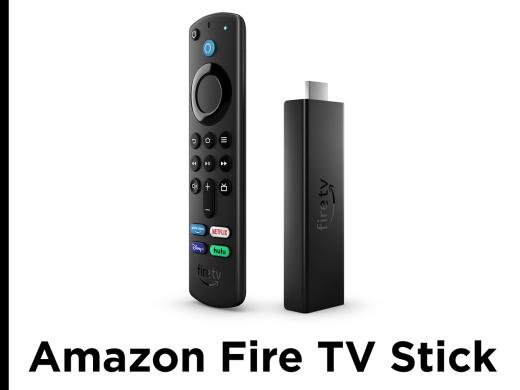
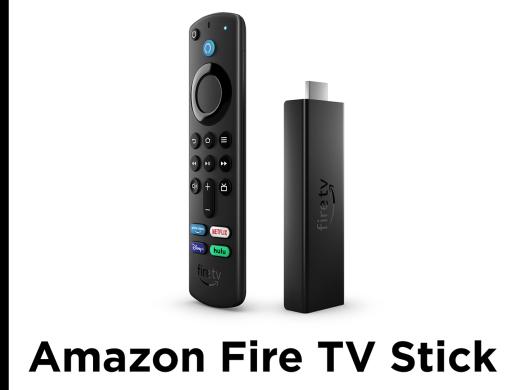
- [Vikki] Hi, I'm Vikki Vaughan, and in today's workshop, we'll explore several features that make it easier to use our Amazon Fire TV Stick. Let's do a quick review of a few of the controls on our remote we'll be using for this workshop. Near the top of our remote, we find a round, four-way directional pad. When we're in a menu, we press the top of this round pad to move up the menu. When we want to move down the menu, we press the bottom of the pad. Pressing the left side of the pad moves us to the left, while pressing the right side of the pad moves us, you guessed it, to the right. The center of the pad is the select or okay button.
If you use a screen reader, we'll start by turning Voice View on with our remote. You might recall from other workshops in this series, Voice View is the screen reader that reads items on our screen. To turn it on, we use our remote and press and hold the back button and the menu button together. We find these buttons in the top row below our directional pad. The back button is the first button in the row, and the menu button is the last button in this top row on our remote. Again, we'll hold these two buttons down until we hear a tone. The tone lets us know voice view is ready.
- [Voice View] Voice View ready, try Alexa, find action movies, home, four of 13.
- [Vikki] Then Voice View lets us know it's ready.
- [Voice View] Use left and right to move between items.
- [Vikki] If you don't use Voice View, just follow along as we use the buttons on our remote to turn on our helpful features. let's head over to settings to find these helpful features. We'll press right on our directional pad on our remote several times until we land on settings. Keep in mind that your screen may look slightly different depending on the model, but it should work pretty much the same. If that's the case, pressing the buttons on our directional pad will let us explore the order of our menu.
- [Vikki] Press the select button on our remote to jump into settings.
- [Voice View] Settings, notifications, row one, column one, use left and right to move between items.
- [Vikki] Now, we'll press down twice on our remote to move to preferences.
- [Voice View] Preferences, row three column one.
- [Vikki] Let's press the select button to select preferences.
- [Voice View] Preferences, parental controls, one of 10, use up and down to move between items, restrict access to videos, purchasing, and certain types of content.
- [Vikki] Let's press down several times to move to featured content.
- [Voice View] Featured content, five of 10.
- [Vikki] We'll press our select button to open the featured content option. Featured content are previews that automatically play when we turn on Netflix or Amazon Prime. You know, it can be challenging to find the show we're looking for when there's lots of extra audio and video happening. This is especially true if we have Voice View on. Let's find out how we can turn off the featured content and just focus on finding the show we want to watch . This first option under featured content allows us to turn off the video portion of the previews. It's a toggle switch, which means we select it to turn it on and we select it again to turn it off.
- [Voice View] Allow video auto play on, one of two.
- [Vikki] We heard Voice View announce that this feature is currently on. Let's press the select button on our remote to turn it off.
- [Voice View] Off.
- [Vikki] Now, if we don't hear the status of the control when we select it, we can move down and then back up to hear the status. Let's press down on our remote to move down, then we'll press up to move back up to here if we've successfully turned off the video autoplay feature,
- [Voice View] Allow audio, allow video autoplay off, one of two.
- [Vikki] Now let's press down on the directional pad to move down to our next option, allow audioauto play.
- [Voice View] Allow audio auto play on, two of two. Allow featured rotator to auto play sound. When off, video will play back silently.
- [Vikki] Let's press our select button on our remote to turn off the audio portion of the featured content.
- [Voice View] Off.
- [Vikki] Yay, we've now turned off both the video and audio portion of those pesky previews. Let's check out one more feature that makes our Amazon Fire TV stick easier to use. We'll press the back button on our remote several times to move back to settings.
- [Voice View] Preferences, featured content, five of 10. Settings, preferences, row three, column one.
- [Vikki] Now, let's press up on our remote to move to the top row.
- [Voice View] Use left. One, notifications, row one, column one.
- [Vikki] Then we press right on our directional pad to move to the display and sounds control.
- [Voice View] Display and sounds, row one, column five,
- [Vikki] We'll press the select button to open display and sounds,
- [Voice View] Display and sounds, Alexa Home Theater, one of seven.
- [Vikki] Let's press down on our remote several times to move to audio.
- [Voice View] Audio, four of seven,
- [Vikki] No surprise, we'll press the select button to open this option.
- [Voice View] Specific, audio navigation sounds on, one of four.
- [Vikki] Now, we'll press down on our remote to move to advanced audio.
- [Voice View] Advanced audio, three of four.
- [Vikki] Then we'll press select to open it.
- [Voice View] Advanced audio volume leveler off, one of two.
- [Vikki] Let's press down on our remote to move to dialogue enhancer.
- [Voice View] Use up, dialogue enhancer off, two of two.
- [Vikki] This feature works by boosting the dialogue separately from the background noises, like music in a show. It increases the volume of the dialogue without increasing the overall loudness of a scene. We hear a description of this feature and a handy tip about how to turn it on.
- [Voice View] Press select to turn on dialogue enhancer.
- [Vikki] Let's press the select button on our remote to turn on dialogue enhancer.
- [Voice View] On.
- [Vikki] Once again, if we don't hear the status of the dialogue enhancer control when we select it, we can move down and then back up to hear if it's on or off.
- [Voice View] Volume, dialogue enhancer on, two of two.
- [Vikki] Fantastic, we've successfully turned on this helpful option. Let's press the home button on our remote to return to our main menu. It's located directly below the directional pad in the middle of the top row.
- [Voice View] Home, four of 13.
- [Vikki] In today's workshop, we learned about several helpful features that make our Amazon Fire TV Stick easier to use. I'm Vikki Vaughan and I thank you for joining me.
-
Handouts
Amazon Fire TV Stick: Other Helpful Features Quick-Start Guide (PDF)
This quick-start guide shows you some other Fire TV Stick features that make it easier to use.
Amazon Fire TV Stick Series
- Video · 7 minutes
- Video · 6 minutes
- Video · 8 minutes
- Video · 11 minutes
Explore
-
The Many Uses of GPS with Vision Loss
Audio · 24 minutes
-
Everything feels like it’s too much. Now What?
Resource guide
-
Get Live Help: Apple, Amazon, Google & More
Article · 5 minutes
-
Embracing Braille
Discussion
- Explore more
Members also liked
- Video · 5 minutes
- Video · 3 minutes

- Video · 3 minutes

- Video · 3 minutes
Join the Hadley Community
Hadley's resources are always available to you. Create a no-cost Hadley account to go further:
-
Pick up where you left off Everything you start is automatically saved across Hadley.
-
Personalized recommendations We'll suggest resources based on your interests.
-
Join live discussions Live and lively discussions on technology, cooking, and more, all geared toward the community of people living with vision loss.
-
Find peer support Connect with people who understand what you're going through.