
Audio Description
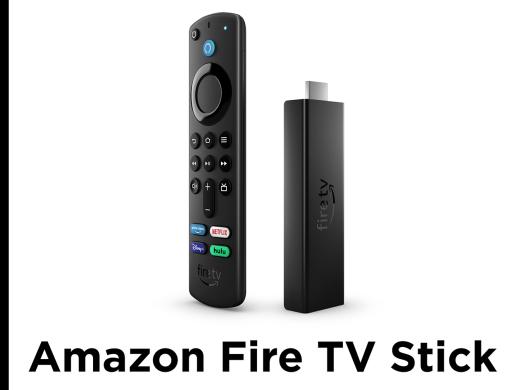
- [Vikki] Hi, I'm Vikki Vaughan, and in today's workshop, we'll explore the audio description feature on our Amazon Fire TV Stick. Audio description provides narration for available movies and TV shows. It describes actions, characters, scene changes, on-screen text, and other visual content. Since we'll be using our remote quite a bit in this workshop, let's do a quick review of a few of the controls on our remote. Near the top of the remote, we find a round four-way directional pad.
When we're in a menu, we press the top of this round pad to move up the menu. When we want to move down the menu, we press the bottom of the pad. Pressing the left side of the pad moves us to the left, while pressing the right side of the pad moves us, you guessed it, to the right. The center of the pad is the select or okay button. We'll jump right in by turning on VoiceView, or screen reader. If you don't use a screen reader, not to worry, everything works just about the same, so stick around. Let's use the button combination on our remote to turn on VoiceView. We'll press and hold the back button and the menu button together. We find these buttons in the top row below our directional pad. The back button is the first button in this row, and the menu button is the last button in this top row of our remote. We hear a tone, then VoiceView lets us know it's ready.
- [Narrator] VoiceView ready.
- [Vikki] If you'd like to learn more about the Fire TV Stick remote and VoiceView, be sure to check out the workshops on those topics in this series. Now, let's use our voice button to open Prime Video, a subscription service. We'll press and hold our voice button located at the top of our remote. We'll then say, "Open Prime Video." "Open Prime Video."
- [Narrator] Here's Prime video.
- [Vikki] Now let's press the bottom of our directional pad on our remote. We'll press it repeatedly until we land on our movie, "Air," with Matt Damon,
- [TV Stick] All. "Reacher." "Air." "Air."
- [Vikki] We'll select the show by pressing the okay button on the remote.
- [Narrator] Watch now. Button one of six.
- [Vikki] Let's press the okay button again to play.
- [Narrator] Loading.
- [Vikki] Now let's press the play pause button on our remote to pause play. We find the play pause button in the second row of buttons below our directional pad. It's the middle button with rewind to the left and fast forward to the right. We'll press the menu button on our remote twice to bring up our menu. If you're not using voice view, one press of the menu button will be all you need to open the menu.
- [Narrator] Menu.
- [Vikki] Now let's press the top of the directional pad on our remote to move to our first menu item, audio.
- [Narrator] Set Audio.
- [Vikki] VoiceView announces each option and places a green box around the option as we move through a menu. If we're not using VoiceView, we don't have these helpful tips about where we are in the menu. This might be a good reason to try out VoiceView. It helps us know where we are in menus like this. Audio is just what we're looking for. Let's press the okay button on our remote to open our audio menu.
- [Narrator] Use English drop down list.
- [Vikki] If we didn't land on audio, we can press up or down on our directional pad to explore the menu and find our option. We've opened the dropdown list and landed on our first item, English. Let's press the okay button on our remote.
- [Narrator] English checkbox, not checked, three of 32.
- [Vikki] Now we'll press the bottom of the directional pad on our remote to move to our next item.
- [Narrator] English audio description. Checkbox not checked. Four of 32.
- [Vikki] Ah, there we go. Audio description. If we don't find English audio description in our menu, this tells us that audio description is not available for this show. Let's press the okay button to select this option.
- [Narrator] Audio languages, 32, English audio description drop down list.
- [Vikki] Now we're still in our pause mode, so let's press the play pause button on our remote to resume playing our movie. If the movie or TV show we're watching is available with audio description, we'll start to hear a narrator describe the visual elements of the show. This narration is announced between spoken dialogue in the movie.
- [Host] He enters a suburban neighborhood and scans the area around him. He turns a corner and drives down the street. Pause.
- [Vikki] Now, in today's workshop, we're using a Prime Video movie to demonstrate audio description. An increasing number of shows are now offering audio description, which is marked as AD underneath the title's name. If AD isn't shown under the title, that means the show or movie selected does not provide audio description. Our final task for today is turning off our audio description feature. We'll use the audio menu to turn off audio description. We'll go through the same steps we took to turn it on. We'll start by pressing the play pause button on our remote to pause our movie. Next, we'll jump into the audio settings by pressing our menu button twice if we're using VoiceView.
- [Narrator] Menu air, next up.
- [Vikki] We'll press up a couple of times on our directional pad to move to audio.
- [Narrator] Watch, sub audio.
- Let's press our okay button to select audio.
- [Narrator] Use English audio description drop down list.
- [Vikki] We're still on English audio description. Let's press the okay button to open our menu.
- [Narrator] English audio description, check box, not checked, four of 32.
- [Vikki] Now we'll press up on our directional pad to move to English. If we land somewhere else in our dropdown list, we press up or down to move to English.
- [Narrator] English check box, not checked, three of 32.
- [Vikki] Let's press our okay button to select English.
- [Narrator] Audio languages, 32 English drop down list.
- [Vikki] By selecting English, we're turning off the audio description feature. Let's resume our movie by pressing the play pause button on our remote. Voila. Audio description is now turned off. In today's workshop, we explored audio description in our Amazon Fire TV Stick. We also learned that when it's available, audio description can be turned on using our remote buttons and menu option. I'm Vikki Vaughn and I thank you for joining me.
-
Handouts
Change Your Fire TV Stick Language (PDF)
Directions for changing the language on your Fire TV Stick.
Amazon Fire TV Stick: Audio Description Quick-Start Guide (PDF)
This quick-start guide shows you how to use Audio Description to provide narration for compatible movies and TV shows.
Amazon Fire TV Stick Series
- Video · 8 minutes
- Video · 7 minutes
- Video · 6 minutes
- Video · 8 minutes
Explore
-
A Guide to Vision Rehab
Audio · 28 minutes
-
A family member has vision loss
Resource guide
-
Macular Degeneration: Where to Start
Article · 6 minutes
-
Embracing Braille
Discussion
- Explore more
Members also liked
- Video · 3 minutes

- Video · 5 minutes
- Video · 6 minutes
- Video · 6 minutes

Join the Hadley Community
Hadley's resources are always available to you. Create a no-cost Hadley account to go further:
-
Pick up where you left off Everything you start is automatically saved across Hadley.
-
Personalized recommendations We'll suggest resources based on your interests.
-
Join live discussions Live and lively discussions on technology, cooking, and more, all geared toward the community of people living with vision loss.
-
Find peer support Connect with people who understand what you're going through.