
Windows Low Vision: Ease of Access
Did you know there is a handy destination on our Windows computer for low vision settings? It's called Ease Of Access.
Hi, my name is Vikki Vaughan, and together we'll discuss options that let us customize the visual settings on our computer. I love the fact that Windows has loads of built-in options for users with disabilities. They're grouped together in Ease Of Access. It's a more convenient way to find the option we're looking for. Let's start off by opening Ease Of Access. Now, there are several different ways to open the settings, but I am a shortcut kind of person. I'm thinking, "Why go through multiple steps when one step will do?" The keyboard shortcut of Windows and the letter U quickly opens Ease Of Access. Let's try that command now.
First, we'll hold down the Windows key and then tap and release the letter U. A handy tip, think of the word usable. Since Ease Of Access options make our computer more usable, this tip will help us remember our shortcut. On the left side of our screen we find various vision, hearing and interaction controls. Let's explore the controls under the vision heading.
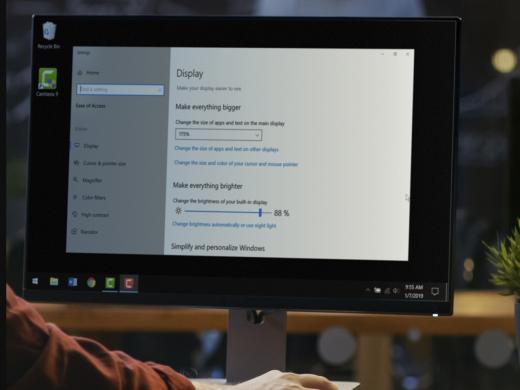
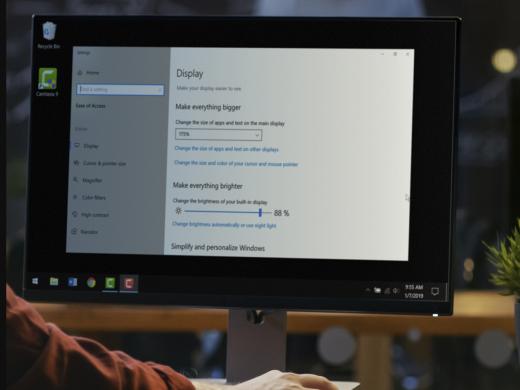
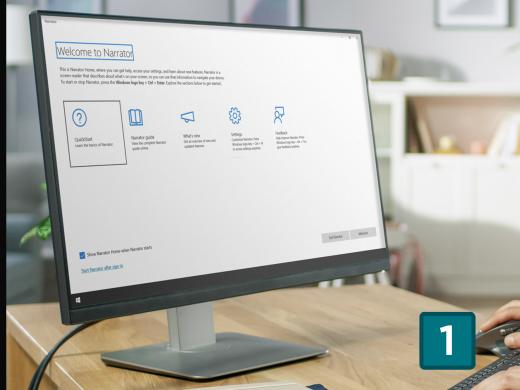
They include Display, where we can make changes to our computer's visual layout. Cursor and Pointer, here we find options for enhancing our cursor and pointer. We can change their size, color, and thickness. Magnifier, here we have controls for turning on magnification and customizing the size and type of window where we see the zoomed-in view. Color filters, these controls provide options for users with colorblindness and light sensitivity. The final two low vision options in the Ease of Access tab are High Contrast, where we invert or reverse the colors of our monitor, and Narrator, the screen reader that comes with windows computers. Narrator reads aloud the elements on our screen such as text or buttons. When we select an option on the left side of our screen, various controls appear on the right side.
Hadley has instructional videos for each of these low vision options. I hope you'll check them out. Today, we learned how to open Ease of Access with a handy keyboard shortcut. We also explored different customizing options for low vision access. I am Vikki Vaughan, and I thank you for joining me as we looked at low vision options in Windows Ease of Access.
-
Handouts
Ease of Access Quick-Start Guide (PDF)
This quick-start guide helps you use Ease of Access, Microsoft Windows' low vision options.
Customizing Windows for Low Vision Series
- Video · 4 minutes
- Video · 5 minutes
- Video · 5 minutes
- Video · 6 minutes
Explore
-
"It's finding people that do understand"
Audio · 5 minutes
-
I'm having trouble reading
Resource guide
-
Vision Loss Help by Phone: 6 Numbers to Know
Article · 5 minutes
-
Resource Roundtable
Discussion
- Explore more
Members also liked
- Video · 5 minutes

- Video · 3 minutes

- Video · 5 minutes

- Video · 9 minutes
Join the Hadley Community
Hadley's resources are always available to you. Create a no-cost Hadley account to go further:
-
Pick up where you left off Everything you start is automatically saved across Hadley.
-
Personalized recommendations We'll suggest resources based on your interests.
-
Join live discussions Live and lively discussions on technology, cooking, and more, all geared toward the community of people living with vision loss.
-
Find peer support Connect with people who understand what you're going through.