
Getting Started
Managing our medications to be sure we take the right medicine, at the right time, with the right dose is so important. But what happens when we can’t see the label?
We need some way besides reading all that small print to identify the medication, figure out who it’s for, and how we should take it. That’s where Spoken Rx by CVS Pharmacy comes in.
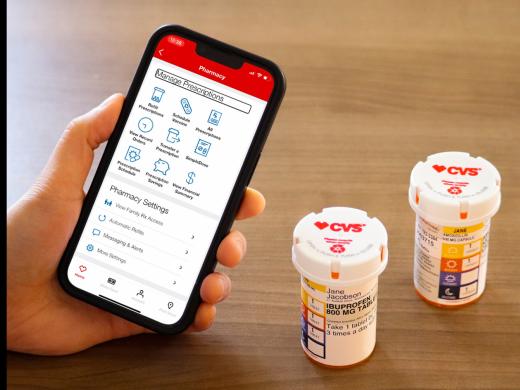
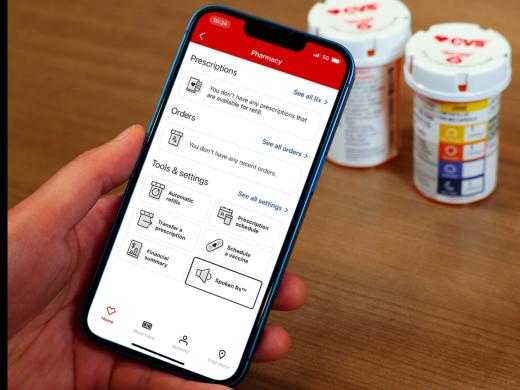
So, what is Spoken Rx? It’s an option that’s available for all your CVS Pharmacy prescriptions, and it tells you which prescription you’re holding and gives audible instructions on how to take it. It’s a completely free service, and all you need is the CVS Pharmacy app on your smartphone.
If smartphones aren’t your thing, or you just feel more comfortable with a separate device, a stand-alone Spoken Rx reader is available.
Sounds great, right, how do we get started? The first step is to call or visit your local CVS pharmacy team to request Spoken Rx. Just ask to be set up with a Spoken Rx service and your pharmacy team will do the rest. Are you a caregiver for someone else? You can talk with your pharmacy team about setting up Spoken Rx to help you manage medications for your loved ones too.
Spoken Rx is available in English or Spanish. So let your pharmacy team know which language works best for you. But what if you're new to CVS and you're not sure which pharmacy to contact? No problem, just call 800 746 7287 for help with finding your nearest store or use the CVS store locator. There's a link on cvs.com or in the resources section for this workshop on the Hadley website.
If you have any trouble getting set up with Spoken Rx through your local pharmacy team, just send an email to [email protected] for help with this process.
Alright, now we know what Spoken Rx is and we've had a great chat with our local pharmacy team to get it set up. What happens next?
From now on, in addition to the printed label, all of your CVS prescriptions will be fitted with tags that Spoken Rx can read. If you've requested a Spoken Rx reader, you'll be contacted when it's ready for pickup.
If you plan to use the CVS Pharmacy mobile app to scan your prescriptions, download it by searching for CVS Pharmacy in the App Store for your phone. Oh, and if you need info on downloading apps, visit the Hadley website for workshops on getting familiar with the App Store for your iPhone or the Play Store for your Android phone.
Once your app or standalone device is ready, it's time to check out the workshops on how to scan prescriptions on your preferred platform. Just choose the workshop series for Apple or Android or the workshops for the Spoken Rx reader.
With Spoken Rx, you'll be managing your medications easily and confidently in no time, which is a fantastic step on your path to better health.
-
Websites
Find your nearest CVS Pharmacy
CVS Pharmacy Spoken Rx Series
- Video · 6 minutes
- Video · 9 minutes
- Video · 7 minutes

- Video · 9 minutes

Explore
-
Bioptics for Driving and More
Audio · 25 minutes
-
I was just diagnosed
Resource guide
-
After the Eye Doctor: Practical Help for Vision Loss
Article · 6 minutes
-
Book Nook
Discussion
- Explore more
Members also liked
- Video · 3 minutes

- Video · 3 minutes

- Video · 4 minutes

- Video · 6 minutes

Join the Hadley Community
Hadley's resources are always available to you. Create a no-cost Hadley account to go further:
-
Pick up where you left off Everything you start is automatically saved across Hadley.
-
Personalized recommendations We'll suggest resources based on your interests.
-
Join live discussions Live and lively discussions on technology, cooking, and more, all geared toward the community of people living with vision loss.
-
Find peer support Connect with people who understand what you're going through.