
Getting Online Screen Reader: Saving Favorite Websites
Hello, my name is Ricky Enger and today we'll learn how to save our favorite websites so that we can easily get to them whenever we want. We're using the Google Chrome browser, along with NVDA as our screen reader. But the concepts we learn here will be pretty similar no matter which screen reader and browser we're using.
You know, routines are kind of cool sometimes, aren't they? It's nice to have something familiar and enjoyable to look forward to. Maybe it's that first cup of coffee to start the day, or a half hour of quiet time in your favorite chair, or browsing through new books to find your next great read. Some of our favorite routines, like browsing for books or reading the latest news, actually involve a website. Since we're visiting that site regularly, it would be really nice if there were a way to get to it quickly, and thankfully there is. Let's check it out.
So right now, let's say we've logged in to our NLS BARD site and we've opened the link for most recently added books. Now that we're here, how do we save this site so we can get back to it easily without having to type anything in our address bar? Well, we've got a lovely little keystroke to save, or bookmark, the page that we're on. So we'll press our Control key plus the letter D. So that's D as in delta. And when we do that,
Screen Reader: Bookmark added dialogue. To get your bookmarks on all your devices turn on sync. Name folder, bookmark name added selected. Selection by recently added books and magazines. Displaying items one through 250 of 280.
Ricky: Okay, yeah that was a lot. So let's break it down a little. The very first words we heard were: bookmark added, dialogue. So that tells us two things. Our bookmark has just been added, which is exactly what we wanted to do. We also heard the word, dialogue, which means we have some options to go through here. After that, we heard some stuff about the bookmark title, right? And that's actually where we are in our dialogue right now. We're in an edit field that has the title of our website in it. Let's read what's in here with our NVDA plus up arrow.
Screen Reader: Selection by recently added books and magazines. Displaying items one through 250 of 280.
Ricky: Cool, now we can actual edit this if we want, but we don't really need to do that today. So let's see what's next here in our dialogue. We'll press Tab.
Screen Reader: Bookmark folder menu button, bookmarks bar.
Ricky: Okay, so this is telling us where we're going to find the bookmark we just added. It's on our bookmarks bar right now. Let's press our Spacebar to open this menu and see what our other options are.
Screen Reader: Menu sub-menu.
Ricky: Okay, and we'll press down arrow.
Screen Reader: Bookmarks bar, one of three. Other bookmarks, two of three. Choose another folder, three of three.
Ricky: So there we go. We really don't need to change any of this, so we'll just press our Escape key to close this menu.
Screen Reader: Bookmark added dialogue. To get your bookmarks on all your devices, turn on sync.
Ricky: And now let's press Tab.
Screen Reader: More, button one of three.
Ricky: So here's a menu with more options if we really want to customize our bookmark, or create a new folder for it. We don't need to do that now, so let's press Tab.
Screen Reader: Done button, two of three.
Ricky: So if we press our Spacebar on this one, that's going to close our bookmarks dialogue. Let's Tab one more time though, and see what our last option is here.
Screen Reader: Remove, button three of three.
Ricky: Now this one does exactly what it says. It removes the bookmark. We might do this if we accidentally pressed our Control plus D keystroke when we really didn't want to add this page to our bookmarks. Now, we can go back to our done button with Shift plus Tab, or we can go ahead and press our Escape key to close this dialogue. So we'll press Escape.
Screen Reader: Selection by recently added books and magazines.
Ricky: And now we're back on our recently added books page and we've just added it as a bookmark. Question is, where are our bookmarks once we've added them? They're on our bookmarks bar. So we need to find that. Turns out that our browser has a few different sections that it shows us and to move through those sections we'll use our F6 key, so that's Function Key Six. We'll press that once.
Screen Reader: Address and search bar edit. It has auto complete control plus L selected https//nlsboard.loc.gov/
Ricky: Okay so our first section that we jump to is our address and search bar. And it's filled in with the website that we're on right now. Let's press F6 again.
Screen Reader: Tab control. Selection by recently added books and magazines. Displaying items one through 250 of 280. Tab selected, one of one.
Ricky: Okay great, we talked about tabs in another workshop in this series. And this section here is where we'll see all our tabs or websites that we have open in our browser right now. We only have one, but if we had more than one, we could use our left and right arrows to move through them and press Enter on the one we want. We don't need to do that right now. So let's press F6 again.
Screen Reader: Bookmarks toolbar. Apps button, show apps.
Ricky: Yea, and here's our bookmarks bar. Let's press our right arrow key to move through the bookmarks that we've got here.
Screen Reader: Bookshare An Accessible Online Library for People with Print Disabilities button https//www.bookshare.org/cms
Ricky: Yep, so there's a Bookshare bookmark and I added that one earlier. So we'll press right arrow again.
Screen Reader: Selection by recently added books and magazines.
Ricky: And there it is. This is the bookmark that we just added today. And now, we can just press the Spacebar to open it.
Screen Reader: Selection by recently added books and magazines.
Ricky: And there we go. There's our bookmarked page. And we didn't have to type anything in our address bar to get to it. Really quick and convenient, right? I'm Ricky Enger and I'm glad you could spend a little time with me today leaning about saving favorite websites. Want to learn more? Join me for other workshops in this series on Getting Online. See you next time.
-
Handouts
This handout lists keyboard shortcuts so you have an alternative way to do something that you'd typically do with a mouse.
Getting Online: Screen Reader Series
- Video · 5 minutes

- Video · 8 minutes

- Video · 9 minutes

- Video · 8 minutes

Explore
-
Now There's a Magazine Website Specifically for You
Audio · 24 minutes
-
I was just diagnosed
Resource guide
-
6 Tips for Gardening with Low Vision
Article · 4 minutes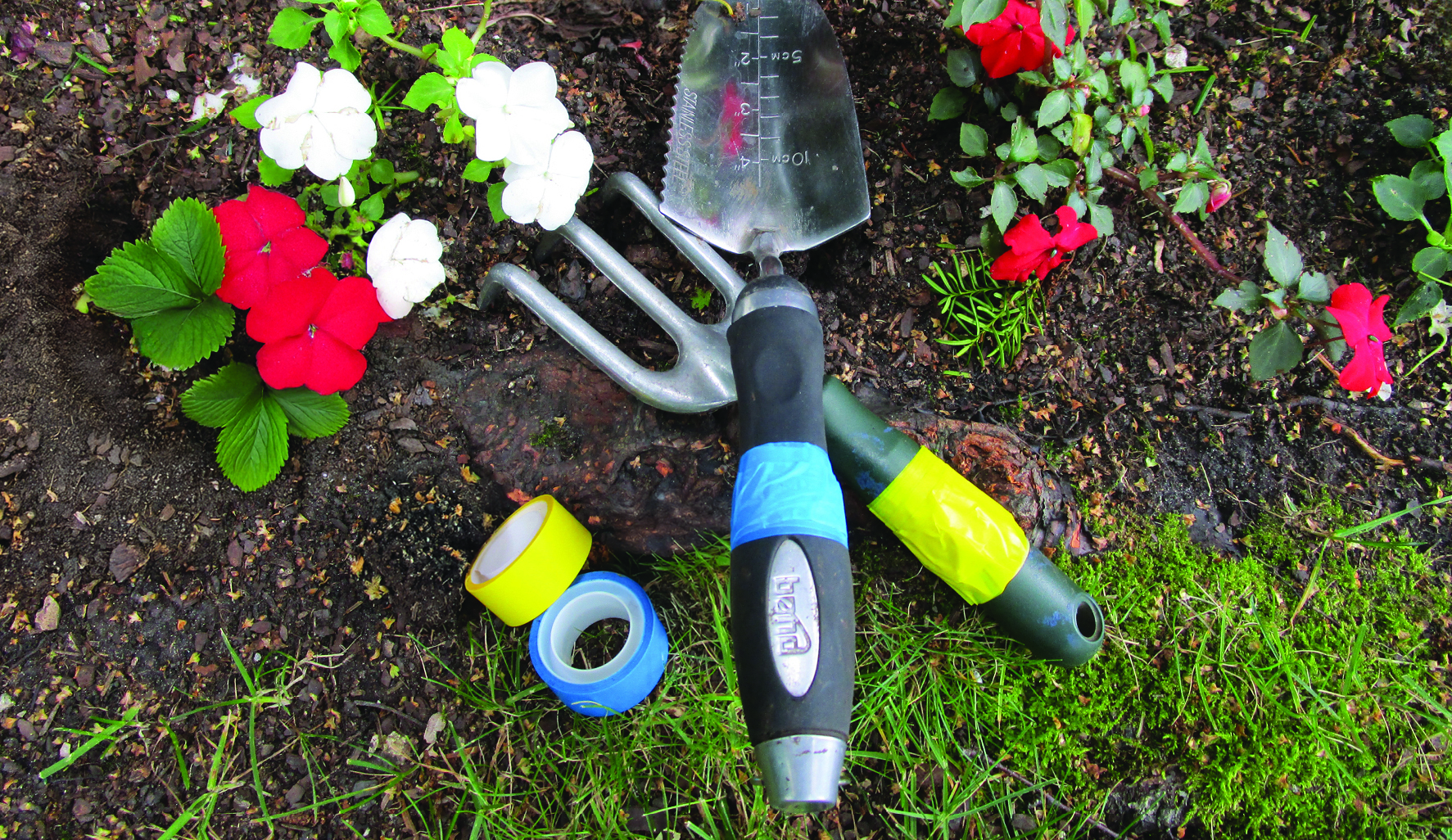
-
Recreation Chat
Discussion
- Explore more
Members also liked
- Video · 5 minutes

- Video · 4 minutes
- Video · 9 minutes
- Video · 3 minutes

Join the Hadley Community
Hadley's resources are always available to you. Create a no-cost Hadley account to go further:
-
Pick up where you left off Everything you start is automatically saved across Hadley.
-
Personalized recommendations We'll suggest resources based on your interests.
-
Join live discussions Live and lively discussions on technology, cooking, and more, all geared toward the community of people living with vision loss.
-
Find peer support Connect with people who understand what you're going through.