
Getting Online Screen Reader: Exploring a Web Page
Hello, my name is Ricky Enger, and today we're going to learn some tips and tricks for exploring a web page. We're using the Google Chrome web browser along with NVDA as our screen reader, but the concepts we learn will be pretty similar no matter which browser and screen reader we're using.
In another workshop in the series, we learned how to open a website. So today, we'll start with a website open already. We've got the target.com website open where we can shop for all sorts of cool things. What do we do to find out what's on the page? Well, before we start exploring the page, we need to make sure that we're starting at the beginning, right? We don't wanna miss anything important. So, to jump to the top of the page, we'll press our Ctrl key plus our Home key.
Screen Reader: Link, skip to main content.
Ricky: And there we go. We're at the top of the page. Now, if we wanna know what's here, we can just start reading this page line by line. We'll do that by pressing our Down Arrow key.
Screen Reader: Link, skip to footer. Navigation landmark visited, link home, collapsed, link categories menu, collapsed, link deals menu.
Ricky: As we do that, notice that we have text like home, and before the text, we hear some extra information. That information tells us a lot about how we can work with the item or element that we're focused on. This makes a lot more sense for examples, right? So, let's take our first element here.
Screen Reader: Link, skip to main content.
Ricky: Okay, we hear the word link. Links are what move us from page to page on the web. They can move us to a different page on our current website, or they can move us to a different website altogether, or they can even move us to a different spot on the webpage we're on right now. So, we're focused on a link right now. What did our screen reader say again? Let's press our NVDA key, which is our Insert key, and the Up Arrow to read our current line.
Screen Reader: Link, skip to main content.
Ricky: Great! The title of this link is skip to main content. This tells us the purpose of the link, which is to skip past everything at the top of the page and jump right to the main information. So, let's go ahead and open this link by pressing Enter on it.
Screen Reader: Heading level one home page.
Ricky: Okay, so now we've moved to a different spot on our Target page. We're focused on text that says home page, and the information before the text is heading level one. So, what is a heading and what does level one mean? Headings are incredibly useful, actually. They can help us jump right to important content on our page, and they can also give us information about how this content is laid out. A level one heading is used to jump to the most important content on the page, and then there are headings underneath that, like heading level two and heading level three. This will make a lot more sense with an example. So, let's use a nifty little keystroke to jump through some of our headings. To do that, we just need to press the letter H for heading.
Screen Reader: Women's tees starting at $5, heading level two link.
Ricky: And we'll press H again.
Screen Reader: Sale on women's activewear starting at $10, star heading level three link.
Ricky: And again.
Screen Reader: Top-rated swimwear starting at $14.99, heading level three link.
Ricky: So, our heading level two is about women's tees. This is the category that our level three headings, like swimwear and activewear, belong to. Great! Now we could just keep pressing the letter H to move through every heading on this page, and we could even press Shift + H to move backward through our headings. But hey, now that we know that headings are used to organize content on the page, that opens up all sorts of possibilities for finding the content that we care about even faster. So, maybe we don't care about any of these things under women's tees, and we just wanna see what other categories are here. Instead of pressing H to move to our next heading no matter what level it is, let's press the number 2 to move to the next heading at level two.
Screen Reader: Baby deals, heading level two.
Ricky: And there we go. We've jumped to a category about babies. So now, our heading level three options here are going to be baby-related, right? Nice. Headings are an awesome way to let us know how content on a page is related. There's a little bit of bad news, though, which is that not all websites are well-organized with headings. But for those that are, using headings to get right to the content we want is really powerful. So, we've used our Down Arrow to move through the page line by line, and we've used H as well as our numbers, like two and three, to move by heading. We actually have several more ways to explore our page, so let's just touch on two more before we go. Let's start by moving to the top of the page again with Ctrl + Home.
Screen Reader: Link, skip to main content.
Ricky: And now, what if we just wanna read this entire page while we sit back and listen? This will be especially useful if we're reading a news article or a blog post. All we have to do is press our NVDA key, which is our Insert key, plus our Down Arrow key.
Screen Reader: Link, skip to main content, link, skip to footer. Navigation landmark visited, link home, collapsed, link categories menu.
Ricky: And there we go, reading the whole page. And we just press our Ctrl key to stop. So, let's take a look at one last thing. To do that, we'll hold down our NVDA key and press F7. So that's Function Key Seven.
Screen Reader: Elements List dialog preview, level zero skip to main content, one of 74.
Ricky: With this keystroke, we've just brought up a list of links on our page. We can actually change this and check out a list of other elements, like headings instead, but we won't do that today. For now, we have our list of links, and we can move through them just by using our Down Arrow key. This is a great way to find out every link on our page without having to read the entire page. When we find the link we want, we can just press Enter to open it.
Screen Reader: Skip to footer two of 74, level zero. Home; visited three of 74, level zero. What's new menu; collapsed, six of 74, level zero. Weekly Ad, visited 11 of 74, level zero.
Ricky: So, we've moved down to our link called Weekly Ad, and we'll press Enter.
Screen Reader: Weekly deals in stores now.
Ricky: And there it is. We've just opened our Weekly Ad for Target. I'm Ricky Enger, and I'm glad you could spend a little time with me today exploring a web page. Wanna learn more? Join me for other workshops in this series on getting online. See you next time.
-
Handouts
This handout lists keyboard shortcuts so you have an alternative way to do something that you'd typically do with a mouse.
Getting Online: Screen Reader Series
- Video · 9 minutes

- Video · 5 minutes

- Video · 8 minutes

- Video · 8 minutes

Explore
-
"Makes me feel less isolated"
Audio · 3 minutes
-
It's hard to ask for help
Resource guide
-
The Crochet Life: Tips for Crocheting After Vision Loss
Article · 2 minutes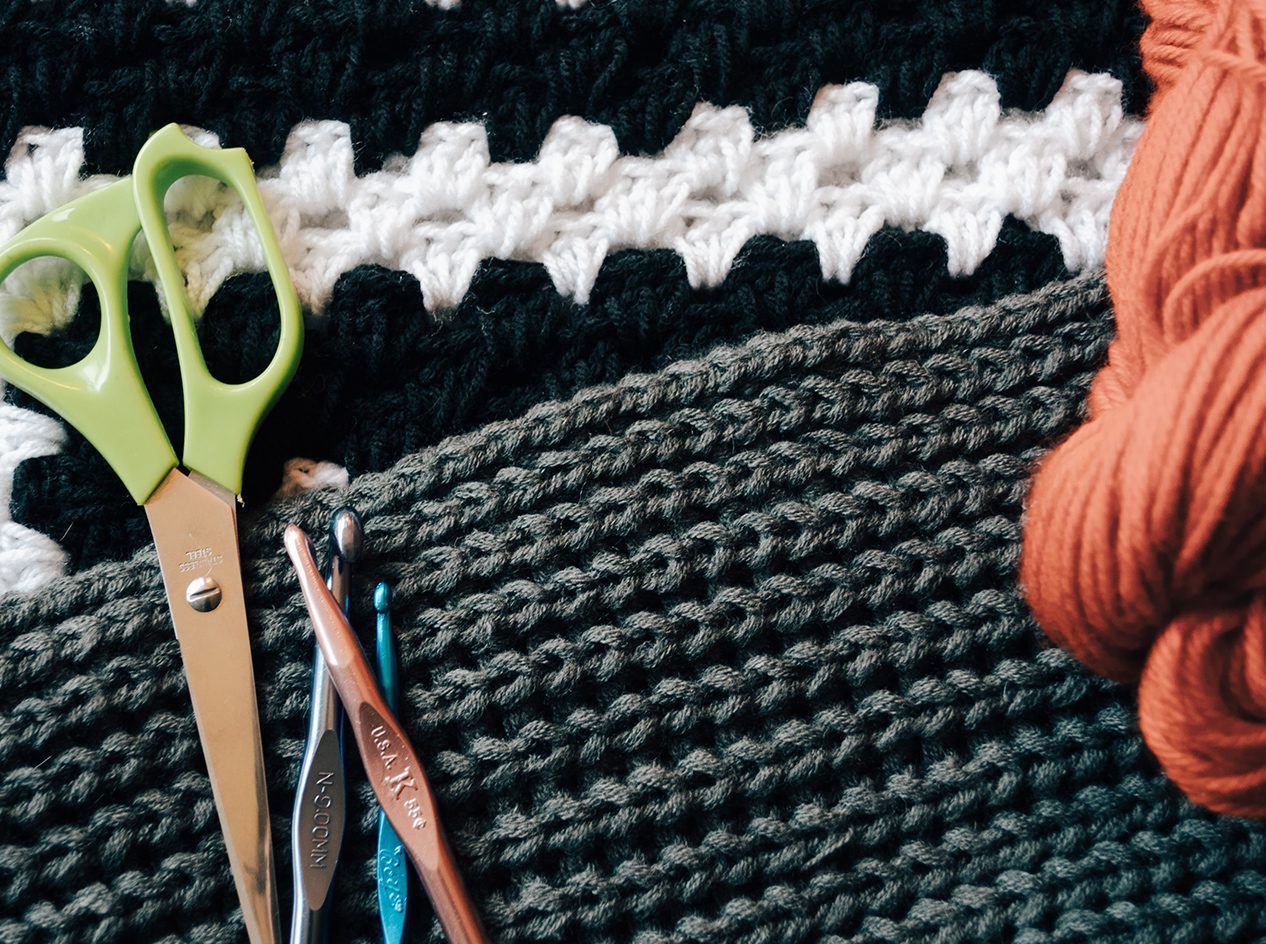
-
Tech It Out
Discussion
- Explore more
Members also liked
- Video · 5 minutes

- Video · 3 minutes

- Video · 4 minutes
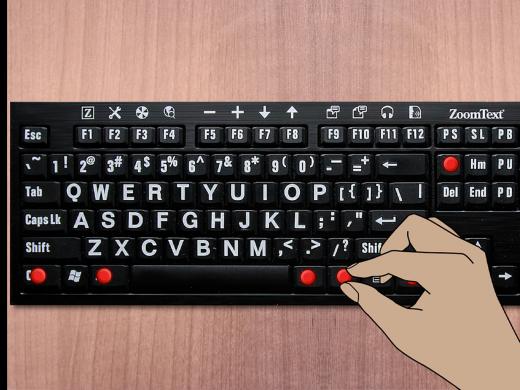
- Video · 10 minutes

Join the Hadley Community
Hadley's resources are always available to you. Create a no-cost Hadley account to go further:
-
Pick up where you left off Everything you start is automatically saved across Hadley.
-
Personalized recommendations We'll suggest resources based on your interests.
-
Join live discussions Live and lively discussions on technology, cooking, and more, all geared toward the community of people living with vision loss.
-
Find peer support Connect with people who understand what you're going through.