
Google Docs Low Vision: Creating and Opening Documents
Hi, my name is Vikki Vaughan, and in today’s workshop, we’ll learn how to create a Google Doc. We’ll also discuss opening a document we created in the past.
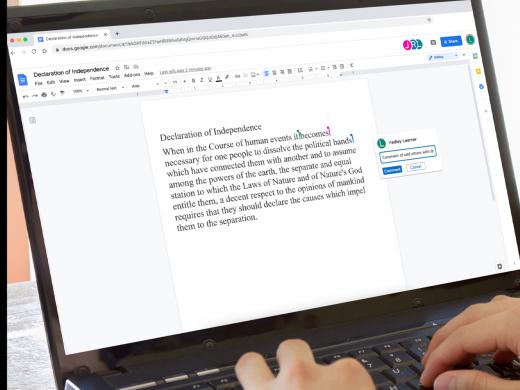
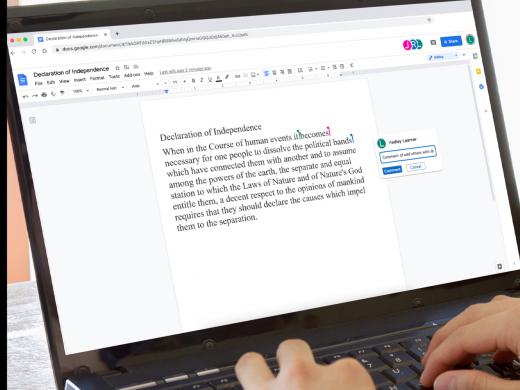
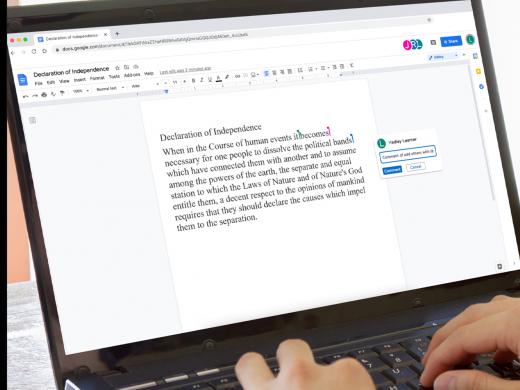
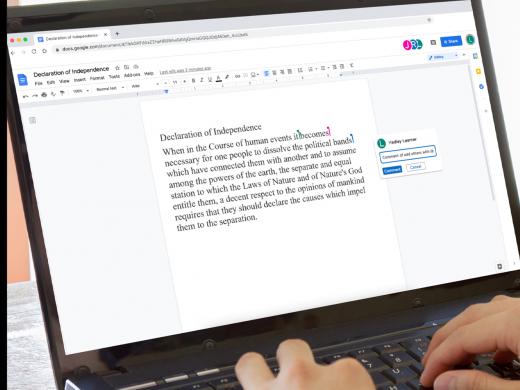
Let’s open our Chrome browser and type in docs.google.com into our address bar. Once we’ve logged in, let’s move our mouse pointer to the Start a New Document Pane. From here, we have several different choices. We can start from scratch by selecting the button with a plus sign or if we prefer, we can choose from the Templates Gallery.
Let’s start a new document by selecting the plus sign.
And there we have it, a shiny new document, ready to receive our latest musings!
Now who doesn’t love a good shortcut? I know I’m crazy about them, and I think you’ll like this one, too! We’ll start from our Chrome browser and move to the address bar with Alt+D, as in delta.
Now, let’s type “doc.new” and press Enter. Voilà! A new document pops up, at the ready.
If you’re familiar with Microsoft Word, you might notice that Google Doc’s menu and tool bar look familiar. Just like Word, there are lots of low vision features in Google Docs. Be sure to check out another workshop in this series where you’ll find information about Google Docs’ accessibility tools such as zooming, enlarging fonts, and voice dictation.
We have another handy shortcut for those times when we’re exploring the files in Google Drive, and we decide to create a new document. From our Chrome browser, let’s type drive.google.com in our address bar.
Now, let’s hold down our Shift key and press and release “T” for tango. Your new document opens in a new tab in your browser. That’s pretty cool, isn’t it?
If you prefer to use the buttons on Google Drive page, it just takes a few simple steps. Let’s move to our Google Drive tab with Control+Tab. We'll find the New button in our left pane. It has the familiar plus sign we saw earlier.
Let’s select it with our mouse pointer. We’ve opened a menu and here we see several options to choose from. We can create a new Folder, and upload a File or Folder. If that sounds daunting, not to worry. We have a whole workshop devoted to uploading different types of files. If that interests you, check it out.
Let’s use our down arrow key to move down to our destination, Google Docs. Now we press our right arrow to open a submenu with more choices.
Here we have two options: we can choose from a blank document or we can choose from a template. Let’s select blank document by pressing Enter. And here we are, a brand-new document!
You’ll be happy to hear that it’s super easy to open a new document when you’re already working in Google Docs. We use the keyboard shortcut of Alt+F, as in file to open the File menu, then we down arrow to New and press Enter twice. Our new document opens in a new tab in our browser.
OK, let’s say we’ve created several new Google Docs. It’s a few days later and we need to open one of them for editing. You might remember that all of our documents are saved automatically to the cloud, our Google Drive. Let’s go to Google Drive and locate that document we need.
In our browser, let’s type drive.google.com.
When we know the title of our document, we can type it into the search field at the top of our window. Below the search field, we have an area called Quick Access. Our most recent documents will be stored here. If we’re searching for a document from a while back, we can search in the area below Quick Access.
Here, our files are stored in alphabetical order.
We have a couple of options here regarding how they are viewed. This toggle switch allows us to view our files as a list or in a grid view. We simply make our selection by clicking on the view tool.
Once we locate our document, we use our mouse pointer to double click and open it. You’ll notice that our document opens in a new Google Docs tab in our browser. If we wish to open a PDF, Microsoft Office file, video, audio file, or photo, we open them in Google Drive.
Today, we explored creating and opening documents in Google Doc. I’m Vikki Vaughan, and I thank you for joining me. I hope you’ll check out the other workshops in this series.
-
Handouts
Google Docs Accessibility Features (PDF)
Creating and Opening Documents Quick-Start Guide (PDF)
This quick-start guide shows you how to open a new or existing file in Google Docs.
Google Docs: Low Vision Series
- Video · 8 minutes
- Video · 7 minutes
- Video · 6 minutes
- Video · 4 minutes
Explore
-
A Conversation with Aira
Audio · 20 minutes
-
A family member has vision loss
Resource guide
-
Organizing Your Kitchen with Vision Loss: Finding Things in the Fridge
Article · 4 minutes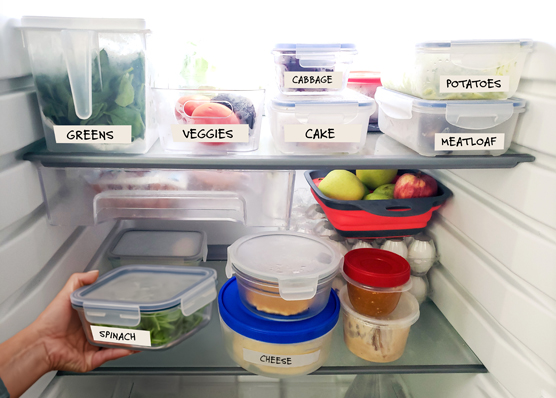
-
Embracing Braille
Discussion
- Explore more
Members also liked
- Video · 5 minutes

- Video · 3 minutes

- Video · 5 minutes
Join the Hadley Community
Hadley's resources are always available to you. Create a no-cost Hadley account to go further:
-
Pick up where you left off Everything you start is automatically saved across Hadley.
-
Personalized recommendations We'll suggest resources based on your interests.
-
Join live discussions Live and lively discussions on technology, cooking, and more, all geared toward the community of people living with vision loss.
-
Find peer support Connect with people who understand what you're going through.