
Google Docs Low Vision: Sharing Your Files with Others
Hi, my name is Vikki Vaughan, and in today's workshop we’ll learn how to share a Google Doc. We'll also discuss opening a document we've created in the past.
One of my favorite things about Google Docs is how easy it is to share my files with others. Let's say we have a family grocery list. Instead of sending a file back and forth between family members, we can make edits and suggestions all at once, as if we’re working on the same computer in real time. With a few commands, I can create and share a document, view any changes from family members, and save the file automatically. Now, that’s what I call easy!
There are several different ways we can share our files. In today’s workshop, we’ll focus on the two most common methods: sharing a file and sharing a link to a file.
We’ll get started with an open Google Doc, our family grocery list. Let’s bring our focus to the blue Share button near the top right corner of our window. We’ll select it with our mouse pointer. Two windows pop up, and in the top window we see the title “Share with People and Groups.” In the second window, we have the option to share by getting a link. Let’s dive into our first option by selecting it with our mouse pointer.
Below the title, we find our cursor in an Edit field, ready for us to type an email address. I’ll type a couple of email addresses here.
To the right of the Edit field, we have a button which allows us to select what people can do with our doc. Let’s select it to have a look.
The default setting is Editor. Editors basically have full access to our document. They can make changes, accept or reject suggestions, and share the file with others.
Let’s use our up arrow to move up the list to our next choice, Commenter. Commenters can add comments to the document, but they can’t change or share the file with others.
We’ll up arrow again to select our final choice, Viewer. Viewers can view our file, but they can’t change or share the file with others.
Since this document is a list that we’re working on together, I want my family members to have full access. Let’s down arrow to Editor, and press our Enter key to select it.
Our next control is a checkbox located beneath the address field, labeled “Notify People.” Our family members won’t know we’ve shared this document unless we notify them. Let’s make sure this box is checked so they’re notified. Everyone listed above will be included in the email. Below our checkbox, we have a Message field. Here, we’ll write a quick message to our family members.
Beneath our Message field, we see our document title, a link to send feedback to Google, a Cancel, and Send button. Let’s select our Send button.
Now if anyone in our email address window is not using Gmail, a new window will pop up. It lets us know that we’re sending our document to someone who’s email address is not a Gmail address. This means they won’t have to sign into a Google account to view the document. If we see this message, we select the Share Anyway button in the bottom right corner. We can also press our Enter key to send it on its way.
OK, let’s fast forward a few seconds. I have my original document open on the left and the document shared to Harold’s Gmail account on the right.
Harold has decided he wants to add something to the list. As soon as he makes the changes, as it appears on the right, the changes happen automatically in my document on the left. I think that’s pretty amazing; the changes take place instantaneously!
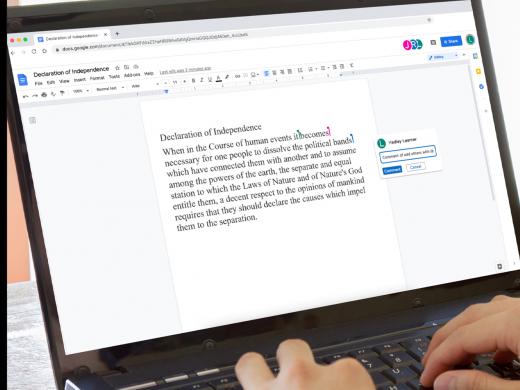
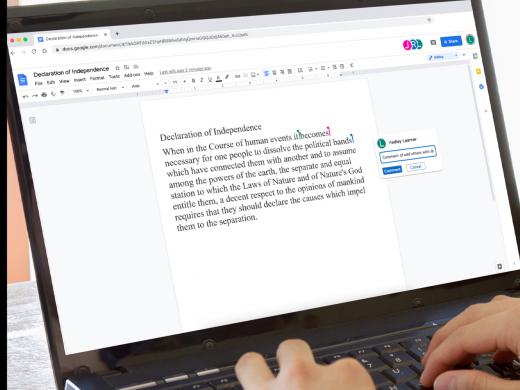
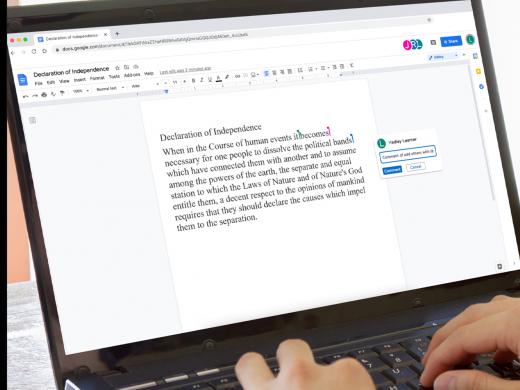
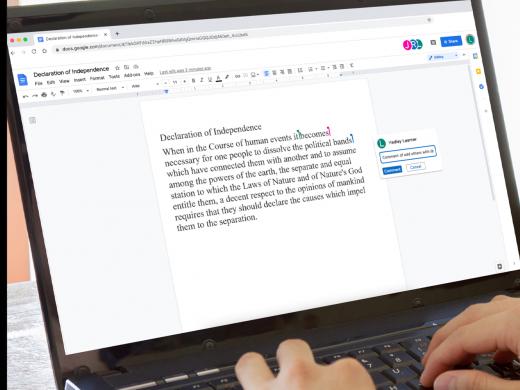
If Harold wants to make a comment, he can insert it from the Insert Menu, or he can use the keyboard shortcut of Control plus Alt plus M for Mike. Let’s pretend we’re Harold and try our shortcut to write a quick comment. I'll hold down the Control and Alt keys, and press and release the M key. We see a new window open with an Edit field for entering our comment. Let's type Great Grains into the Edit field. Below the Edit field we select the Comment button to post our comment.
We’ll return to the full screen of my document, where I see Harold’s comment in the right pane. As an editor, Harold can make changes, add comments, and share this document with others.
As I mentioned earlier, there’s another easy way to share our Google Docs. Let’s start from another open Google Doc to check it out.
In the top right corner, we’ll select our Share button. Up pops our familiar windows, where we decide how we wish to share our document. Let’s explore the Get Link section at the bottom of our screen. Instead of Google sharing our document, this option allows us to send a link to the document instead. Let’s select it with our mouse pointer.
In this section, we see the title of our document. To the right of the title, we have a Copy Link button. Let's select it. A quick notification pops up to tell us the link was copied. A link to our Google Doc is now copied to our clipboard, ready for us to paste into an email.
Below the title, we see a section that we use to determine how much control the shared user has over the document. When we select this, a drop-down box appears with two choices. The first choice is Restricted, which means that only people we share the file with will be able to view our document. Let's down arrow to our other choice, Anyone with the Link, which means anyone who has the link can use our file without signing into their Google account. We'll up arrow to Restricted and press Enter. Another step, selecting the Done button. Let's select it with our mouse pointer.
The final step in sharing our Google Docs is inserting our copied link into an email. We'll move back to Google Docs by selecting the back arrow in our browser. Let's open our Gmail by selecting the Apps button in the top right corner, and then selecting the Gmail button. Gmail opens in a new tab. We'll click on the Compose button and type in the email address. Let’s type a quick message, and then paste our link into our email with the keyboard shortcut Control plus V for Victor. To help me remember the tip, I always think of V for Velcro. We’ve velcroed our link into our email and it’s ready to send.
In today’s workshop, we discussed various ways to share our Google Docs. I’m Vikki Vaughan and I thank you for joining.
-
Handouts
Google Docs Accessibility Features (PDF)
Sharing Your Files With Others Quick-Start Guide (PDF)
This quick-start guide shows you two simple ways to share your Docs with other people.
Google Docs: Low Vision Series
- Video · 4 minutes
- Video · 7 minutes
- Video · 6 minutes
- Video · 6 minutes
Explore
-
The Impact of Vision Loss on Friendships
Audio · 36 minutes
-
I'm feeling overwhelmed
Resource guide
-
Getting Started with BARD: A Friendly Guide for Readers with Vision Loss
Article · 4 minutes
-
Tech It Out
Discussion
- Explore more
Members also liked
- Video · 5 minutes

- Video · 5 minutes
- Video · 3 minutes
Join the Hadley Community
Hadley's resources are always available to you. Create a no-cost Hadley account to go further:
-
Pick up where you left off Everything you start is automatically saved across Hadley.
-
Personalized recommendations We'll suggest resources based on your interests.
-
Join live discussions Live and lively discussions on technology, cooking, and more, all geared toward the community of people living with vision loss.
-
Find peer support Connect with people who understand what you're going through.