
Google Docs Low Vision: Creating an Account
Hi, my name is Vikki Vaughan and today, we’ll learn how to create a Google Docs account. Before we set up our account, let’s talk a little about what Google Docs is and how we might use it.
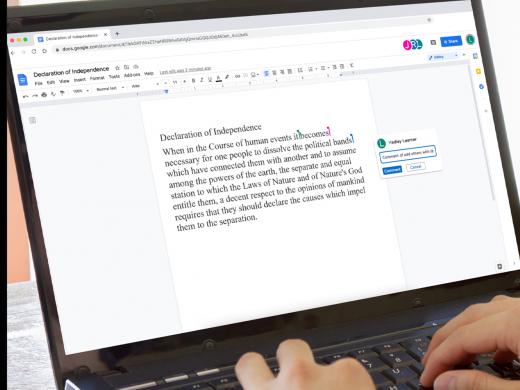
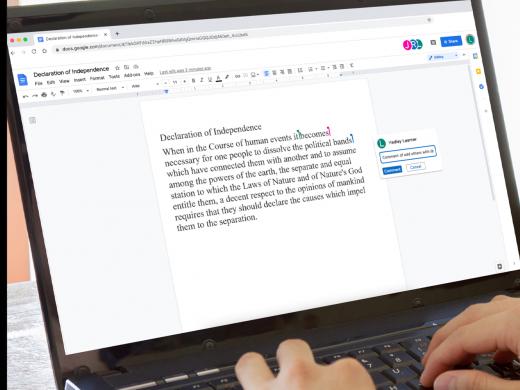
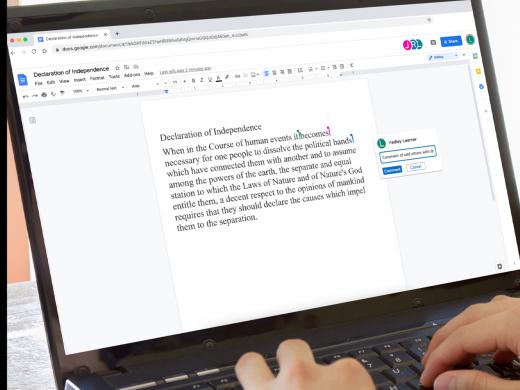
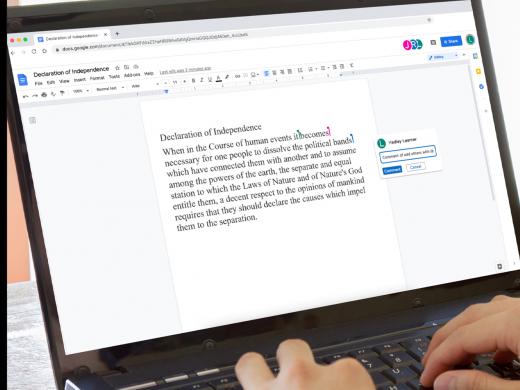
Google Docs is Google’s free web-based word processing program. It allows us to create, edit and share documents online from any device with an internet connection.
The real power of Google Docs can be described in two words: “working together.” It allows us to work together on a document at the same time from any browser window. Whenever the document is revised, we can all see the changes immediately, so there’s no keeping up with which version is the most current!
All versions are saved, along with past versions, on the Google Drive. This means that instead of storing our files on our computer, they are all stored online.
Another neat feature: you never have to worry about saving your document, Google Docs automatically saves it for you! Since your documents are instantly saved to the cloud, there’s never any worries about losing your work if your computer dies.
Okay, let’s jump right in and get started. As you can tell from the title of our workshop, the first thing we have to do is create a Google or Gmail account. Let’s open our Chrome Browser. If you’re a big fan of keyboard shortcuts like me, you can use Alt + D (like David) to jump to your address bar. We’ll type https://accounts.google.com/signup.
Let’s press Enter.
In this first edit field, let’s enter our first name. Let’s press our Tab key to move to the next edit field, where we’ll enter our last name.
Next, we move down to the "Username" field and enter a name, no spaces. It can be our name or a name that we’ve made up. If the name that we choose is already taken, we’re prompted to select another name. We can use letters, numbers and periods in our username. This name will allow us to use Google Docs and it will serve as our Gmail address.
Let’s select the Next button by pressing the Enter key. This moves to the next page where we add a phone number to verify our account. By providing this number, Google can ensure that you are a real person. Here, we either press Enter or select our Send button.
Google sends us a 6-digit code via text which we type into the edit field on this page. If we do not have text messaging or prefer a call, we select the Call Instead option.
Since I’ve received the code via text, I’ll type it into this edit field. The code always begins with a G, followed by the 6 digits. There is no need to type in the G, as it’s already provided in the edit field. Once we’ve entered our code, we select the Verify button by pressing Enter.
Our next page gives the option to enter a recovery email address. Although it’s not required, it’s a good idea as it allows Google to reach us in case they detect unusual activity in our account or we accidentally get locked out.
Our next control is a drop-down box where we enter our birth month, followed by the date and year. Google requires this information because some of their services have age requirements.
The last control is a drop-down box where we select our gender. We also have the option of “Rather not say.” We can use our arrow keys to move through the options.
Now, let’s select the Next button by pressing the Enter key.
Hang in there, we’re almost to the finish line! On this page, we have the option to add our phone number to our account to use across Google services, such as video calls and advertisements. If we’d rather opt out, we select the Skip button.
We’ve landed on the Privacy and Terms page. After reading the terms, we move to the bottom and select the I agree button.
Yay! We’ve done it! We now have a new Google account, which includes Gmail and Google Docs.
Before we wrap up today, let’s quickly talk about how we can set up our Google account using an existing email address. We’ll return to our sign-up page at accounts.google.com/signup.
Instead of creating a new username and Gmail, we’ll select the “Use my current email address” option. We then enter our current email address in the edit field. The rest of the process is pretty much like creating a new account. We enter and confirm our password and then select the Next button.
A verification code is sent to your email address. Once we’ve retrieved that 6-digit code from our email, we enter the code in the edit field and select the Verify button.
We then provide the same information as we did when setting up a new Gmail account, such as our cell number, followed by our birthdate and gender, and finally, the Privacy and Terms page.
In today’s workshop, we learned two ways to set up a Google account, using a new username and a previous email address. I’m Vikki Vaughan and I thank you for joining me.
-
Handouts
Google Docs Accessibility Features (PDF)
Creating an Account Quick-start Guide (PDF)
This quick-start guide helps you to sign up to use Google’s free web-based word processing program and more.
-
Websites
Google Docs: Low Vision Series
- Video · 6 minutes
- Video · 6 minutes
- Video · 8 minutes
- Video · 4 minutes
Explore
-
"I never thought of that"
Audio · 3 minutes
-
It's hard to ask for help
Resource guide
-
Shopping Your Way: Grocery Options When You Have Vision Loss
Article · 3 minutes
-
Resource Roundtable
Discussion
- Explore more
Members also liked
- Video · 5 minutes

- Video · 5 minutes

- Video · 3 minutes

- Video · 10 minutes

Join the Hadley Community
Hadley's resources are always available to you. Create a no-cost Hadley account to go further:
-
Pick up where you left off Everything you start is automatically saved across Hadley.
-
Personalized recommendations We'll suggest resources based on your interests.
-
Join live discussions Live and lively discussions on technology, cooking, and more, all geared toward the community of people living with vision loss.
-
Find peer support Connect with people who understand what you're going through.