
Keyboard Shortcuts
Hi, I’m Ricky Enger, and today we’ll learn a bit about keyboard shortcuts for making tasks easier without using a mouse.
You know, a lot of us have become pretty attached to our computer mouse, even if vision loss is making it harder to use. But it turns out that everything your mouse does can be done using the computer keyboard alone. No mouse required!
But one quick thing—if all you really need is a bit of enlargement, you can always make everything on your screen easier to see using built-in screen magnification. Check out the “Customizing Windows for Low Vision” series and the “iPhone/iPad Low Vision: Beginning Zoom Gestures” workshop for more information on screen magnification.
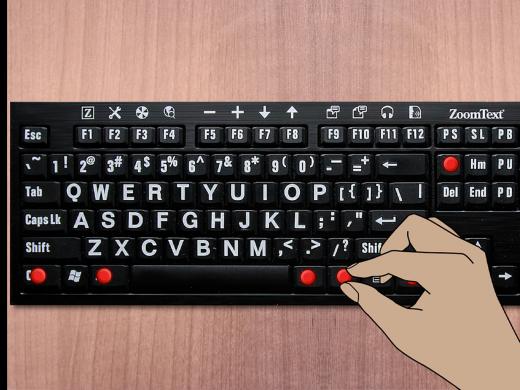
Okay, on to using your keyboard alone. To use a keyboard shortcut, you will be pressing two keys at the same time. The first key is called a modifier because it’s modifying or changing the function of the second key you’ll be selecting.
So when you press and hold the Control key and then press and release the letter C, you will be modifying the function of the C key from typing a C to copying text you’ve highlighted. C is for copying.
Then, to paste what you’ve copied, just hold down the Control key again and then press the V key this time—that’s V as in victor. I’m not sure why the letter V was selected for pasting, but I like to think of it as a little V-shaped wedge that is squeezing your copied text in right where you want it to go.
Pressing the Control key plus the A key will select all the items on a page.
And if you change your mind and want to undo the last thing you’ve done, just press the Control key plus Z. That’s Z as in zebra or zap to undo.
These shortcuts are usually written out in a particular way. You'll see the letters C-t-r-l for control, then a plus sign, and then the letter that you'll press along with the control key. For example, our copy shortcut will be written as C-t-r-l plus C.
Oh, and here’s a little tip: Rather than trying to exactly time pressing both keys at the same time, press and hold the Control key first. Then press and release the next key.
Now, sometimes there are more than two keys for a shortcut. In this case, you’ll hold down both keys while pressing and releasing the last key. For example, the keyboard shortcut Alt+Tab moves you through the open windows on your computer. So you’ll press and hold the Alt key while pressing and releasing the Tab key for this shortcut.
But to move through these windows in the opposite direction, use the shortcut key Alt+Shift+Tab. For this shortcut, press and hold down both the Alt key and the Shift key, then press and release the Tab key.
Shortcut keys can also be used on a Mac or a tablet computer that has a Bluetooth keyboard connected. For a Mac, you’ll use the Command key instead of Control.
And on an iPad with a Bluetooth keyboard, you can hold down the Command key for several seconds in any app to discover the main keyboard shortcuts for that app. Be sure and check out the resources section for this workshop for lists of basic keyboard shortcuts for Windows, Mac, and iOS.
As always, contact a learning expert if you have questions or your own tips to share. I’m Ricky Enger, and I’m glad you could spend a little time with me exploring keyboard shortcuts. See you next time.
-
Handouts
This handout gives you keyboard shortcuts for Windows, Mac, and iOS.
-
Websites
iPhone/iPad Low Vision: Beginning Zoom Gestures from Hadley
This video helps you learn beginning zoom gestures to magnify your screen.
Customizing Windows for Low Vision Series from Hadley
Learn how to customize your font size and type, colors and contrast as well as how your mouse and pointer are displayed.
Learn iPad Keyboard Shortcuts from Apple
How to Use a Bluetooth Keyboard with Your Android Device from How-To Geek
Mac Keyboard Shortcuts from Apple
Keyboard Shortcuts in Windows from Microsoft
Windows Keyboard Shortcuts for Accessibility from Microsoft
Keyboarding Series
- Video · 4 minutes
- Video · 3 minutes
Explore
-
Eye Doctors on Common Eye Conditions
Audio · 23 minutes
-
It's hard to ask for help
Resource guide
-
Organizing Your Kitchen with Vision Loss: Taming the Freezer
Article · 4 minutes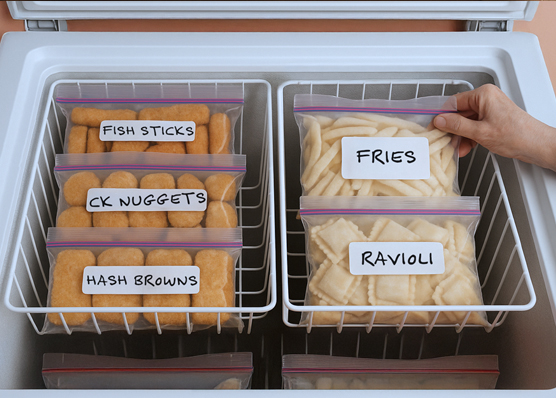
-
What's Cooking?
Discussion
- Explore more
Members also liked
- Video · 5 minutes

- Video · 3 minutes

- Video · 3 minutes

- Video · 10 minutes

Join the Hadley Community
Hadley's resources are always available to you. Create a no-cost Hadley account to go further:
-
Pick up where you left off Everything you start is automatically saved across Hadley.
-
Personalized recommendations We'll suggest resources based on your interests.
-
Join live discussions Live and lively discussions on technology, cooking, and more, all geared toward the community of people living with vision loss.
-
Find peer support Connect with people who understand what you're going through.