
Outlook Low Vision: Email Open, Close, Delete
Hi I'm Vikki Vaughan and today we'll learn how to open and read an email in Microsoft Outlook. We'll also explore how to close and delete an email. This workshop is intended for users for low vision. If you use a screen reading program, be sure to check out our screen reading version of this workshop. Who doesn't love getting mail? That excitement and anticipation is the same. Whether we're talking about a letter in our mailbox or an email in our inbox.
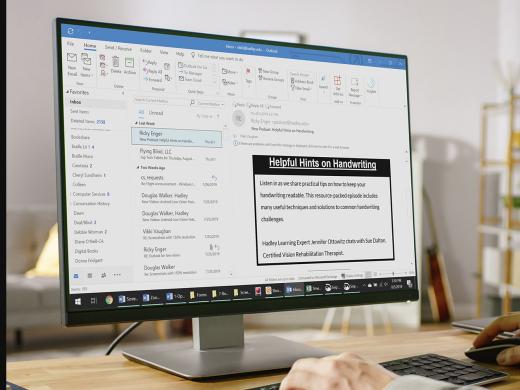
Let's jump right in by opening Outlook and learn about how we can read that long anticipated email from our favorite person. We've landed in my Outlook inbox where we'll be using my Hadley email account for demonstration. Of course our inbox will contain different emails, but the process is the same. You might recall in another workshop in this series we learned about Outlook's inbox and the item list where we get a quick snapshot of many of our most recent emails.
We see that there are a couple of emails in my list where the subject line is blue which tells us they haven't been read. Let's open one of these unread emails. We can either use our arrow keys to move through the list or click with our mouse pointer to select an email. Let's single click on this email at the top of my list. We can preview the message in our reading pane to the right, but what if it's several pages long and we wish to see it on the entire screen? No problem, we can either press the enter key or double click on the email in the list and it will open in a new window. That's pretty easy right?
Now that we've read the email we're ready to close it and move to the next one. We have a couple of options here. We can either click on the red X in the top right corner, or we can press our escape key. For this email let's press the escape key. We find ourselves back in the inbox and once again we see our email in the item list. The color of the subject line is now black, telling us that it has been read. often we read an email and find we don't have any further need for it.
Let's say that's the case for this email. There are two ways we can easily delete a message. The first is to press the delete key. The other message is to click on this red trash icon which appears when we use our mouse pointer to hover on the right side of our email in the item list. Let's click on the delete icon to delete this message. We see that our email has been deleted and the second email in the item list has moved to the top of the list.
Today we discussed techniques for opening an email in Microsoft Outlook. We also learned how to close and delete an email. I'm Vikki Vaughan and I thank you for joining me. This is one in a series of workshops called Microsoft Outlook.
-
Handouts
Email: Open, Close, Delete Quick-Start Guide (PDF)
This quick-start guide helps you open, close, and delete emails.
-
Websites
Outlook: Low Vision Series
- Video · 6 minutes
- Video · 6 minutes
- Video · 5 minutes
- Video · 4 minutes
Explore
-
Specialists for Low Vision
Audio · 21 minutes
-
A family member has vision loss
Resource guide
-
Volunteering After Vision Loss
Article · 4 minutes
-
Resource Roundtable
Discussion
- Explore more
Members also liked
- Video · 3 minutes

- Video · 3 minutes

Join the Hadley Community
Hadley's resources are always available to you. Create a no-cost Hadley account to go further:
-
Pick up where you left off Everything you start is automatically saved across Hadley.
-
Personalized recommendations We'll suggest resources based on your interests.
-
Join live discussions Live and lively discussions on technology, cooking, and more, all geared toward the community of people living with vision loss.
-
Find peer support Connect with people who understand what you're going through.