
Outlook Low Vision: Getting Started
Hi, I'm Vikki Vaughan, and today, we'll discuss a couple of ways to open Microsoft Outlook. We'll also explore the inbox in this handy email and calendar application. As we start off in this workshop, we’re assuming you’ve already gotten your computer setup for your low vision needs. If you haven’t already, you’re in luck! Hadley has a wonderful instructional series entitled, Customizing Windows for Low Vision. It explores all the cool built-in features that Windows offers for users with low vision. Be sure to check it out. This workshop is intended for users for low vision. If you use a screen reading program, be sure to check out our screen reading version of this workshop.
It seems just about everyone is using email to communicate these days. If you're wanting to learn the basics of Outlook, Microsoft's amazing email and calendar application, you've come to the right place.
Let's dive right in by locating our Outlook icon on the desktop. We'll use our mouse pointer to double-click the Outlook icon and start the program.
Now, if you don't see the Outlook icon on your desktop, not to worry. Windows 10 has another cool way to locate and open programs on our computer. It's called the search bar. To open the search bar, we press the Windows key, located between our left control and alt keys. This brings up our start menu. Now, all we have to do is type the name of the application we wish to open. Let's type Outlook and see what happens. We only have to type the first few letters and Windows anticipates the application we're searching for. We can see that Outlook is highlighted, so, when I press the enter key, Outlook opens. Pretty easy, huh?
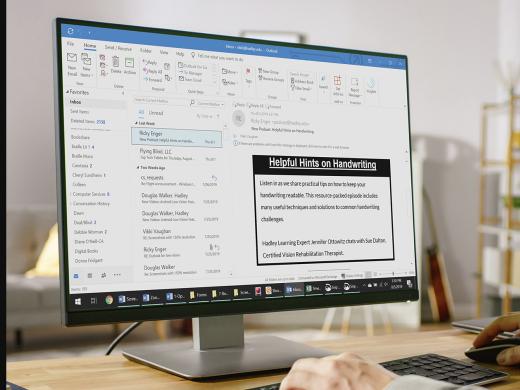
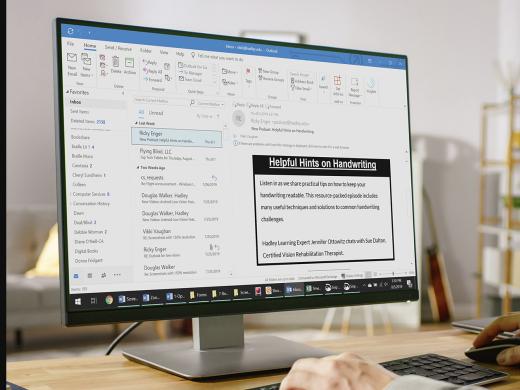
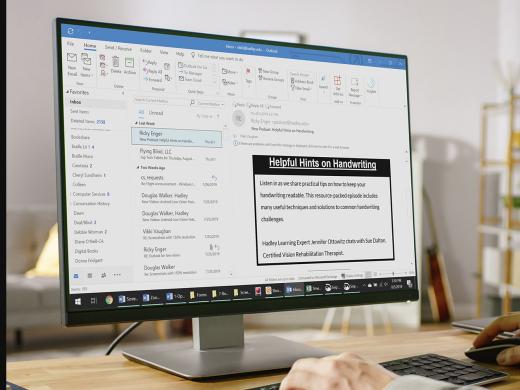
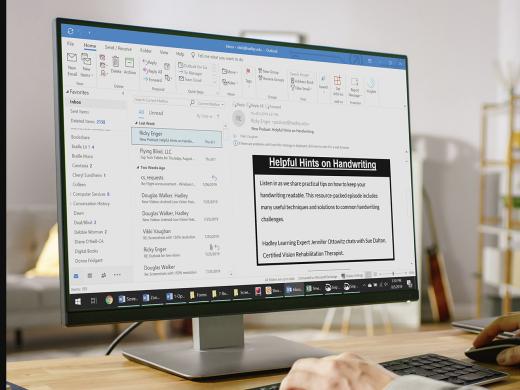
Now that we've explored a couple of ways to open Outlook, let's have a look at our inbox. Of course, all of us are going to have different emails in our inbox. Having said that, we all have some of the same basic information. At the top of our screen, we see a ribbon with a search edit field. Below this ribbon, we find our ribbon toolbar. It's packed with all types of tools that help us with email task. We see that Outlook opens with a focus on the home tab, our default tab. Here we find the most commonly used tools, such as creating a new email, forwarding and replying to an email, and deleting an email. There are other tabs which help us customize and organize our emails. Throughout this series, we explore many of these tools in detail. On the left side of our screen, we see our navigation pane. This is where our email folders are stored. Stay tuned because in this series, we devote an entire workshop to working with folders.
To the right of the navigation pane, we find our item list. Here we see a list of the emails in our inbox, with the most recent at the top. We can move through the list with our mouse pointer, our arrow keys, or clicking and dragging our scroll bar to the right of our list. Each item in the list is like a snapshot of each individual email we've received. We see the sender's name, then, below it, we see the subject and the date it was sent. If it was sent today, we will see the time instead of the date. The subject tells us what the email is about. We can automatically tell which emails have not been read by the color of the subject line. If it's blue, this tells us it hasn't been read. When the color is black, we know we've read it.
To the right of our item, we see our reading pane. This pane provides us with a handy preview of whichever email is currently highlighted in our item list. As we move down through our item list, we can see the email in the reading pane changes to match the focus in our list. Just as we did in our item list, we use the scroll bar to the right to move up or down through our previewed email. If the font size is too small in the reading pane, Outlook provides us with a handy tool to enlarge the font, right here in our inbox.
In the bottom right corner, we find the zoom slider bar. This tool allows us to vary the size of the font in the reading pane to suit our individual needs. We can click and drag the bar to the right to increase the font size. We see that the font in our reading pane has increased to our desired size. Now, when the font is enlarged, we can only see portions of the email in our reading pane. To read the entire email, we'll need to use a scroll bar on the bottom, and the side scroll bar on the right.
Today, we discussed techniques for opening Microsoft Outlook. We also explored the inbox. I'm Vikki Vaughan and I thank you for joining me. This is one in a series of workshops called Microsoft Outlook.
-
Handouts
Getting Started Quick-Start Guide (PDF)
This quick-start guide helps you begin to use MS Outlook.
-
Websites
Outlook: Low Vision Series
- Video · 5 minutes
- Video · 4 minutes
- Video · 6 minutes
- Video · 4 minutes
Explore
-
Tips for Fun and Accessible Travel
Audio · 20 minutes
-
I was just diagnosed
Resource guide
-
Organizing Your Kitchen with Vision Loss: Finding Things in the Fridge
Article · 4 minutes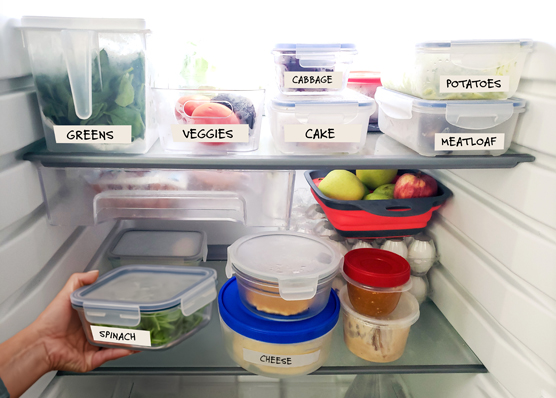
-
Writers' Circle
Discussion
- Explore more
Members also liked
- Video · 3 minutes

- Video · 7 minutes

- Video · 5 minutes

- Video · 3 minutes
Join the Hadley Community
Hadley's resources are always available to you. Create a no-cost Hadley account to go further:
-
Pick up where you left off Everything you start is automatically saved across Hadley.
-
Personalized recommendations We'll suggest resources based on your interests.
-
Join live discussions Live and lively discussions on technology, cooking, and more, all geared toward the community of people living with vision loss.
-
Find peer support Connect with people who understand what you're going through.