
Reading Short Text with Seeing AI for Android
Vikki: Today we'll be exploring one of the most popular apps for people with visual impairments. Seeing AI is an app that uses the camera on our phone to read text aloud, but that's not all. It can also identify products, describe pictures, and identify currency.
Best of all, Seeing AI is completely free. If you don't have it yet, head over to the Google Play Store on your phone, type in Seeing AI, and it should come right up. You can also find a link to the app in the resources below this workshop. This series is designed for people with low vision using Android devices. If you use an Apple device, you'll be happy to know that. We also have a Seeing AI series that's made just for your phone. If you use your device with a screen reader, be sure and check out our series for using Seeing AI with voiceover on your iPhone or talk back on your Android phone.
Seeing AI has lots of different functions such as reading text, describing photos, and identifying products. We access these functions by selecting the appropriate tab on our main screen. If you'd like to learn more about the layout of the app, be sure to check out the Exploring the App workshop. In this series there, we take a deeper dive into the different parts of Seeing AI.
Seeing AI is already open on this phone, so let's jump right in and try reading some short text. When we open the app, our focus is usually on the read tab. If we're somewhere else in the app, we tap on the read tab on the far left side toward the bottom of the screen for short text when we just need to quickly read something like a business card or a piece of mail without saving it for review.
Later, we want to make sure the document detection tool is turned off. Let's place what we're going to read on a flat surface. We'll use the camera that's located on the back of our phone to look at this item and read it aloud. We'll start off with a small item such as this signature guide.
Our camera app is open and for this workshop we orient it in portrait mode, so the short side of the phone with the charging port is facing us. With the long part of the card facing us, we'll place our phone directly on top of what we want to read. We feel for the top left edge of the card.
Then line it up with the top left edge of our phone, and now we'll lift the phone straight up because what we're reading is a small object. We need our camera to be pretty close to it to capture everything, so we'll lift the phone about five inches from our card here, and then hold it steady.
Seeing AI Voice: HadleyHelps.org 800-323-4238.
Vikki: Wow, that's pretty amazing, isn't it? Our app, just read the info that's printed on Hadley's Signature Guide. Even more amazing Seeing AI can read the print even if the card is turned upside down. No worrying about whether our print is turned the right way.
Now let's try reading something a little bigger. We'll use an information card from Hadley now because it's a little bigger, our camera placement will be slightly different so we can make sure it captures everything.
We'll lay the card on the table, then place our phone down in the middle of the card, and just like before, we'll lift straight up. Because the card is larger than our signature guide, our camera needs to be further away. To capture all of the text printed on the card, let's lift our camera eight or nine inches from the card. We'll lift straight up and hold steady.
Seeing AI Voice: We're Hadley in nonprofit helping thousands with vision loss each year here for you with practical help. No cost, no catches free. Always. HadleyHelps.org 800-323-4238.
Vikki: Wow, that is so cool. Our phone read everything that's printed on the card. I'm sure you're as excited as I am about exploring this amazing app. But before we wrap up, let's discuss a couple of helpful tips.
Today we read things by placing them on a flat surface and lifting our camera above them. That helps orient us in relation to the text, but we don't have to do that. If there's a sign up ahead or maybe a menu on the wall, we can just face the camera toward the text and Seeing AI will read it aloud.
It's good to know that when we have the document detection tool turned off, the app will start the reading process over again. Each time the phone moves a little, when we're just getting familiar with using the app, there will be times when the phone isn't quite getting everything moving the camera to the left or right or closer or farther away. To find that sweet spot is just part of the process. When you get it right and Seeing AI is reading without cutting words off or running sentence fragments together, just hold steady until Seeing AI has finished reading.
If holding steady for a long period of time is difficult or if you actually want to review the text once it's been recognized by Seeing AI, it's best to turn on the document detection tool tool and switch to reading our text as a document.
Seeing AI Voice: Document detection on.
Vikki: You can learn more about reading a document in the next workshop in this series. For now, have fun practicing with this short text option. You'll have a great time reading everything, even those pesky bills. I'm Vikki Vaughan and I thank you for joining me as we explored reading Short Text with the Seeing AI app.
-
Handouts
Seeing AI Android: Reading Short Text Quick-Start Guide (PDF)
This quick-start guide shows you how to use Seeing AI to read short text like pamphlets and business cards.
-
Websites
Download the Seeing AI App (Android)
Link to the Seeing AI app
Seeing AI Android Low Vision Series
- Video · 6 minutes
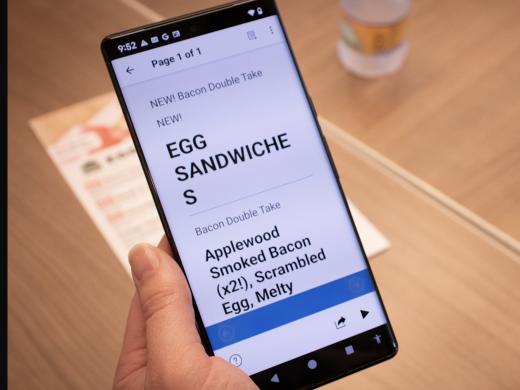
- Video · 7 minutes
- Video · 6 minutes
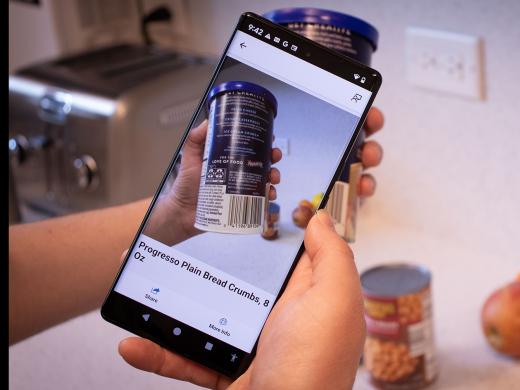
- Video · 4 minutes
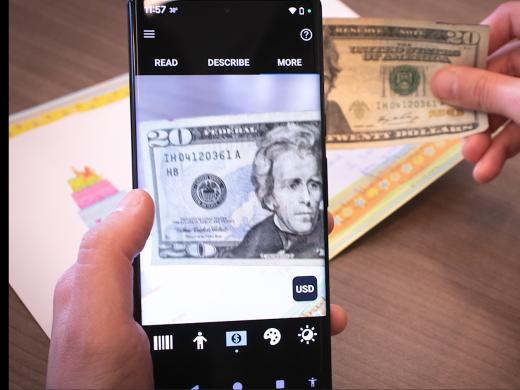
Explore
-
Bioptics for Driving and More
Audio · 25 minutes
-
I'm feeling overwhelmed
Resource guide
-
The Crochet Life: Tips for Crocheting After Vision Loss
Article · 2 minutes
-
Writers' Circle
Discussion
- Explore more
Members also liked
- Video · 5 minutes
- Video · 4 minutes

- Video · 8 minutes
- Video · 5 minutes

Join the Hadley Community
Hadley's resources are always available to you. Create a no-cost Hadley account to go further:
-
Pick up where you left off Everything you start is automatically saved across Hadley.
-
Personalized recommendations We'll suggest resources based on your interests.
-
Join live discussions Live and lively discussions on technology, cooking, and more, all geared toward the community of people living with vision loss.
-
Find peer support Connect with people who understand what you're going through.