
Exploring the Seeing AI App for Apple
[Vikki] - In this first workshop. In this series, we'll explore the layout of seeing ai. Seeing AI is an app that uses the camera on our phone to read text aloud. This app not only reads text, but also identifies products, describes pictures and identifies currency. Best of all, seeing AI is completely free. If you don't have it yet, head over to the app store on your phone, type in seeing ai, and it should come right up. You can also find a link to the app in the resources below this workshop.
This series is designed for people with low vision using Apple devices. If you use Android, you'll be happy to know. We also have a Seeing AI series that's made just for your phone. If you use your device with a screen reader, be sure to check out our series for using Seeing AI with voiceover on your iPhone or talk back on your Android phone. When we open the app, it's ready to start reading text.
So, for the purposes of this workshop, we'll lay our phone on a flat surface. This will allow us to explore the app without activating our reading function. Seeing AI is already open on this phone, so let's jump right in and explore the app. When we open seeing AI for the first time, a short tutorial pops up the tutorial gives us some helpful info, so it's a good idea to check it out. Before moving on to using the app, let's select the skip button for now and move on to our next window, the Microsoft terms of use. After we've read this information, we check the accept terms of use check box. Then we select the get started button. We then select the allow button to give Seeing AI permission to access the camera on our phone. We're now in a new screen that describes our first channel, the Read Channel. It gives us a description of this channel and also provides directions in its use. We select the done button in the top right corner to begin using our app.
Now we find ourselves in the main menu. In the top left corner of our screen, we have three white horizontal bars. This is our menu button. Let's open it with a tap. Here we find lots of cool stuff like browse photos, history, help, feedback, settings, what's new and about. Let's tap the X in the top left corner to close the menu. In the top right corner of our screen, we have a circle with a question mark inside. This is our help button. Let's tap it to find out more. Seeing AI has several different functions such as reading, text, and identifying products. We access these functions by selecting tabs or channels in our app. This quick help option is where we'll find more details about the specific tab or channel we're in. Let's tap the done button to close this option. Moving down toward the bottom of the screen, we find a small rectangular button on the left side of our screen.
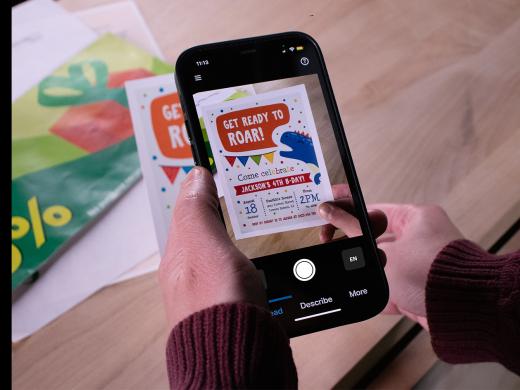
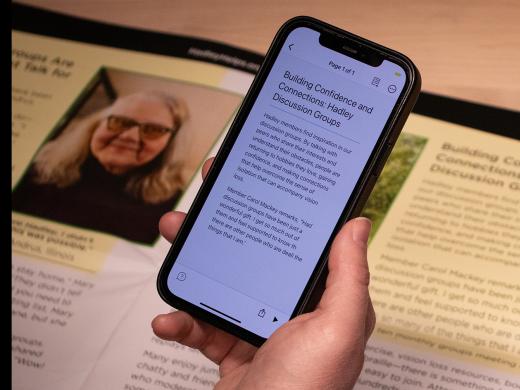
This is our document detection button. We use this tool to guide us when we're taking a picture of a document. By default, this button is inactive. When we touch it, we activate the detect feature. Document detection on seeing. Ai then gives us audible cues to align our document to the camera on the back of our phone. Document detection off. Moving to the right in the middle of this row, we find a large round button. This is our camera's take picture button. We tap this button to capture an image of the text we wish to read. The final button on this row is our language button. It allows us to select the language we wish to have our app recognize. This button changes depending on the tab we're currently in. For example, when we select the currency channel, the button allows us to select the currency we want to identify. Now let's explore the tabs along the bottom of our screen. The first tab on the far left is labeled Read. This tab helps us with reading text in our environment like menus and signs. We also use this tab to read printed documents as well as handwritten documents. Moving to the right, we find the describe tab describe. We select this tab to have the app describe our environment, including photos we've taken or photos and videos saved on our phone.
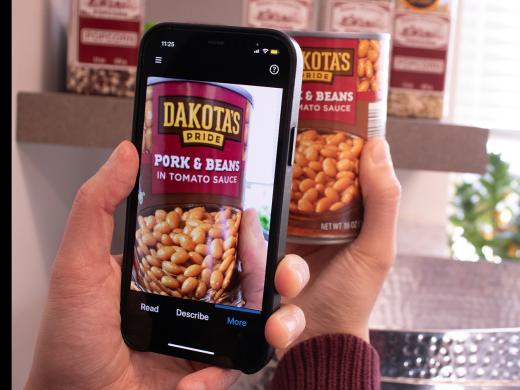
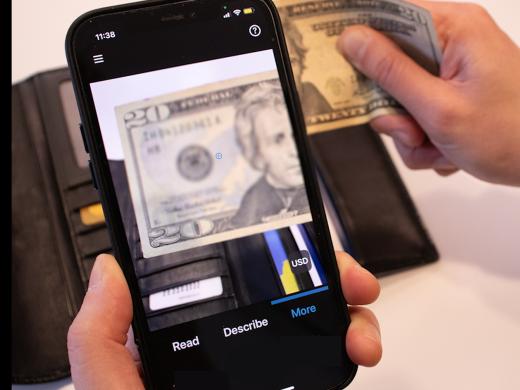
We can also use the app's artificial intelligence to get more details about the image. The final tab is more, more when we tap it. It opens a channel selector along the bottom of our screen. It contains icons that represent different channels. It's a good idea to know how to change the channel so we can use seeing AI to read all kinds of different things. When we want to select a different channel, we tap on the desired icon at the bottom of our screen. Let's start at the far left, the product channel product. This option allows us to identify products and hear more about their contents. The next option is the person, channel person. This channel allows us to use our app to tell us how many people are around us and how close they are. Once again, moving to the right currency, we find our currency channel. This option identifies our paper money. The next channel is the Find My Things Channel. Find my Things Preview. It's designed to locate personal objects such as a wallet or keys in our environment.
To help seeing ai, we must first teach the app what the object looks like. While this channel is still in development and is not quite at the same stage as the other channels, nothing will break. If you try using this channel, check it out and see what results you get. Our next channel is World Preview. World Preview. This channel is for exploring what's around us and hearing announcements of objects like doors or chairs in our camera's view. This channel is only available on certain phone models, so if you're not seeing it, it just means it isn't currently supported on your phone. Moving to the right, we find the color channel color. No surprises here. This channel identifies colors. Our final channel is light. Light. This channel uses audio tones to tell us how much light our phone sees. The more light there is, the higher the pitch of the tone. I'm excited to try out some of these channels, aren't you?
Be sure to join us for the rest of this series there. We'll take a deeper dive into several of these channels. I'm Vikki Vaughan, and I thank you for joining me as we explored the layout of the Seeing AI app.
-
Handouts
Exploring the App Quick-Start Guide (PDF)
Explore the Seeing AI app with this quick-start guide.
-
Websites
Link to the Seeing AI app
Seeing AI Apple Low Vision Series
- Video · 7 minutes
- Video · 6 minutes
- Video · 5 minutes
- Video · 4 minutes
Explore
-
Raising a Future Guide Dog
Audio · 26 minutes
-
I'm having trouble reading
Resource guide
-
The Truth About Guide Dogs
Article · 4 minutes
-
Book Nook
Discussion
- Explore more
Members also liked
- Video · 5 minutes
- Video · 3 minutes

- Video · 4 minutes

- Video · 12 minutes

Join the Hadley Community
Hadley's resources are always available to you. Create a no-cost Hadley account to go further:
-
Pick up where you left off Everything you start is automatically saved across Hadley.
-
Personalized recommendations We'll suggest resources based on your interests.
-
Join live discussions Live and lively discussions on technology, cooking, and more, all geared toward the community of people living with vision loss.
-
Find peer support Connect with people who understand what you're going through.