
Swift Playgrounds: Custom Rotor Actions
My name is Douglas Walker. Today we are going to be checking out some really useful custom rotor elements and actions, and these are of course available to us when we're interacting with our world grid. We'll also check out some additional actions that we'll find when we're entering our code from our code suggestion bar. Now, we're using our iPad in landscape view because we found that we have much more screen space available to us and when we're using VoiceOver, all of our elements here are much easier to navigate. Alright, so let's jump right in and see how our custom rotor actions all work.
Now, we can get all of our world grid information by simply touching just outside of our world grid here, of course here on the right hand side of our screen. So let's do it. We will just touch outside of our world grid. We'll just touch.
VoiceOver: The world is five columns by five rows. Byte at height 0 facing north on column 0, row 0. The goals are, gem at height 0 on column 0, row 1. Gem at height 1 on column 1, row 4. Gem at height 1 on column 3, row 0. Gem at height 0 on column 4, row 3. To repeat this description, tap outside of the world grid. Swipe up or down to select a custom action, then double tap to activate.
Douglas Walker: Wow. Yeah, we do get a lot of really great information here. However, hearing all of our world grid information can be a bit overwhelming, especially if all we're really wanting is to know where to locate our character and goals, or of course in this case our gems here, and this is where our custom rotor actions can really come in handy. Now, if we were listening, the last thing that we heard VoiceOver announce is that we have custom actions available to us, and we know that when we have actions that we can simply just flick up or flick down our screen to cycle through all of our actions. Now, if we're not quite sure that our custom actions are selected within our rotor, well, we can simply just of course activate our rotor to make sure.
Alright, now we know that they're currently available because VoiceOver just told us that they were, right? But how about we quickly just check out exactly how to make sure that they are selected? We'll go ahead and just check in our rotor, and we'll just take our two fingers here and we can turn them clockwise of course, or counterclockwise. So we'll place two fingers on our screen and we'll just go clockwise today.
VoiceOver: Check words. Speaking rate.
Douglas Walker: We're not quite there.
VoiceOver: Paddings. Language. Actions.
Douglas Walker: Great, and now we know for sure that our actions are available, so how about we just flick down our screen to cycle through all of our actions? We'll go ahead and just flick down our screen.
VoiceOver: Character locations.
Douglas Walker: Yeah, and we heard VoiceOver announce "character locations," so we know that we can now just single finger double tap and the location of our character will be announced. How great is that? So we'll go ahead and just double tap anywhere here.
VoiceOver: Byte at height 0 facing north on column 0, row 0.
Douglas Walker: Wow, there you go. We were told that our character Byte's location is at height 0. We were also told that Byte is facing north, or of course towards the top of our iPad here, and last but not least we were told that Byte is at column 0 and row 0, and I tell you, that really is super handy because we of course have to know where we are before we can get where we're going, right? Anyway, let's go ahead and flick down our screen and we'll check out our next custom action here, and we'll just flick down.
VoiceOver: Goal locations.
Douglas Walker: Here's our goal locations action, and again, we'll just single finger double tap, and we will just double tap here.
VoiceOver: Gem at height 0 on column 0, row 1. Gem at height 1 on column 1, row 4. Gem at height 1 on column 3, row 0. Gem at height 0 on column 4, row 3.
Douglas Walker: Yeah, this is great. We actually have four gems here in our world grid, and we now know exactly where they're all located. You got to love it, right? Okay, so we're going to go ahead and we'll flick down and we'll check out our last custom action here. So we'll just flick down.
VoiceOver: Activate default.
Douglas Walker: Alright, and we heard VoiceOver announce that this is our default custom action, so we know that if we were to double tap again, all of our world grid information is going to be repeated, and we don't necessarily need to hear all that again because we're going to go ahead and check out some additional custom actions that are available to us in our code suggestions bar here across the bottom edge of our screen. So we'll go ahead and we'll just touch here in the bottom left hand corner of our screen to orient ourselves to our suggestions bar here.
So we'll go ahead and just touch.
VoiceOver: Undo.
Douglas Walker: Great, and here we are on our undo button within our code suggestion bar, of course in the bottom left hand corner of our screen. Now, we're actually looking for our for loop function here in our suggestions bar, so we'll go ahead and just right flick until we find our for loop function. We'll just right flick a couple of times here, and we'll just right flick.
VoiceOver: Redo.
Douglas Walker: Great, and here's our redo button. So we'll just right flick again here.
VoiceOver: For code completion.
Douglas Walker: Yeah, and here is our for loop function, so we'll go ahead and we'll just single finger double tap to add our for loop to our code edit field here. So we'll just double tap.
VoiceOver: Choose a number. Adjustable. Swipe up or down with one finger to adjust the value.
Douglas Walker: Alright, we've been given a popup menu and we've been placed right in our adjustable bar for selecting our value here, or of course the number of times our code will actually loop or repeat in this case. Since we have of course four gems here, and of course we want to collect those in our world grid, we will want our loop here to repeat four times. So here's where we're going to use our custom actions gesture again, and we'll simply just flick up our screen four times and we'll know that our code is going to repeat four times here. So we'll go ahead and just flick up.
VoiceOver: One.
Douglas Walker: There's one of course. We'll flick up again.
VoiceOver: Two.
Douglas Walker: Two more times here.
VoiceOver: Three. Four.
Douglas Walker: Yeah, and we now have four set in our loop here, so we can now just dismiss our popup menu by either touching outside of our popup menu and then single finger double tapping, or we can simply just perform our scrub gesture. So how about we just scrub our popup menu away here? We'll just scrub it away.
VoiceOver: Goal: Use a for loop to repeat a sequence of commands.
Douglas Walker: And there you go. Our popup menu has closed. I tell you, you know, it really doesn't take long to see what a powerful tool our custom rotor actions can be for not only helping us to locate items within our world grid, but also give us some really useful ways for entering functions and elements from our code suggestion bar. I tell you, that really is super great.
Again, my name is Douglas Walker. Take care, and I'll see you next time.
Swift Playgrounds Coding Game Series
- Video · 10 minutes

- Video · 10 minutes

- Video · 13 minutes

- Video · 8 minutes

Explore
-
Thinking About a Guide Dog?
Audio · 40 minutes
-
I can’t drive anymore
Resource guide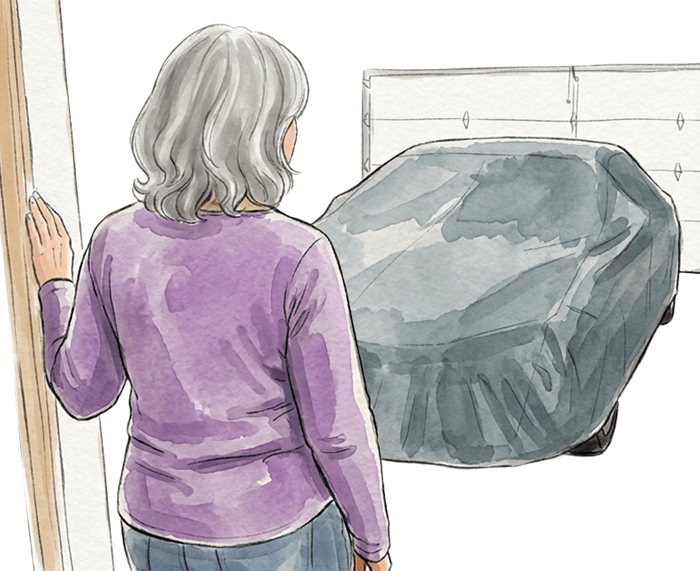
-
Organizing Your Kitchen with Vision Loss: What’s in the Pantry?
Article · 4 minutes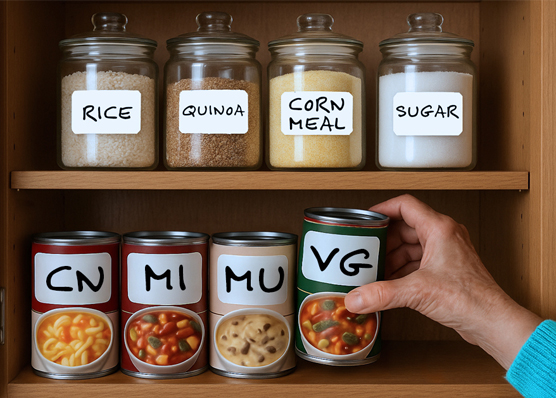
-
Writers' Circle
Discussion
- Explore more
Members also liked
- Video · 3 minutes

- Video · 10 minutes

- Video · 3 minutes

- Video · 5 minutes
Join the Hadley Community
Hadley's resources are always available to you. Create a no-cost Hadley account to go further:
-
Pick up where you left off Everything you start is automatically saved across Hadley.
-
Personalized recommendations We'll suggest resources based on your interests.
-
Join live discussions Live and lively discussions on technology, cooking, and more, all geared toward the community of people living with vision loss.
-
Find peer support Connect with people who understand what you're going through.