
Android Low Vision: Enlarging Font and Display Size
Hi, and thanks for joining me. Today, we're going to check out how to adjust or turn on our text size and display options for people with low vision. It's great that we can make these types of changes when we need bold or larger text and icons.
So, let's jump in and find out how this works. To adjust our texts and display size, we'll first head over to our settings app, which is right here on our home screen.
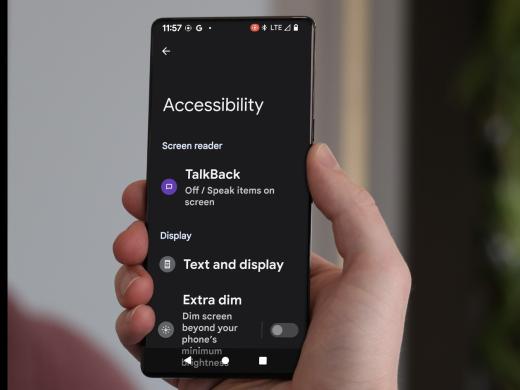
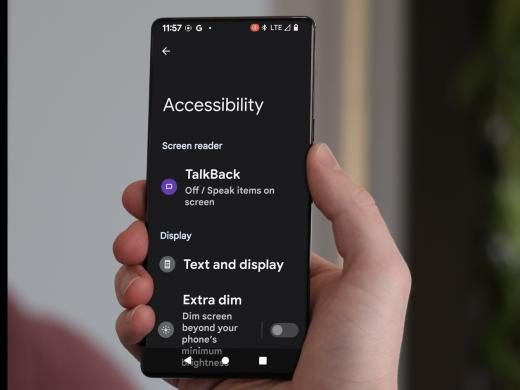
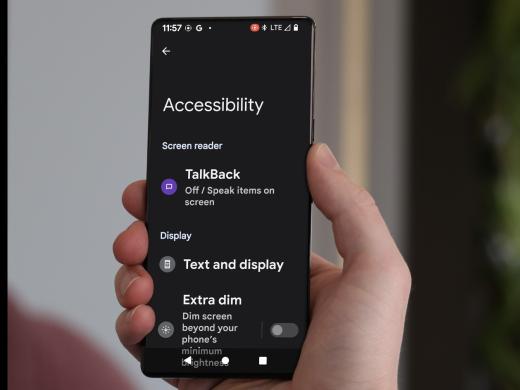
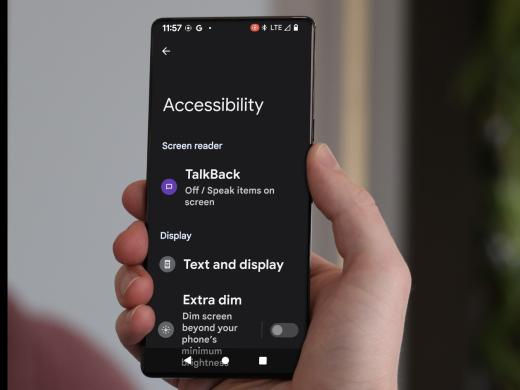
Let's tap on settings to open it. Great. Now that our settings app is open, the next step is to open accessibility settings. We'll just scroll down to find our accessibility settings button in this list of options and there it is. Let's tap right here on accessibility.
Now let's look under the display heading, for display size and text or on your phone it might say text and display. This is where we're going to adjust or turn on our font size and display settings. So, let's tap to select it, there.
For this next step, if your phone showed the text and display option, you may need to click on font size next and your screen might look a little bit different from this one, but changing the font size will work the same either way. On this phone we have a preview section in the center of our screen and we can scroll down to find different settings.
Font size is right here below the preview section. Here's what our screen looks like when the preview shows icons. We can also scroll to the left to preview what a text message looks like. If we scroll to the left again, we can preview an email message. For now, let's look at the text message preview.
Again, your screen may look different. Now let's go to the font size slider bar, just below the preview. This slider bar lets us adjust the font size and the setting we choose will affect all of our text throughout our entire device.
To adjust the font size, let's touch and hold the button on the slider bar. As we slide or drag this button to the right, we notice that the font for our sample text gets larger, which is just what we want, but then as we slide it back to the left, we notice the font gets smaller, so we'll just slide the button back to the right to keep the font enlarged. There we go. Now once we lift our finger, the preview window on this phone brings us right back to the icons and that's handy for our next setting, display size.
So, let's scroll down to find display size and if your phone doesn't show display size on this screen, go to the top left corner of the screen and tap the back button. Then you can choose display size from the accessibility menu.
Changing our display size can make items like icons appear larger on the screen and it can also make our text even larger than our font size setting. The preview area shows how our text and icons currently appear throughout our device and it shows how they change as we adjust the size.
Just like when we changed our font size, we're going to work the same way to change our display size. We'll touch and hold the button on our slider bar and as we slide or drag the button to the right, we notice that our screen icons and other items all enlarged and as we slide back to the left, we notice that they all get smaller, so we'll just slide the button back to the right to keep everything enlarged like this.
Now the larger display size option can make the formatting on some of our apps or webpage look a little out of whack. Maybe the words overlap a bit, or appear bunched up. If that happens, we can always change the display size back to a smaller setting.
Okay, now that we've enlarged our text and display size, let's make the text bold. This is going to add contrast, making thin, hard to see text into thicker, easier to see text. To bold our text, let's scroll down to the next setting on our display size and text screen. Once again on your phone, you might need to tap the back button in the top left corner of the screen to find bold text in the accessibility menu.
Either way, we'll just tap the button next to the bold text to turn it on. We can see the change immediately and we know it's on because the circle inside the button has moved to the right and the button has turned blue.
Now that we've explored our display size and text features, let's check out the feature to make our screen extra dim. We'll just move to the top left corner of our screen and tap the back button, to get back to our accessibility settings and here we are.
Next, we'll scroll down to find extra dim. Reducing the brightness of the screen can make text more comfortable to read and this setting can be helpful if your phone's minimum brightness level is still too bright. It can also be useful when using your phone in dark situations like at night or in a darkened room, like a theater.
Alright, let's tap on the words extra dim to open this feature. We could just tap on the button to turn it on, but we want to check out the options available. The first selection on the page tells us to turn extra dim on and off. Let's tap on Make screen extra dim to turn it on.
Now that it's turned on, under the options heading we have a slider bar that lets us adjust the intensity of the dimmer or brightness. This works the same as when we adjusted the text and display size. We can also scroll down to find an option to keep extra dim turned on after the device starts. To turn on this feature, let's tap Keep on after device restarts.
There, now if the device is restarted, this option will automatically keep the extra dim feature on. The next option shows us that the extra dim feature can be added as a shortcut to the accessibility button, which lets us quickly turn it on or off.
For more information about the accessibility button and menu, check out the resources tab by scrolling down below this workshop and to learn how other accessibility features like magnification work with the accessibility button, check out the rest of this series.
Let's quickly recap. So far, we've enlarged our text, enlarged our display size, made our text bold and made our screen extra dim, and there are still more changes we can make to our display. Visit the resources tab to learn how to change a busy looking wallpaper or background to a solid contrasting color that can make things on the screen easier to see. Thanks for learning with me today. Until next time.
-
Handouts
Enlarging Font and Display Size Quick-Start Guide (PDF)
This quick-start guide shows you how to reduce eye fatigue by adjusting text size and display options.
Tips on how to change the wallpaper on an Android mobile device so items on the screen are easier to see.
Accessibility Button and Menu (PDF)
Learn how to make low-vision-friendly changes to your Android mobile device using the Accessibility button and menu.
Android: Low Vision Features Series
- Video · 4 minutes
- Video · 5 minutes
- Video · 10 minutes
Explore
-
"I chose to educate myself"
Audio · 3 minutes
-
I'm having trouble reading
Resource guide
-
6 Tips for Gardening with Low Vision
Article · 4 minutes
-
Tech It Out
Discussion
- Explore more
Members also liked
- Video · 5 minutes
- Video · 3 minutes

- Video · 4 minutes
- Video · 5 minutes
Join the Hadley Community
Hadley's resources are always available to you. Create a no-cost Hadley account to go further:
-
Pick up where you left off Everything you start is automatically saved across Hadley.
-
Personalized recommendations We'll suggest resources based on your interests.
-
Join live discussions Live and lively discussions on technology, cooking, and more, all geared toward the community of people living with vision loss.
-
Find peer support Connect with people who understand what you're going through.