
Android Low Vision: Color Inversion
Today, we're going to check out the color inversion feature. This feature inverts the colors on your screen meaning it changes dark to light and light to dark. We can use it to change black text on a white background to white text on a black background which is great for reducing glare and eye fatigue. Let's see how it works.
To turn on the color inversion feature, we'll start by going to the Settings app, which is right here on the home screen. Let's just tap on settings to open it.
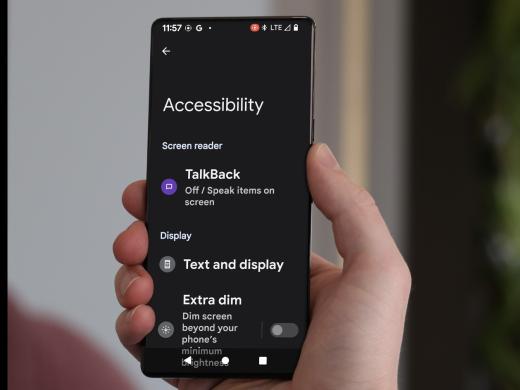
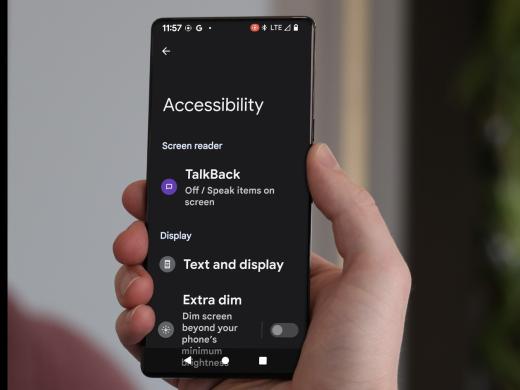
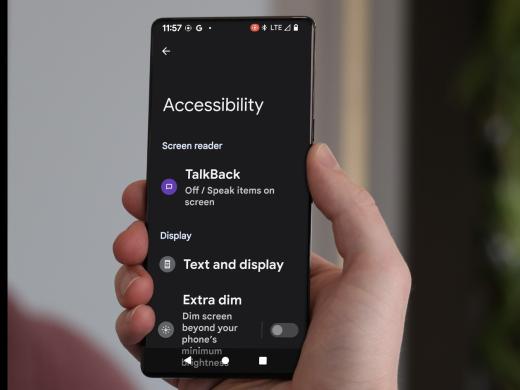
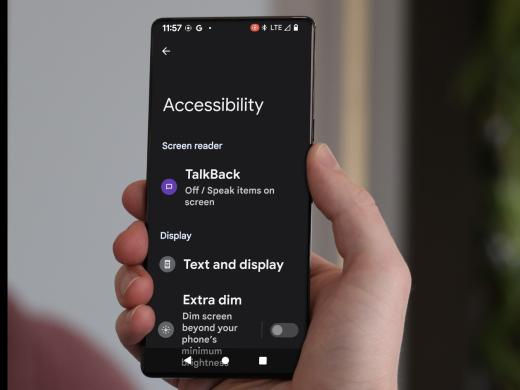
Now that the settings app is open our next step is to open accessibility settings. So, let's scroll down to find accessibility in the list of options, and here it is. Then we'll just tap on it.
Next, we'll look for the display heading and under that we'll find color and motion. On your phone, color inversion might be under text and display. In either place, turning this feature on works the same way. Let's tap on this option.
Next, we'll look to find color inversion and here it is. On this phone it's right below color correction. You might find these options in a different order on your phone, and that's fine. By default, the color inversion feature is turned off. We'll need to tap on the option to open it and now that it's open, we'll tap on the toggle button to turn it on. There.
Now that color inversion is turned on we can notice the changes on the screen right away. Here in the settings app, we now have white text on a black background. This feature works on all apps throughout the entire device but it doesn't just work on text. The colors will change in media and images too which can look a bit strange. We'll see how that works in just a bit.
Here's one more thing to learn about this feature. We can add it as a shortcut to the accessibility button so we can quickly turn it on or off. For more information about using the accessibility button and menu, check out the resources. You can find the resources tab by scrolling down the page below this workshop.
Now let's explore an app with the color and version feature turned on and let's start at the home screen. To do this, we can go to the bottom of the screen and find the home button. It's a circle that's right in the center of the navigation bar, or if you like to use gestures swipe up with one finger from the bottom of the screen to get to the home screen. If you want to learn more about gesture navigation you can find that in the resources too. Again, scroll down the page to find the resources tab.
Let's go back to the home button inside the navigation bar and tap it. Now we're on the home screen. Notice how the items on the home screen and the background have changed in color. Next, let's open the list of apps. We'll just go to the bottom of the screen and swipe up with one finger.
Now the list of apps is open, and if we open one of the apps, we can see how it looks with color inversion. Let's look at Chrome. On this phone, it's right here at the top in the list of commonly used apps. On your phone, it might be in a different place. Let's tap on Chrome to open it.
This is quite a difference. Here, we have white text on a black background and this can be so much more comfortable to read but let's take a look at the images too.
Scrolling down shows that the images look a bit strange, like negatives. Color inversion does affect the images so this feature is really most useful for reading text. When you want to look at photos and other images it's easy to quickly turn off color inversion and it's ready and waiting for you to turn it on again when you want to read text. How handy is that?
Thanks for learning with me today. Now that you've learned how to use color inversion you can check it out on your device to see how the new settings improve the display for you. Until next time.
-
Handouts
Color Inversion Quick-Start Guide (PDF)
This quick-start guide shows you how to invert colors on your Android device to reduce eye fatigue.
Accessibility Button and Menu (PDF)
Learn how to make low-vision-friendly changes to your Android mobile device using the Accessibility button and menu.
-
Websites
Get around on your Android phone
Information on how to switch from gesture navigation to the navigation bar.
Android: Low Vision Features Series
- Video · 10 minutes
- Video · 8 minutes
- Video · 4 minutes
Explore
-
Vision Loss and Advocating for Change
Audio · 25 minutes
-
I'm feeling overwhelmed
Resource guide
-
Macular Degeneration: Where to Start
Article · 6 minutes
-
Recreation Chat
Discussion
- Explore more
Members also liked
- Video · 5 minutes
- Video · 9 minutes

- Video · 4 minutes
- Video · 7 minutes
Join the Hadley Community
Hadley's resources are always available to you. Create a no-cost Hadley account to go further:
-
Pick up where you left off Everything you start is automatically saved across Hadley.
-
Personalized recommendations We'll suggest resources based on your interests.
-
Join live discussions Live and lively discussions on technology, cooking, and more, all geared toward the community of people living with vision loss.
-
Find peer support Connect with people who understand what you're going through.