
Apple Watch: Side Button
Douglas Walker: Hello, my name is Douglas Walker. Today we'll be exploring our side button. Now, we'll find our side button on the right hand side of our Apple Watch, and just below our digital crown. Yeah, our side button will do several different things and this will depend on how long or the number of times that we press it. Now, it's good to know that our side button is really flat or flush against the side of our watch, so it might be a little difficult to feel at first.
Now, before we get started, we want to make sure that our VoiceOver setting is turned on and the easiest way to turn it on is in our Apple Watch app, on our iPhone down in our accessibility settings. So how about we jump right in and check out our side button. Again, our side button is the kind of oval button on the lower right side of our watch. Remember, it feels really flat or flush against the side of our watch. Okay, if we press our side button once, we will bring up our control center.
Now, we aren't gonna be covering our control center today because we just so happen to have a workshop in this series called, you guessed it, Apple Watch Control Center. Now, you're really gonna want to check that one out because there are so many great settings and features packed right into our control center.
All right, let's go ahead and take a look at another great thing our side button can do for us. Yeah, the ability to use Apple Pay to make purchases right from our Apple Watch is a super cool feature. And pressing our side button twice will quickly bring up Apple Pay. So let's go ahead and do it. We will just press our side button twice. Yeah, let's press.
VoiceOver: Alert. Hold near reader.
Douglas Walker: All right, we heard VoiceOver announce hold near reader. So if we were making a purchase, we would just hold our Apple Watch close to the register's terminal. And once our purchase is confirmed, our watch will vibrate or kind of tap us and we'll be given a little ding audio cue to let us know that our purchase has been approved. And that's really all there is to it. Yeah, I love that we can make purchases right from our Apple Watch. All right, if we press our side button, we'll be placed right back on our watch face. So let's go ahead and just press our side button here.
VoiceOver: 5:00 PM.
Douglas Walker: Great. And we are right back on our watch face. All right, our side button has one more feature. Actually, we will be given four options under this feature. And to open these options, we'll just hold down our side button. Now once we press and hold our side button, we will continue to hold it down until we feel a little vibration there and then we'll just release it. So we'll just press and hold.
VoiceOver: Cancel button.
Douglas Walker: Yeah, remember after feeling that little vibration, we just had to release our side button and we then placed on our Cancel button at the top of our options here. Of course, if we were to double tap here on our Cancel button, we'd be placed right back on our watch face. But we don't want to do that because we're gonna just right swipe through our four options here. So we'll go ahead and just right swipe.
VoiceOver: Power button.
Douglas Walker: Okay, here is our Power button and you guessed it, if we were to double tap here, we'd be given the option to turn off our Apple Watch and that's great. But we need our Apple watch awake because we have a couple more features here to check out. So we will go ahead and just right swipe.
VoiceOver: Medical ID button, double tap to activate.
Douglas Walker: Yeah, here we find our Medical ID and if we double tap our Medical ID, we'll bring up our medical information that we've entered into our iPhone's Health app, which I tell you could be super useful in the case of a medical emergency. All right, we'll go ahead and right swipe.
VoiceOver: Compass Backtrack button, double tap to activate.
Douglas Walker: Okay, here is our Compass Backtrack feature. Yeah, this is a really interesting feature. Now our Apple Watch can actually track our journey as we walk or even run it, I guess. And if we double tap our Compass Backtrack feature, we can record our journey so that later on we can be guided back to where we started. So, it looks like we have no more excuses for getting lost, right? Anyway, we'll go ahead and just right swipe.
VoiceOver: Emergency Call button, double tap to activate.
Douglas Walker: Yeah, last but not least, we have our Emergency Call button. Now if we were to double tap our Emergency Call, 911 would automatically be called and our current location will also be sent to emergency services.
Also, if we've set up our emergency contacts from within our iPhone, a message will be sent to any person that we've set up as our emergency contact, letting them know that we've turned on our Emergency Call feature. This really is an amazing feature and can be a real lifesaver if we should ever need it.
Now Apple has given us an even faster way for turning on our emergency call. We can just continue to press or hold down our side button and again, our Emergency Call feature will automatically be turned on. Yeah, that really is super handy.
Okay, that pretty much covers all of the great features that are packed into our side button. It really is great that our side button not only gives us the ability to quickly get to our control center where we'll find some of our most frequently used settings, but we can also make a purchase with Apple Pay, turn off our Apple Watch and even quickly turn on our emergency SOS. I tell you, our side button really is loaded with some of our Apple Watch's most powerful features. Again, my name is Douglas Walker, take care, and I'll see you next time.
-
Handouts
Side Button Quick-Start Guide (PDF)
Use these steps to jump to your favorite apps—and much more—at the press of a button.
Apple Watch Series
- Video · 8 minutes
- Video · 7 minutes
- Video · 6 minutes
- Video · 10 minutes
Explore
-
"I had to deal with the reality of the situation"
Audio · 11 minutes
-
It's hard to ask for help
Resource guide
-
The Crochet Life: 7 Tips for Crocheting After Vision Loss
Article · 4 minutes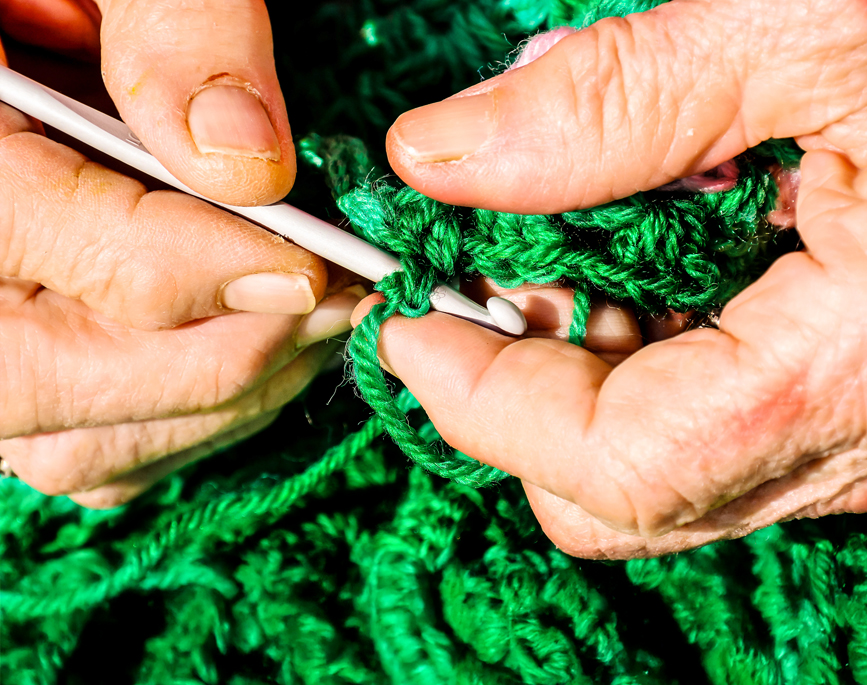
-
Recreation Chat
Discussion
- Explore more
Members also liked
- Video · 12 minutes

- Video · 3 minutes

- Video · 10 minutes
- Video · 10 minutes

Join the Hadley Community
Hadley's resources are always available to you. Create a no-cost Hadley account to go further:
-
Pick up where you left off Everything you start is automatically saved across Hadley.
-
Personalized recommendations We'll suggest resources based on your interests.
-
Join live discussions Live and lively discussions on technology, cooking, and more, all geared toward the community of people living with vision loss.
-
Find peer support Connect with people who understand what you're going through.