
Apple Watch: Watch Face
Hello, my name is Douglas Walker. Alright, let the fun begin. Today we'll take a look at how to move through our watch face. Now, before we get started, we'll want to make sure that our VoiceOver setting is turned on, and the easiest way to turn on VoiceOver is in our Apple Watch app, on our iPhone, down in our Accessibility settings.
Yeah, let's jump right in and check out how to move through our watch face. Now, VoiceOver will announce our time each time we physically touch our watch face, and how great is that, right? So we'll just go ahead and touch our watch face. 11:33 AM
Douglas: Okay, we heard our time announced, and you gotta love it, right? So I tell you it's really nice to know that we have tons of different watch faces to choose from, and we just so happen to have a resource that walks us right through how to add or create a new watch face. You know, we have a really great extra large watch face for those of us with low vision. So you're really gonna wanna check out that resource. And it can be found by selecting Resources if you go ahead and scroll down right below this workshop. Now chances are that most of us have been using our iPhones for a while now, and we know that we can just left and right swipe to move through our screen. Well, our Watch works exactly the same way. So how about we just left swipe to see what we have, and we'll just swipe. One unread.
Douglas: Great. Here we are in the top right corner of our watch face, and we heard VoiceOver say, "One unread." Now what we've been given here is just a little snippet, or piece of information, from our messages app, or what Apple likes to call a complication. And we heard VoiceOver announce that we have one unread message, and if we were to double-tap our messages complication, our messages app would open where we would find all of our recent text messages, which is pretty great. But how about we go ahead and just left swipe from here, and check out the rest of our watch face.
VoiceOver: Unread notifications.
Douglas: Okay, VoiceOver announced that we have unread notifications, and if we were to double-tap, we would be given a list of all of our current notifications. Now we aren't gonna be moving to our notifications today, because we just so happen to have an Apple Watch workshop, called Apple Watch Notifications, so you just might wanna check out that workshop as well. Alright, we'll go ahead and just left swipe.
VoiceOver: 76 degrees. High 79, low 66.
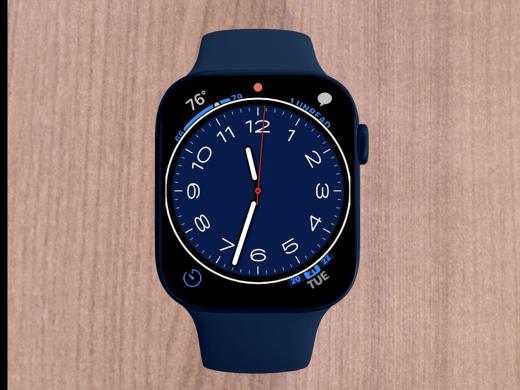
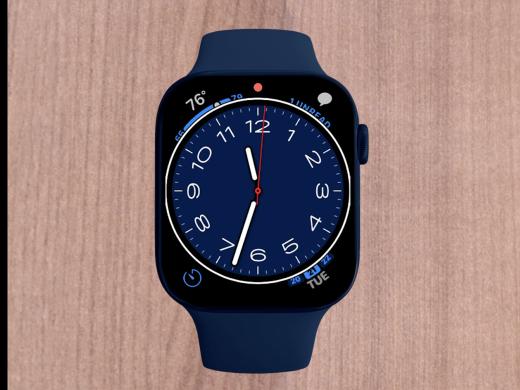
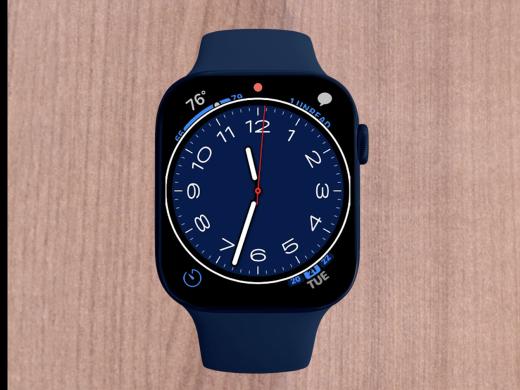
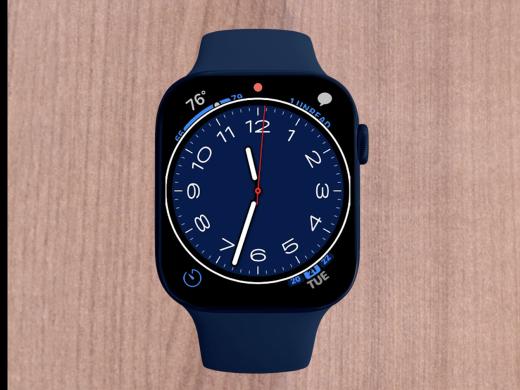
Douglas: Yeah, here's our weather complication in the top left corner of our watch face. Now we heard VoiceOver announced our current temperature, and it's really great to know that if we were to double-tap here, our watch's weather app would open where we would find all of our current weather information, which is super handy for us. Okay, I believe we've reached the top of our watch face, but we'll just left swipe again to make sure. 76 degrees. High 79, low 66.
Douglas: Yeah, we heard a little bump sound, which is our top of list audio cue. And our current weather was repeated again, so we know for sure that we have reached our very top complication. Okay, we do have a couple of more complications at the very bottom of our watch face, so let's just right swipe a few times until we find them. And we'll go ahead and just right swipe. Unread notifications.
Douglas: Yeah, here's our notifications again, and we'll right swipe again. One unread.
Douglas: Right, and here's our messages. So we'll just right swipe. 11:37 AM
Douglas: And we're back on our watch face. So we'll write swipe again. Timer.
Douglas: Great, and here's our timer complication in the bottom left corner of our watch face. And you guessed it, if we were to double-tap here, our timer app would open, where we could swipe through and set a timer if we like. All right, I believe we have one more complication in the bottom right corner here. So we'll just right swipe. Tuesday, May 21st.
Douglas: Yeah, and here we find our calendar complication and we're given today's date, which is super handy for us. And of course we know that we could just double-tap to open our watch's calendar app if we'd like. Okay, I believe that's our last complication, but we'll just right swipe one more time to make sure.
VoiceOver: Tuesday, May 21st.
- All right, we heard our end of list audio queue, that little bump, or in this case, our end of watch face audio queue, and today's date was also announced again. So we know for sure that we've reached the very last item in our watch face. And there you go. That pretty much covers how to move through all of the items and complications on our watch face. You know, it really is so great to be able to quickly get to things like messages, our weather, and even our upcoming calendar events from right here on our watch face. Again, my name is Douglas Walker. Take care, and I'll see you next time.
-
Handouts
Add or Change Your Apple Watch Face
Follow these steps to add or change your watch face.
Watch Face Quick-Start Guide (PDF)
Here are some steps to navigate the features on your Apple Watch face.
Apple Watch Series
- Video · 6 minutes
- Video · 10 minutes
- Video · 8 minutes
- Video · 8 minutes
Explore
-
"The best thing I ever did"
Audio · 7 minutes
-
A family member has vision loss
Resource guide
-
Shop Smarter with AI: Real Tips for People with Vision Loss
Article · 5 minutes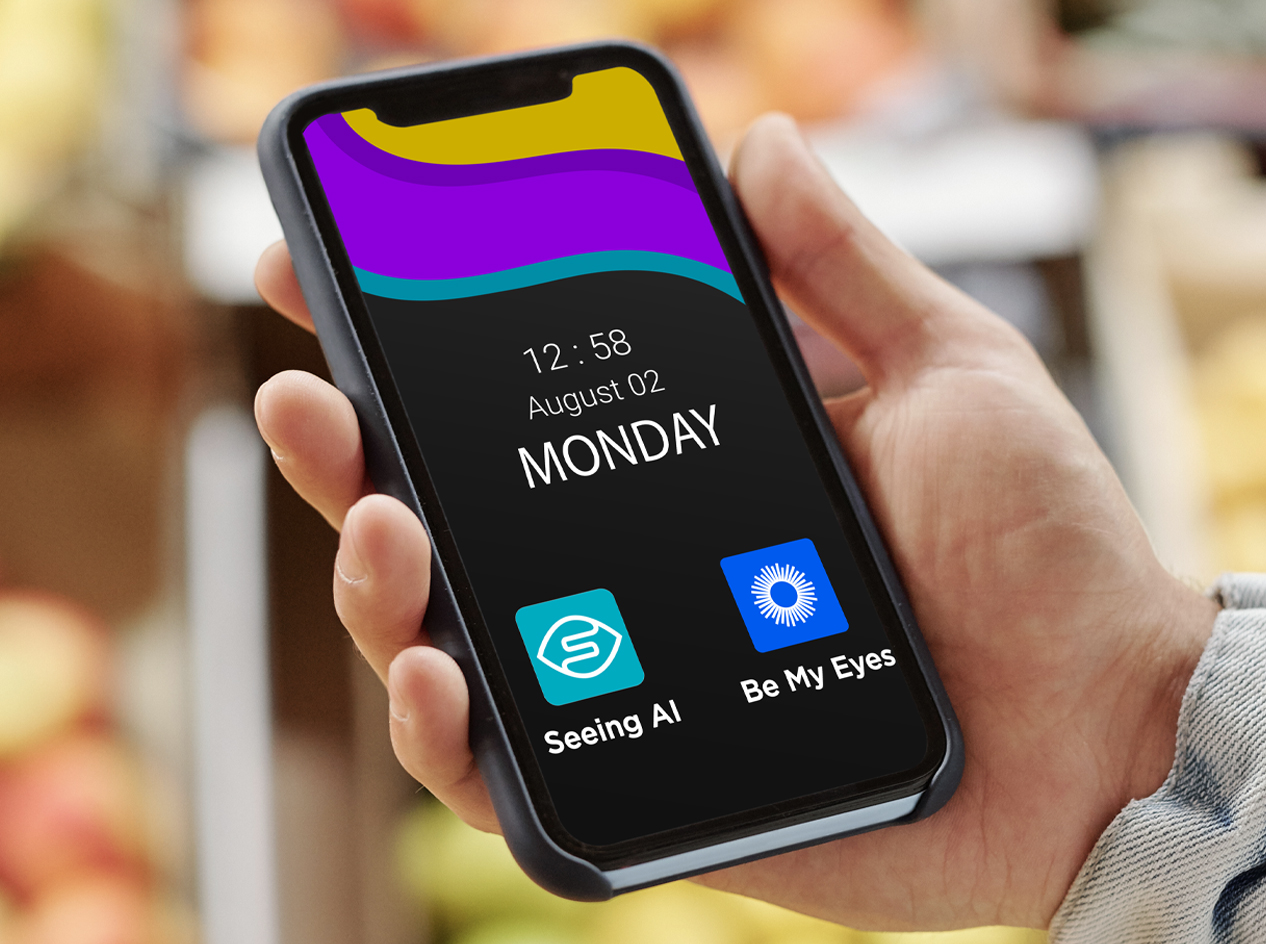
-
Recreation Chat
Discussion
- Explore more
Members also liked
- Video · 3 minutes

- Video · 12 minutes

- Video · 3 minutes

- Video · 6 minutes
Join the Hadley Community
Hadley's resources are always available to you. Create a no-cost Hadley account to go further:
-
Pick up where you left off Everything you start is automatically saved across Hadley.
-
Personalized recommendations We'll suggest resources based on your interests.
-
Join live discussions Live and lively discussions on technology, cooking, and more, all geared toward the community of people living with vision loss.
-
Find peer support Connect with people who understand what you're going through.