
Apple Watch: Digital Crown
Douglas Walker: Hello, my name is Douglas Walker. Today, we'll be exploring our Apple Watch Digital Crown. Now, our Digital Crown acts a lot like our side button or home button on our iPhone. Yeah, we'll find our Digital Crown on the right hand side of our Apple Watch and towards the top of our watch face. Yeah, before we get started, we'll want to make sure that our voiceover setting is turned on and the easiest way to turn it on is within our Apple Watch app, on our iPhone, down in our Accessibility Settings. Alright, let's take a look at all of the different ways that we're able to use our Digital Crown. Okay, let's jump right in. Now, pressing our Digital Crown once will take us to our app screen where we'll find all of our Apple Watch apps. So let's just press our Digital Crown one time.
VoiceOver: Apps activity button.
Douglas Walker: Alright, we've been placed on our Activity app here at the very top of our app list. Now, it's important to know that we're currently in list view. This means that all of our apps are presented here in a single list. Now, we do have the option for our apps to be shown in a grid view and if we were to right swipe all the way to the bottom of our list here, we'll find a grid view button and we would just double tap it for our apps to be listed in grid view instead of a list view. But I tell you our list view here is much, much easier to navigate because our apps are on one long list and they're listed here in alphabetical order, which is really nice. Okay, remember we're currently on our Activity app at the very top of our app list and now we can quickly just right and left swipe through all of our apps here. So how about we go ahead and just right swipe a few times and we'll check out our app screen here. We'll go ahead and just write swipe a few times.
VoiceOver: Alarms button.
Douglas Walker: Yeah. And here's our Alarms app. So we'll go ahead and just right swipe.
VoiceOver: App Store button.
Douglas Walker: Yeah, And here's our App Store. This is great. So we'll go ahead and right swipe again.
VoiceOver: Apple Store button.
Douglas Walker: And here is our Apple Store. So we'll go ahead and right swipe.
VoiceOver: Audible button.
Douglas Walker: Great. And here is Audible. Yeah, you know, how about we go ahead and we just left swipe back to our App Store app and we'll just left swipe a couple of times.
VoiceOver: Apple Store button.
Douglas Walker: And again, here's our Apple Store. So we'll left swipe one more time here.
VoiceOver: App Store button.
Douglas Walker: Great. And here we are on our App Store app. So let's go ahead and just double tap and we'll open our App Store app. We'll just go ahead and one finger double tap.
VoiceOver: Webpage loaded. App Store heading.
Douglas Walker: Yeah, there you go. Our App Store app has open, and we're able to just right and left swipe to find some really great Apple Watch apps right here on our watch. Now, if you want to close our App Store app or any app that we might have open, all we need to do is just press or tap our Digital Crown one time. So let's do it. We'll just press.
VoiceOver: App Activity button.
Douglas Walker: Okay, our App Store app has closed and we've been placed right back in our app list view. Of course, if we press our Digital Crown again, we'll be placed right back on our watch face. So let's go ahead and just press our Digital Crown again.
VoiceOver: 4:44 PM.
Douglas Walker: Great. And we are right back on our watch face. I tell you our Digital Crown can do so much and if we press our Digital Crown twice quickly, we'll be taken to our App Switcher, which is really handy because our App Switcher gives us a list of all of our recently opened apps. So let's do that. We'll go ahead and press our Digital Crown twice.
VoiceOver: App Switcher, App Store, swipe up or down to select a custom action. Then double tap to activate.
Douglas Walker: Yeah, our App Switcher is open and we can just left and right swipe through all of our recently opened apps. And we notice here that we are on our App Store app, which, of course, is the app that we last had open. And if we wanted, we could just double tap and we would be right back in our App Store app again. And I tell you that is super helpful for us. You know, the App Switcher is something I really do use all the time. Okay, so let's go ahead and close our App Switcher for now. And you guessed it, to do that we would just press our Digital Crown again. So we'll go ahead and just press.
VoiceOver: 4:45 PM.
Douglas Walker: Yeah, and we've been placed right back on our watch face. Okay, another great Digital Crown function here. If we triple tap our Digital Crown, we'll turn on or off the Accessibility Shortcut that we've set in our Accessibility Shortcut Settings. So this is a great way for us to quickly turn on or off our favorite Accessibility Settings, like maybe voiceover or even Zoom. Now, if we want to know more about how to set up our Accessibility Shortcut, well, it's your lucky day because we just so happen to have a resource called Setting Accessibility Shortcuts. And you'll find that resource when you scroll down and click on Resource right below this workshop. Okay, let's check out how this works. We'll go ahead and triple press our Digital Crown.
VoiceOver: Voiceover off.
Douglas Walker: Great. And we heard that voiceover is now off. Yeah, it works very similar to our iPhone. You know, it really is nice that all of our gestures and the way our buttons function having kept so consistent between our iPhone and our Apple Watch. Well, my Apple Watch isn't much good to me without voiceover, so it's probably a good idea that we turn voiceover back on here. So let's go ahead and do that. We'll once again, triple press our Digital Crown.
VoiceOver: Voiceover on watch face.
Douglas Walker: Yeah, voiceover announced that it's back on and we're back in action. You know, this next Digital Crown action is the one that I probably use the most and if we press and hold our Digital Crown, we start Siri. You know, I really love the fact that I can use Siri right from my Apple Watch. Yeah, alright. There you go. That pretty much covers all of the great things that our Digital Crown can do. You know, it really is nice how our Digital Crown works so much like our iPhone's side or home button. And the fact that they're so similar helps us to quickly get up and running with our Apple Watch. Again, my name is Douglas Walker. Take care and I'll see you next time.
-
Handouts
Set the Digital Crown to turn it and other accessibility features on or off.
Digital Crown Quick-Start Guide (PDF)
Here are the steps to use this handy control to quickly navigate your apps and more.
Apple Watch Series
- Video · 8 minutes
- Video · 7 minutes
- Video · 6 minutes
- Video · 10 minutes
Explore
-
"It's more comfortable talking to others that understand"
Audio · 4 minutes
-
It's hard to ask for help
Resource guide
-
Organizing Your Kitchen with Vision Loss: Finding Things in the Fridge
Article · 4 minutes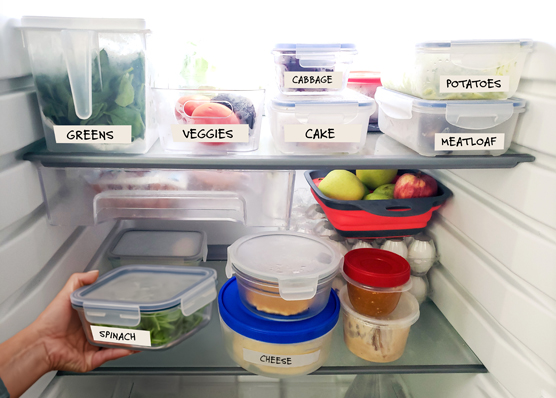
-
Book Nook
Discussion
- Explore more
Members also liked
- Video · 12 minutes

- Video · 3 minutes

- Video · 10 minutes
- Video · 10 minutes

Join the Hadley Community
Hadley's resources are always available to you. Create a no-cost Hadley account to go further:
-
Pick up where you left off Everything you start is automatically saved across Hadley.
-
Personalized recommendations We'll suggest resources based on your interests.
-
Join live discussions Live and lively discussions on technology, cooking, and more, all geared toward the community of people living with vision loss.
-
Find peer support Connect with people who understand what you're going through.