
Apple Watch: Zoom
Douglas Walker: Hello, my name is Douglas Walker. Today, we'll be checking out our Apple Watch Zoom or magnification feature. Now, if we're not yet familiar with Zoom, well, Zoom is our magnification software that's built right into our Apple Watch and Zoom will enlarge everything that's on our screen.
Now, before we get started, we'll want to make sure that our Zoom setting is turned on and the easiest way to turn it on is in our Apple Watch app on our iPhone down in our accessibility settings, so let's jump right in and check out Zoom.
All right, in order to use Zoom, we will need to know a couple of Zoom gestures. Now, our first Zoom gesture is our two-finger double tap. This means that we'll just quickly tap our screen twice with two fingers and this is really handy if maybe we wanna quickly magnify our watch face, and then turn it off or zoom back out so that we can see our entire watch face again. Yeah. Let's take a look at how this works. We'll just tap our screen twice with two fingers.
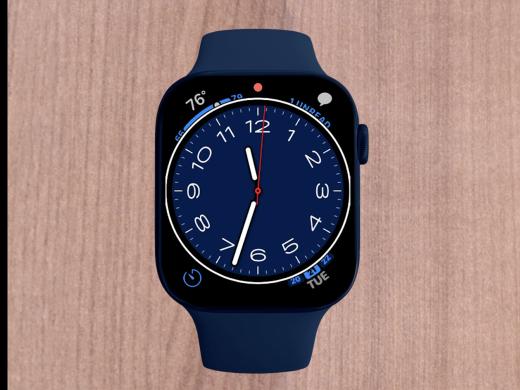
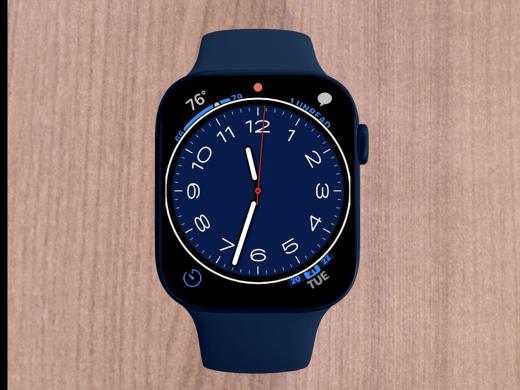
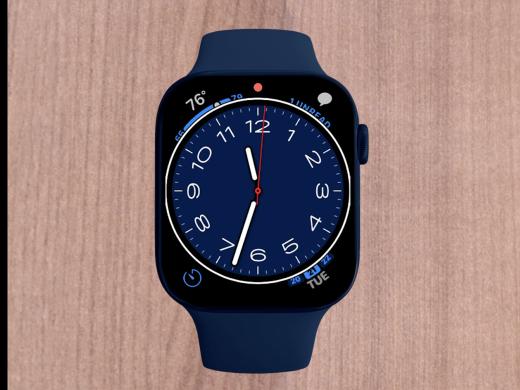
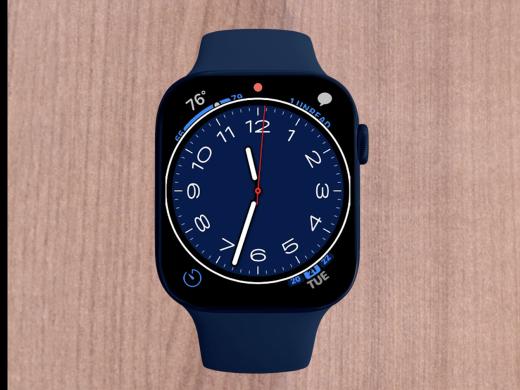
All right, and we can see that our watch face is now zoomed in or magnified and that's pretty great. Now, if we tap twice again with two fingers, we'll zoom back out. So we'll just tap twice.
Great, and now our entire watch face is no longer magnified. Okay. How about we zoom back in again so that we can check out our next gesture? We'll just two-finger double tap.
Yeah, and our watch face is magnified again and we're ready for our next gesture. Okay. Our next gesture is our gesture for moving around on our watch face and this is our two-finger drag gesture. Yeah. We'll only use two fingers, and then we'll just kind of drag our two fingers across our watch face in order to move around our watch face. Okay. Let's give it a try. We'll just two-finger drag.
Yeah, and we'll drag up our screen by pulling down and move around a bit here, and then we can move back down our screen by kind of pushing up our screen with two fingers. You know, it's almost as if we're just pulling our watch face around and yeah, that's pretty cool.
All right, so how about we take a look at our next and final gesture here? Now, our last gesture is our drag to zoom gesture. Okay. This gesture helps us to change the size of our screen's magnification. Now, this gesture might take a bit of practice at first, but it's super useful.
Okay, so this is just like our two-finger double tap, only we're gonna hold and not lift our finger after our second tap, so let's go ahead and give that a try. We'll just double tap and hold. Okay, and as we slide our fingers up our screen, we notice that our text begins to enlarge and we'll leave our fingers on our screen and we'll just pull down to decrease our magnification.
Now, when we get the text just where we like it, we just lift our two fingers. Yeah, and this is now our default magnification. Right, so now as we move or drag around our screen, we notice that all of our text size stays the same and now, if we use our two-finger double tap to turn Zoom on and off and, you know, how about we do just that? We just turn our magnification off with a two-finger double tap and we'll double tap again to zoom back in.
Now, we notice that our current magnification is now our default. You know, our double tap to zoom really is a great gesture, because, at any time, we're able to quickly change our magnification size and I tell you, these three gestures really give us so much control and allow us to quickly begin moving through our watch and there you go.
That pretty much covers how to use our Zoom features. I tell you, it's really great to know that Zoom is always running in the background and ready to use whenever we need it. Again, my name is Douglas Walker. Take care and I'll see you next time.
-
Handouts
Zoom Magnification Quick-Start Guide (PDF)
Follow these steps to magnify the display on your watch face.
Apple Watch Series
- Video · 7 minutes
- Video · 6 minutes
- Video · 10 minutes
- Video · 8 minutes
Explore
-
Painting Blind
Audio · 27 minutes
-
I was just diagnosed
Resource guide
-
Shopping Your Way: Grocery Options When You Have Vision Loss
Article · 3 minutes
-
Book Nook
Discussion
- Explore more
Members also liked
- Video · 3 minutes

- Video · 6 minutes
- Video · 12 minutes

- Video · 10 minutes

Join the Hadley Community
Hadley's resources are always available to you. Create a no-cost Hadley account to go further:
-
Pick up where you left off Everything you start is automatically saved across Hadley.
-
Personalized recommendations We'll suggest resources based on your interests.
-
Join live discussions Live and lively discussions on technology, cooking, and more, all geared toward the community of people living with vision loss.
-
Find peer support Connect with people who understand what you're going through.