
BARD Low Vision: Search BARD
Hi, I'm Vikki Vaughan. And in today's workshop, we'll explore searching for a BARD book. If you've checked out the first workshop in this series, you learned all about the main menu in BARD Express. If you're new to the series, you might want to go through that workshop first, as it provides a detailed look into the command central for all things BARD.
This series is intended for individuals with low vision. We'll use a combination of mouse clicks and keyboard shortcuts. If you use a screen reader, be sure to check out the screen reading version of this series on Hadley's website.
Now it's important to note that we must have an active BARD account to use BARD Express. If you'd like to learn more, have a look at the first workshop in this series to learn how to set up your own free account.
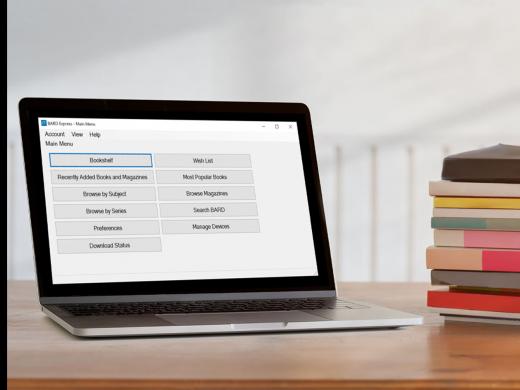
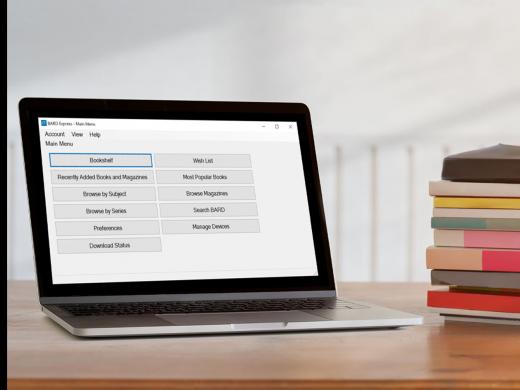
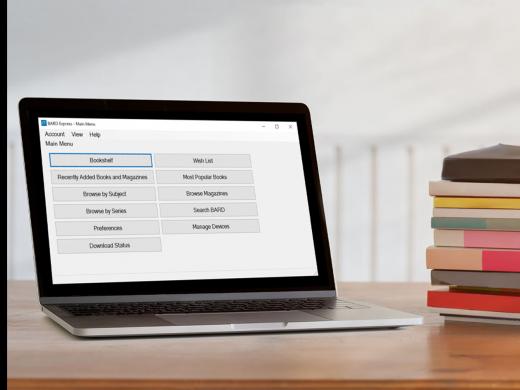
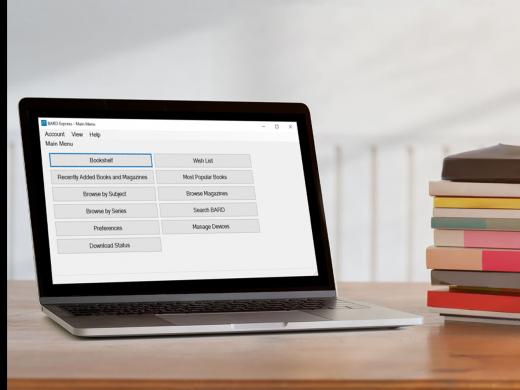
Okay, let's get started. We've signed into our BARD account and have opened the BARD Express program on our computer. Here in the main menu, we have many different options for searching for our desired book. In the previous workshop in this series, we explored searching the recently added books and magazines, as well as the most popular books. We can use our mouse pointer or Tab key to move from one button to the next. We can also use our shortcut keys to quickly jump to any of these search criteria.
For example, if we wish to browse by subject, Ctrl + J for jump will take us there. When we wish to search for a particular series in BARD, Ctrl + G for go will open that window. You may have noticed that the main menu also has a Browse Magazine button. Our keyboard shortcut, Ctrl + I for interest, begins that search. We can always return to our main menu with Ctrl + M for main.
Before we start our search, let's pick our preferred format. This tells BARD which format we want when we search for a book. We press the keyboard shortcut Ctrl + E for extra to open the format selection control. We use our arrow keys to select from audio, braille, or audio and braille materials. Once we've made our selection, we press the Enter key to finalize our selection.
In today's search, we'll use the Search BARD button in our main menu. Let's press the keyboard shortcut Ctrl + S for search to open this window. We'll use our mouse pointer to select the dropdown box labeled Search Type. We'll use our arrow keys to move between the four different search types, keyword, book number, author, or title. We can even use the first letters of an author's name or book title to search for a book.
Let's say we wish to search for a book and we think we know the title, but we're not quite sure. Something like Tuesday with someone. We'll select the keyword option. This option will allow us to search for all the books that contain those words. We can also narrow our results by using the filter button, or Alt + I. This allows us to exclude or include various subjects. For more details about this helpful feature, check out the recently added and most popular workshop in this series.
Now let's place our cursor in the search edit field. We'll type in the keywords, Tuesdays with, and then press Enter to begin the search. The available books that contain those keywords will be presented in a list view. The focus will be on the first title in the list. We use our arrow keys to browse through our list.
In an earlier workshop, we discussed a couple of different ways we can view and select books that we wish to download. They are the standard mode and the advanced mode. With the standard mode, we select one book at a time. The advanced mode allows us to select multiple items from the list. We toggle between the two modes with the keyboard shortcut Ctrl + L for look.
Let's try out the advanced mode. We'll hold down our Ctrl key and press and release L. We see a quick notification window that tells us we're now in the advanced mode. If we plan to download more than one book, it's best to use the advanced view mode. We've located our desired books, so let's click on the check box next to the title to select it. This places a check in the box next to the title. From here, we can add the book to our wishlist or download it. They sure to join me for the next workshop in this series where we'll learn how to download and transfer our book to an NLS cartridge.
To wrap up today's workshop, let's have a look at the last two options on this page. Let's move to the Book Details button with our keyboard shortcut, Alt + B. A new window appears with loads of details about our selected title. If you'd like to explore the book details option, have a look at the recently added and most popular books workshop in this series.
Let's wind up back at our Search BARD window with Ctrl + S. We'll have a look at our final button in this window, the Sort button. Let's press Alt + T and press Enter to open it. We can tab through lots of sorting options, including alphabetical, reading time, title, author, subject, and others. We use our space bar to select our desired sorting option and then click on the X in the top right corner to close this window.
In today's workshop, we learned all about searching for books in BARD Express. I'm Vikki Vaughan, and I thank you for joining me.
-
Handouts
BARD Express for Low Vision: Search BARD Quick-Start Guide (PDF)
This quick-start guides takes you through more advanced search techniques.
BARD Individual Application (PDF)
Subscribe/Unsubscribe to Book Series or Magazines (PDF)
-
Websites
BARD Express Frequently Asked Questions
Contact BARD Support at [email protected]
BARD Low Vision: Searching the BARD Collection (YouTube Playlist)
Using the BARD Website with Low Vision (YouTube Playlist)
Learn how to access and download books and magazines right from the Braille and Audio Reading Download (BARD) website.
BARD Express Low Vision Series
- Video · 6 minutes
- Video · 7 minutes
- Video · 7 minutes
- Video · 6 minutes
Explore
-
"I listen for the hope"
Audio · 5 minutes
-
A family member has vision loss
Resource guide
-
7 Helpful Tech Terms When You Have Vision Loss
Article · 4 minutes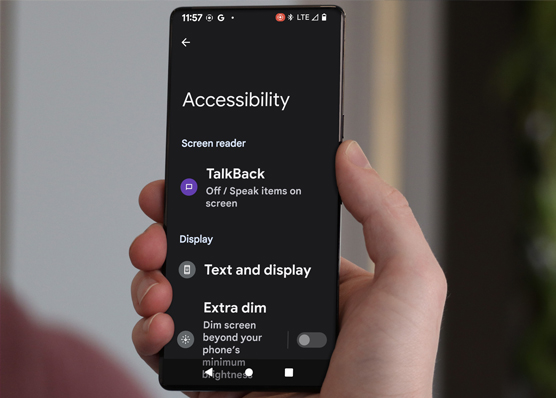
-
Tech It Out
Discussion
- Explore more
Members also liked
- Video · 3 minutes

- Video · 12 minutes

- Video · 3 minutes

- Video · 6 minutes
Join the Hadley Community
Hadley's resources are always available to you. Create a no-cost Hadley account to go further:
-
Pick up where you left off Everything you start is automatically saved across Hadley.
-
Personalized recommendations We'll suggest resources based on your interests.
-
Join live discussions Live and lively discussions on technology, cooking, and more, all geared toward the community of people living with vision loss.
-
Find peer support Connect with people who understand what you're going through.