
BARD Low Vision: Intro to BARD Express Main Menu
Don't you love it when you find a tool that makes life a little easier? I certainly do and in this workshop, we'll have a look at BARD Express, a handy tool that makes searching for and downloading BARD books super easy.
BARD stands for Braille and Audio Reading Download. It is a free service from the National Library Service for the Blind, or NLS. BARD Express is a free Windows-based program that allows us to search BARD using different criteria, such as by title, authors, and keywords. BARD Express makes downloading books and magazines a breeze.
This series is intended for individuals with low vision. We will use a combination of mouse clicks and keyboard shortcuts, if you use a screen reader, be sure to check out the screen reading version of this series on Hadley's website.
It's important to note that we must have an active BARD account to use BARD Express. If you'd like to learn more, have a look at the first workshop in this series to learn how to set up your own free account. We won't go through the process of downloading BARD Express, but check out the resources below for a link to the NLS website. There you'll find a link for downloading the program. The staff at your local library for the blind can also assist you with downloading BARD Express on your Windows computer.
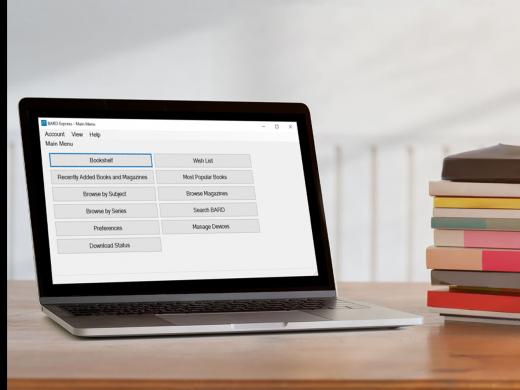
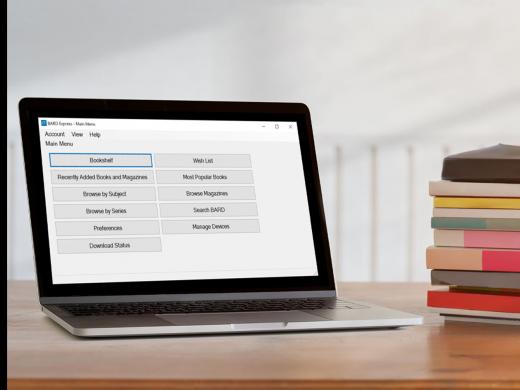
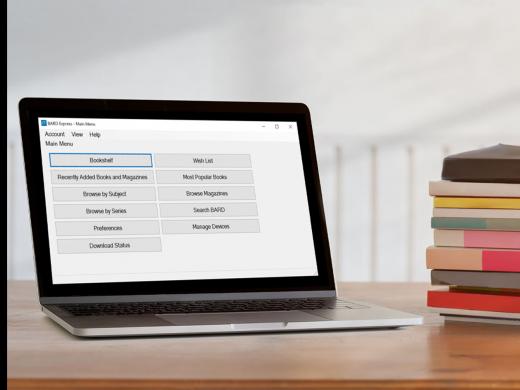
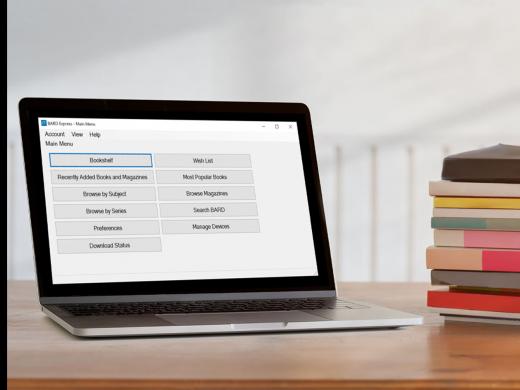
The purpose of this workshop is to provide an overview of all the buttons in the main menu. We'll dig a little deeper into the functions of each button in subsequent workshops. Once we've downloaded the program and used our BARD username and password to sign in, we find ourselves in the main menu.
The main menu is our home base for searching the BARD website, managing our downloads, and setting our preferences. No matter where we find ourselves in the BARD Express program, whenever we need to return to the main menu, we can select the return to main menu button or use the keyboard shortcut Ctrl+M for main.
The first button in the main menu is the bookshelf. Here, we find a list of all the downloaded books and magazines that we've stored on our computer until we're ready to transfer them to a cartridge. We can move to our bookshelf by clicking on this button or by using our keyboard shortcut Ctrl+B for bookshelf. I like the way bookshelf lists our materials, breaking them up into audio books and magazines, braille books and magazines, and read and unread items. It gives us a detailed look at what's currently on both our computer and our cartridge. We arrow through the list and press the enter key to see a list of the materials under each category. Let's press our escape key twice to move back to bookshelf and then back to the main menu.
Here, we find our next button, the wishlist. It lists all of the books and magazines that we're interested in, but haven't yet downloaded to our computer. We can jump to our wishlist from anywhere in BARD Express by using the keyboard shortcut Ctrl+W for wish. Let's head back to our main menu by pressing the escape key.
Our next six buttons are search buttons. BARD Express gives us lots of different ways to search for a book or magazine. Below our bookshelf in wish list, we find buttons that let us browse the BARD collection for recently added books and magazines and most popular books. Check out the workshop in this series for more information about these popular tools in BARD Express. We use our next four buttons to browse the BARD library. We can browse by subject, magazines, series and we can search BARD. I hope you'll join me in the workshop in this series where we learn how to use these tools to search for our favorite book.
Let's click on the next button in the main menu, our preferences button. We can also use our keyboard shortcut Ctrl+ P for preferences to open this window. Here, we find several options to customize our BARD experience. The final workshop in this series offers an in-depth look at all of the preferences options.
Back at our main menu, we use Ctrl+N for number to move to our next button, manage devices. Here, we see a list of drives or devices that are connected to our computer and the number of books or magazines on each drive. Let's click on our drive.
Here, we see the amount of space currently being used. The next line displays the amount of available space on our drive. Below this information, we find a box with a list of the books on our drives. Let's click the checkbox to select this first book in our list. The managed devices option also can be used to delete books. To do this, we click on the check box next to the title of the book. We then click on the delete books button. We can also use the keyboard shortcut Alt+D for delete to delete the book.
We see a dialog box that asks us to confirm whether we want to delete this book. We press enter to confirm. The book is removed from our bookshelf and computer. If we'd rather not delete the book, we'd press the N key for no, to close this window without deleting the book.
Back at the main menu, we've come to our final option, download status. We can also open our download status from anywhere in the program with the keyboard shortcut of Ctrl+T for time, this option gives us detailed information about downloads that are currently in progress. This is a handy tool when we're in the middle of a download and wish to confirm how much time is left.
In today's workshop, we learned all about the main menu in BARD Express. I'm Vikki Vaughan and I thank you for joining me.
-
Handouts
BARD Express for Low Vision: The Main Menu Quick-Start Guide (PDF)
This quick-start guide familiarizes you with the BARD Express Main Menu.
BARD Individual Application (PDF)
Subscribe/Unsubscribe to Book Series or Magazines (PDF)
-
Websites
BARD Express Frequently Asked Questions
Contact BARD Support at [email protected]
BARD Low Vision: Searching the BARD Collection (YouTube Playlist)
Using the BARD Website with Low Vision (YouTube Playlist)
Learn how to access and download books and magazines right from the Braille and Audio Reading Download (BARD) website.
BARD Express Low Vision Series
- Video · 6 minutes
- Video · 7 minutes
- Video · 7 minutes
- Video · 6 minutes
Explore
-
"It's not often we encounter an angel"
Audio · 6 minutes
-
A family member has vision loss
Resource guide
-
Volunteering After Vision Loss
Article · 4 minutes
-
Embracing Braille
Discussion
- Explore more
Members also liked
- Video · 3 minutes

- Video · 5 minutes

- Video · 3 minutes

- Video · 3 minutes

Join the Hadley Community
Hadley's resources are always available to you. Create a no-cost Hadley account to go further:
-
Pick up where you left off Everything you start is automatically saved across Hadley.
-
Personalized recommendations We'll suggest resources based on your interests.
-
Join live discussions Live and lively discussions on technology, cooking, and more, all geared toward the community of people living with vision loss.
-
Find peer support Connect with people who understand what you're going through.