
iPhone/iPad VoiceOver: Home Screen Gestures
Douglas: Hello, my name is Douglas Walker. Today we'll be checking out our home screen gestures. Yeah, Apple now has several devices that no longer have a home button, so this has really changed the way that we interact with our home screen. The fact that we have no home button changes the way that we launch Siri. It also changes the way that we open our accessibility shortcuts, as well as how we close any of our open apps.
We also have home screen gestures for opening our control center, our notification center, as well as our app switcher. Now, this might seem like a lot and it is, however, the more we use our home screen gestures, the more we'll find that our muscle memory will just kick right in. So let's go ahead and check it all out.
Okay, we're using our iPhone in today's workshop, but no worries, because all of this will work pretty much the same whether we're using our iPhone or our iPad.
All right, how about we begin by launching Siri. Well, we could just say, hey, Siri, right? However, we can also just hold down our side button or our power button if we just so happen to be using an iPad. Now, our side button is our long button on the right-hand side of our iPhone. So let's do it. We'll hold down our side button until we hear our Siri audio cue, which will sound like a little ding. Then we'll give Siri our request, and when we're done, we'll just release our side button. So let's give it a try. What's the weather today?
Siri: The forecast is calling for rain today. Daytime temperatures will hover around 70 degrees with overnight lows around 55 degrees.
Douglas: Great, and there you go. Yeah, you gotta love Siri. Okay, let's check out how to launch our accessibility shortcuts. Now, if we're not yet familiar with our accessibility shortcuts, our accessibility shortcuts give us a really great way to quickly turn on and off some of our most frequently used accessibility features. Now, we won't be covering how to set that up today, but it's our lucky day because we just so happen to have an Apple workshop called Setting Shortcuts that walks us right through exactly how to set up our accessibility shortcuts. So you're really gonna wanna check that one out.
Okay, if we want to open our accessibility shortcuts, we'll just quickly press our side button three times or again, our power button if we happen to be using an iPad. Now, if we've only set one accessibility shortcut, pressing our side button three times will just turn on and off the one accessibility feature we've set. So we'll want to keep that in mind. Okay, let's do it. We'll press our side or power button three times.
Voiceover: Alert accessibility shortcuts.
Douglas: All right, our accessibility shortcuts are now open and we can just swipe to the one we want and then we'll just double tap to open it right up, and that is pretty fantastic. Okay, we'll close our accessibility shortcuts by selecting our cancel button here in the bottom center of our screen. And we'll just touch our cancel button here.
Voiceover: Cancel button.
Douglas: And we'll double tap. All right, our accessibility shortcuts have closed, however, our Siri screen is still active or visible on our screen. And this brings up our first home screen gesture and this is our close app gesture. We'll just slide or kind of drag our finger up from the very bottom edge of our screen. Now, we'll be dragging our finger about halfway up our screen and when we feel a vibration, and hear kind of a little bump audio cue, we'll stop dragging our finger up. Voiceover will announce, "Lift for Home," and then we'll just lift our finger.
And of course, our app will close, or in this case, our Siri screen will close. Now, as we mentioned, we'll need to begin dragging from the very bottom edge of our screen. So let's just slide or drag our finger up our screen, and we'll close our Siri screen
Voiceover: Lift for Home. Notes.
Douglas: Great, our Siri screen has closed and we've been placed right back on our home screen. All right, our next gesture is our app switcher gesture. And our app switcher is where we'll find all of our recently-opened apps and we'll use the exact same method that we used for closing an app. We'll slide our finger up from the very bottom edge of our screen. However, instead of stopping after we feel our first vibration, we'll continue to slide our finger up our screen until we feel our second vibration and hear our second little audio cue. And then we'll stop dragging. Voiceover will announce, Lift for app switcher," and we'll just lift our finger. So let's go ahead and give that a try. We'll just drag our finger up here.
Voiceover: Lift for app switcher. App switcher settings active.
Douglas: Great, our app switcher is open, and we could just swipe through it as we normally would to check out all of our recently-opened apps. But let's say that we just wanna close our app switcher. Well, that is super fast as well because we'll just use our close app gesture again. We'll just drag up from the bottom edge until we feel that first vibration and we hear that little audio cue. Again, voiceover will announce, "Lift for Home screen," so let's do it. We'll just drag up our screen here.
Voiceover: Lift for Home. Notes.
Douglas: Okay, our app switcher is closed, and how cool is that? Okay, we only have two more home screen gestures. We have our control center gesture and our gesture for opening all of our notifications. Now, both of these gestures are very similar to our other two gestures, only instead of sliding our finger up, from the bottom edge of our screen, we'll slide our finger down from the top edge of our screen instead. So let's do it.
We'll open our control center with our home screen gesture and of course, we'll just drag our finger about halfway down our screen until we feel our first vibration and hear our audio cue. Voiceover will announce, "Lift for Control Center," and we'll just lift our finger. Okay, so we'll just drag down now.
Voiceover: Lift for Control Center. Control Center, airplane mode, switch button, off.
Douglas: Great, our Control Center is now open and of course, we could just right-swipe through all the items in our Control Center if we'd like. Okay, we probably already guessed that we'll use our new close app gesture to close our Control Center. So let's do it. We'll drag up from the bottom edge here.
Voiceover: Lift for Home. Notes.
Douglas: Okay, our Control Center has closed, and we're right back on our Home screen. Okay, our last voiceover gesture will launch our notifications. We'll just drag our finger down until we feel our second vibration and hear our second audio cue. Voiceover, of course, will announce, "Lift for Notifications," and no surprise, we'll just lift our finger. Okay, so let's open our notifications and we'll just drag down.
Voiceover: Lift for Notification Center. Notification Center.
Douglas: Yeah, our notifications are now visible and we could just start right-swiping and check 'em all out here. And there you go. Okay, we should be getting the hang of things by now, so we'll just use our close app gesture to close our notifications here. So we'll just drag up from the bottom edge.
Voiceover: Lift for Home. Notes.
Douglas: Yeah, our notifications have all closed and here we are right back on our Home screen. All right, and there you go. That pretty much covers all of our home-screen gestures. You know, I'll be the first to admit I was a bit nervous when I heard that Apple was getting rid of the Home button, but I tell you, after using my new gestures for a while now, I really am enjoying just how intuitive they are. Again, my name is Douglas Walker. Take care, and I'll see you next time.
-
Handouts
Home Screen Gestures Quick-Start Guide (PDF)
This quick-start guide helps you use gestures to access features from your home screen.
Listen with VoiceOver Series
- Video · 9 minutes
- Video · 3 minutes

- Video · 12 minutes

- Video · 10 minutes
Explore
-
Gardening and Vision Loss
Audio · 24 minutes
-
I'm having trouble reading
Resource guide
-
Organizing Your Kitchen with Vision Loss: Finding Things in the Fridge
Article · 4 minutes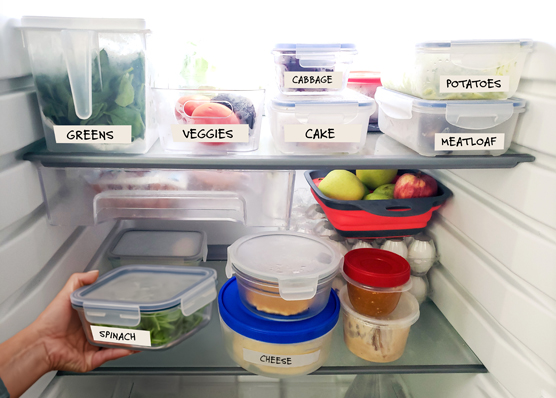
-
Tech It Out
Discussion
- Explore more
Members also liked
- Video · 5 minutes

Join the Hadley Community
Hadley's resources are always available to you. Create a no-cost Hadley account to go further:
-
Pick up where you left off Everything you start is automatically saved across Hadley.
-
Personalized recommendations We'll suggest resources based on your interests.
-
Join live discussions Live and lively discussions on technology, cooking, and more, all geared toward the community of people living with vision loss.
-
Find peer support Connect with people who understand what you're going through.