
iPhone/iPad VoiceOver: 1 Finger Gestures
Douglas: Hello, my name is Douglas Walker. Today we're gonna be taking a look at how to use some of our beginning VoiceOver gestures and these are our one finger gestures. Now, if you're not yet familiar with VoiceOver, well VoiceOver's Apple's screen reading software and a screen reader gives a person with a visual impairment the ability to totally use their device. And it does this by speaking the items or information that's on our screen, and that is pretty fantastic. So let's jump right in and check out all of our one finger gestures.
Now we're using our iPhone in today's workshop but no worries, because all of this will work pretty much the same whether we're using our iPhone or our iPad.
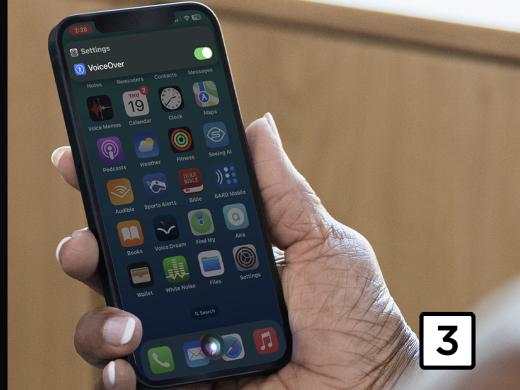
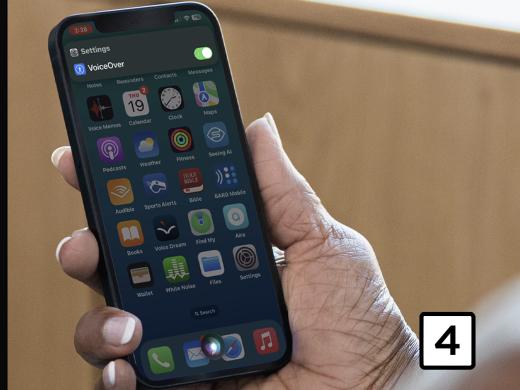
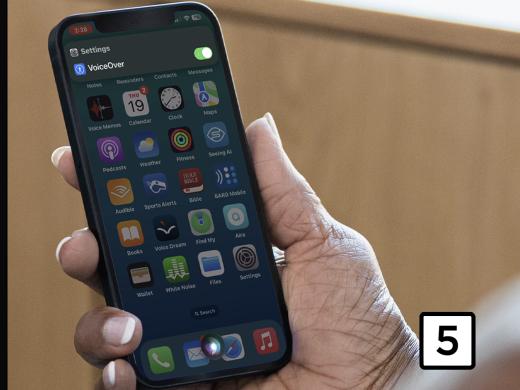
Okay, let's begin by first talking about the orientation of our screen. Now our screen, of course, is a piece of glass and the items on our home screen here are laid out in a series of rows and columns. Yeah, the bottom row of items here is called our dock and this is where we typically find our most frequently used items.
Now, across the very top edge of our screen we have our status bar and our status bar gives us some really great information. We can find things here like our current time, our current WiFi connection, how strong our cellular connection is at the moment and even our current battery life. So this is a place that we might find ourselves checking quite often. All right, now that we're familiar with the layout of our screen, how about we check out our first single finger gesture?
Okay, our first gesture is our tap gesture. And our tap gesture is simply just touching our finger to our screen. Now we're gonna begin by touching in an open area on our screen where we don't have any apps or any items. So we'll go ahead and just place our finger on our screen. Now, when we start moving our finger around we'll hear a little beeping sound or audio cue. And this audio cue tells us that we're in an open area and that we aren't touching any item or any app. Now as soon as we come in contact with an item on our home screen, we're gonna hear it announced like this,
VoiceOver: Wallet. Double tap to open.
Douglas: All right, so voiceover announced the item that we came in contact with, and it's our wallet app. All right, dragging our finger around our screen is actually a really good way to become familiar with where items are located on our screen. And we might wanna take a little time to do this so that we can quickly get to an item that we want to open or explore. For example, I know that my phone app is in the bottom left hand corner of our screen here so I can just quickly touch my phone app.
VoiceOver: Doc phone. Double tap to open.
Douglas: And because I've totally explored my screen, I know that my music app is in the bottom right hand corner of my screen.
VoiceOver: Music. Double tap to open.
- [Douglas ] As we can see, we can just use our tap gesture to explore and really get to know where all of the items are on our screen. However, dragging our finger all around our screen isn't the most systematic way to move through our screen. So this brings us to our next gesture, and this is our swipe gesture. Now swiping is really going to help us to move through all of the items or elements on our screen or through a list view, or even through all of the items in an app. Yeah, and if we have a new app that we want to explore, swiping through it will help us to get to know everything in our apps. So let's take a look at how our swipe gesture looks. You know, how about we begin by just touching the item in the top left hand corner of our screen. So we'll just touch.
VoiceOver: Settings. Double tap to open.
Douglas: Great. And here's our settings app. Now the swiping gesture is just swiping our finger or barely brushing our finger across our screen. You know, I like to compare it to like brushing, or in this case swiping dust or sand off of our home screen. Now we're gonna begin with our right swipe gesture and this means that we're gonna brush our finger from left to right across our home screen. Remember, we're in the top left hand corner of our screen, so this puts us in our first row and our first column. Now each time we right swipe, we'll move to the next item on our screen. So this means that we'll move to the second item or app in our row here. Okay. So let's go ahead and just right swipe, and we'll go ahead and swipe.
VoiceOver: Reminders. Double tap to open.
Douglas: All right. And here we are on our Reminders app. And this of course is the next item in our row. Okay. How about we quickly just right swipe a couple of times to move to the very end of our first row here, and we'll just right swipe a couple of times.
VoiceOver: Contacts.
Douglas: Contacts, we'll right swipe.
VoiceOver: Messages. Double tap to open.
Douglas: Okay, now it's important to know that we have four items in each of our row. And so we've swiped to the last item in our first row here. Now we're gonna right swipe again, and when we do we'll be placed on our first item or app in our second row. So we'll just right swipe again.
VoiceOver: Voice memos. Double tap to open.
Douglas: Great, we moved from the last item in our first row and we've now been placed on the first item in our second row. Now we could just continue to right swipe to move across our second row. You know, it's really very similar to reading. We move from left to right as we right swipe, and we move from the top to the bottom of our screen. Now, it's pretty cool. So that brings us to our next gesture, and you've probably already guessed that this is our left swipe gesture. Okay, to perform our left swipe gesture, we'll just swipe our finger to our left or just lightly brush our finger from right to left across our screen. So we'll go ahead and just swipe to the left.
VoiceOver: Messages. Double tap to open.
Douglas: Okay, as we see, we begin moving back to the left or to the previous item on our screen here. All right. How about we just left swipe back to our settings app in the top left corner of our screen here. So we'll just left swipe a couple of times.
VoiceOver: Contacts.
Douglas: Just keep swiping here.
VoiceOver: Reminders. Settings. Double tap to open.
Douglas: Yeah, here we are back on our settings app. Now we've heard several times our next gesture that we'll be exploring, and this is our double tap gesture. Now our double tap gesture will open any application or interact with any button by just tapping our screen twice with one finger. Actually, we refer to this as our single finger double tap gesture. So how about we check out our single finger double tap by opening our settings app here. Now, it's important to know that we don't have to double tap directly on our app here because our focus is already on our Settings app and we're able to perform our single finger double tap anywhere on our screen to open it. So that is super cool for us. And let's go ahead and give it a try. We'll just single finger double tap anywhere on our screen here, and we'll open up our Settings app.
VoiceOver: Settings.
Douglas: All right, our settings app has opened where we can find all of our device settings and we've been placed on our settings heading in the very top center of our screen here. Now our settings are actually presented to us in a list view from the top to the very bottom of our screen. Now we could just tap or touch near the top of our screen and then we could just drag our finger down our screen to move through all of our items here. But we mentioned earlier that the most systematic way to move through our screen is to just begin right swiping and we could just start right and left swiping to check out all of the settings in our list here. Okay, our next one finger gesture is our gesture for closing any open app. Now, if your device just so happens to have a home button well it's your lucky day because you'll just press your home button once to close any open app. However, this one finger gesture is for those of us who just so happen to have a device without a home button. Yeah, so we'll just slide or kind of drag our finger up from the very bottom edge of our screen until we feel a vibration, and we'll hear a little audio cue. We'll stop dragging our finger and voiceover will announce "lift for home" and we'll just lift our finger and our settings app here will close. So let's go ahead and do that. We'll just drag up from the very bottom edge of our screen here.
VoiceOver: Lift for home. Settings. Double tap to open.
Douglas: Hey, and there you go. Our settings app has closed and we've been placed right back on our home screen. Now we do have one more, one finger gesture and this is our one finger triple tap. Yeah, tapping our screen three times with one finger is what Apple calls a long press. And our long press is used when we want to open what Apple calls a pop-up menu. All right, so how about we go ahead and check this out using our settings app here. Now our voiceover focus is already on our settings so let's go ahead and do our long press. We'll tap our screen three times with one finger, and we'll just triple tap.
VoiceOver: Bluetooth button.
Douglas: Yeah, our popup menu has opened for our Settings app here and we have some really cool options here that we could just swipe through. We could open our Bluetooth settings, quickly get to our WiFi settings. We could jump to our cellular settings and even quickly get to our battery settings. Yeah, and if we want to close our popup menu we just use our one finger drag up gesture again to close unless of course we have an iPhone with a home button. And then we would just press that home button instead. All right, so let's go ahead and just drag up to close our pop-up menu here, and we just drag.
VoiceOver: Lift for home. Settings. Double tap to open.
Douglas: And there you go. Our pop-up has closed and we're right back on our home screen. All right. That pretty much covers how to use all of our one finger gestures. You know, it really is pretty amazing that by using just one finger we can quickly begin moving all through our device. Again, my name is Douglas Walker, take care and I'll see you next time.
-
Handouts
1 Finger Gesture Quick-Start Guide (PDF)
This quick-start guide helps you use 1-finger gestures to navigate your screen.
Listen with VoiceOver Series
- Video · 10 minutes
- Video · 3 minutes

- Video · 8 minutes
- Video · 7 minutes
Explore
-
Reading After Vision Loss: It's Still Possible
Audio · 27 minutes
-
I was just diagnosed
Resource guide
-
Celebrating Braille for Daily Life
Article · 6 minutes
-
Writers' Circle
Discussion
- Explore more
Members also liked
- Video · 6 minutes
Join the Hadley Community
Hadley's resources are always available to you. Create a no-cost Hadley account to go further:
-
Pick up where you left off Everything you start is automatically saved across Hadley.
-
Personalized recommendations We'll suggest resources based on your interests.
-
Join live discussions Live and lively discussions on technology, cooking, and more, all geared toward the community of people living with vision loss.
-
Find peer support Connect with people who understand what you're going through.