
iPhone/iPad VoiceOver: On and Off
Douglas: Hello, my name is Douglas Walker. Today we're gonna take a look at a really great way for quickly turning on and off VoiceOver. Now for those that might not know VoiceOver's Apple screen reading software, and a screen reader gives a person with a visual impairment the ability to totally use their device, and it does this by speaking the items or information that's on our screen, and, I tell you, that is pretty fantastic.
Now, the fastest way to turn on and off VoiceOver is by using Siri. So how about we jump right in and check it all out?
Now, we're using our iPhone in today's workshop. However, all of this will work pretty much the same whether we're using our iPhone or our iPad.
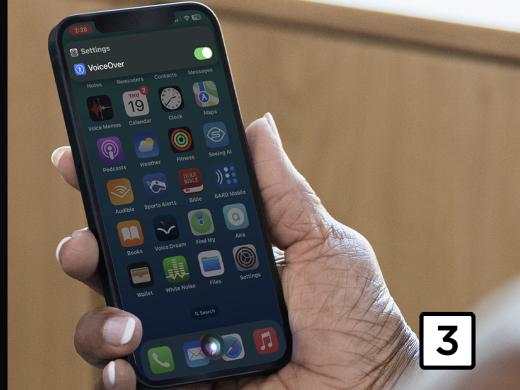
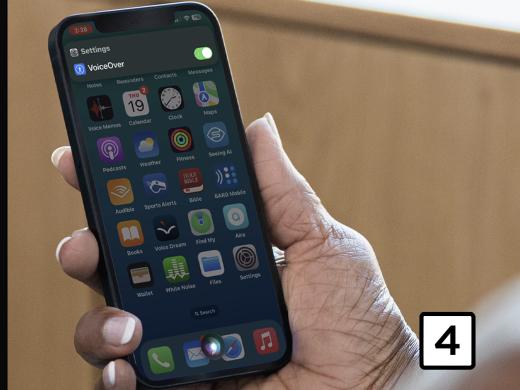
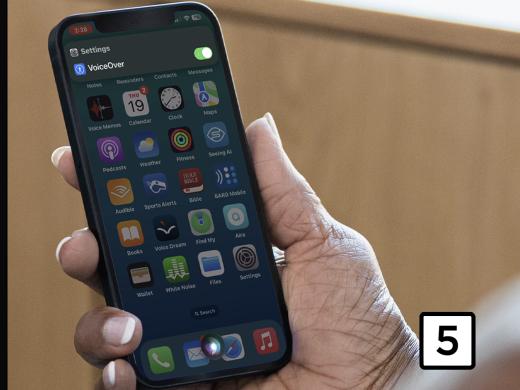
All right, all we have to do to start Siri is to just say, "Hey, Siri," and then we'll say, "Turn on VoiceOver." Siri will announce: Okay, VoiceOver's now on. And, I tell you, it really works just that fast. So how about we give it a try? Hey, Siri, turn on VoiceOver.
Siri: Okay, VoiceOver is now on.
Douglas: And there you go. We have turned on VoiceOver and, hey, you gotta love it. Now, we can also triple tap our side or home button to turn VoiceOver on and off as well. And you can check out our setting shortcuts workshop if you'd like to learn more about how to set accessibility shortcuts. Okay, let's say that we want to use Siri to turn off VoiceOver as well. Well, we'll use exactly the same steps, so let's give it a try. Hey, Siri, turn off VoiceOver.
Siri: VoiceOver off.
Douglas: Yeah, we actually heard VoiceOver announce: VoiceOver off and, hey, there you go. We have a really great way for quickly turning on and off VoiceOver. Yeah, that was really fast. Of course, my device isn't much good to me without VoiceOver but no worries, because we now have a super fast way for quickly turning VoiceOver back on. Again, my name is Douglas Walker. Take care, and I'll see you next time.
-
Handouts
On and Off Quick-Start Guide (PDF)
This quick-start guide helps you to turn VoiceOver on and off.
Listen with VoiceOver Series
- Video · 12 minutes

- Video · 10 minutes
- Video · 8 minutes
- Video · 7 minutes
Explore
-
"I have to go on with my life"
Audio · 5 minutes
-
A family member has vision loss
Resource guide
-
Get Live Help: Apple, Amazon, Google & More
Article · 5 minutes
-
Tech It Out
Discussion
- Explore more
Members also liked
- Video · 6 minutes
- Video · 3 minutes

Join the Hadley Community
Hadley's resources are always available to you. Create a no-cost Hadley account to go further:
-
Pick up where you left off Everything you start is automatically saved across Hadley.
-
Personalized recommendations We'll suggest resources based on your interests.
-
Join live discussions Live and lively discussions on technology, cooking, and more, all geared toward the community of people living with vision loss.
-
Find peer support Connect with people who understand what you're going through.