
Windows Low Vision: Simplifying Display
Hi, my name is Vikki Vaughan and today we'll talk about ways to simplify the visual settings on our computer. We'll look at controls to hide different displays and a control to customize notifications.
In our previous workshop, Ease of Access display options, we used Windows Ease of Access controls to change the size and brightness of our display. Today we'll return to our display menu to look at controls that let us simplify and personalize Windows.
Let's start by opening Ease of Access with the keyboard shortcut of Windows and the letter U. We do that by holding the Windows key and then we tap and release the letter U.
A handy tip, think of the word usable. Since the options we are talking about make our computer more usable, this will help us remember our shortcut.
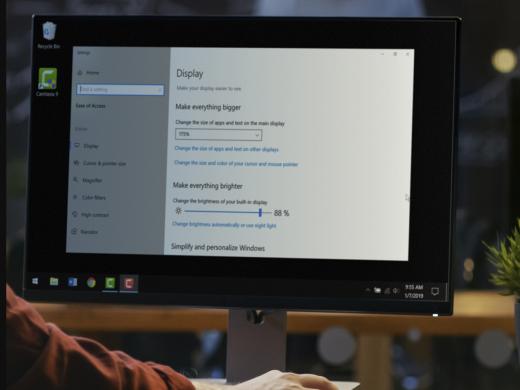
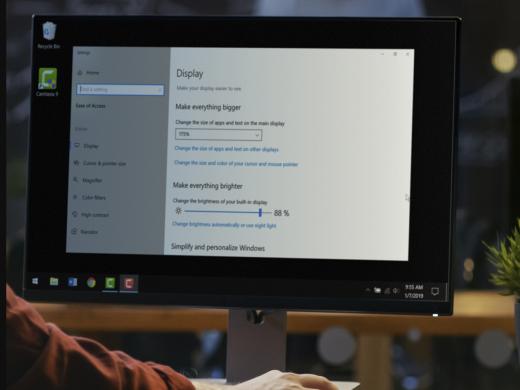
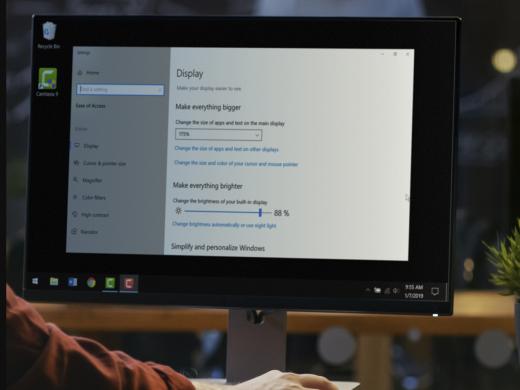
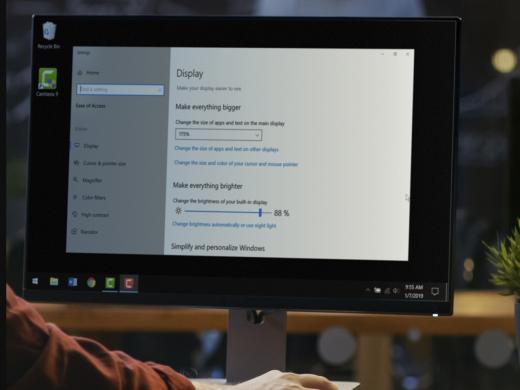
On the left side of our screen under settings, we find a list of customizing tools. Our first category is vision and at the top of the list we find display. When we select display on the left side, the right side of our screen shows multiple tools for our computers visual display.
Now that we know where to find the display controls, let's have a look. We'll scroll past the size and brightness controls since we covered them in another workshop.
Let's move to the toggle control that lets us control animations in Windows. For some users, animations can be disorienting and cause them to lose focus. Thankfully, this control lets us turn on and off animations. The default setting has animations turned on. We can also make the task bar transparent, which means our desktop wallpaper is visible behind the start menu, the task bar and the action center. It's easy to disable this setting with our next control. All we have to do is select this control.
Some people find the scroll bars distracting. The next control lets us automatically hide the scroll bars when they're not in use. When this tool is selected, the scroll bar disappears until we move our mouse to the side of the screen.
The next control lets us customize the length of time we wish to display notifications. We can choose from five, seven, 15 or 30 seconds, or one or five minutes.
Our next tool is labeled show desktop background image. some users find background images visually distracting and prefer a dark background, void of any images. This toggle control lets us turn on and off background images to suit our needs.
Our final control in the display tools lets us personalize our background and other colors. When we select this link, it opens a new control window so we can vary the background. We can choose our own picture or one of the images provided by Windows.
In today's workshop, we saw that we can customize animations, the appearance of the task bar and our scroll bars. Last, we looked at controls for notifications and backgrounds.
I'm Vikki Vaughan and I thank you for joining me today as we looked at display options in Windows.
-
Handouts
Simplifying Display Quick-Start Guide (PDF)
This quick-start guide helps you use Ease of Access, Microsoft Windows' low vision options, to address distracting elements.
Customizing Windows for Low Vision Series
- Video · 10 minutes
- Video · 5 minutes
- Video · 3 minutes
- Video · 4 minutes
Explore
-
"It's not just happening to me"
Audio · 4 minutes
-
A family member has vision loss
Resource guide
-
The Crochet Life: 7 Tips for Crocheting After Vision Loss
Article · 4 minutes
-
Writers' Circle
Discussion
- Explore more
Members also liked
- Video · 9 minutes
- Video · 7 minutes
Join the Hadley Community
Hadley's resources are always available to you. Create a no-cost Hadley account to go further:
-
Pick up where you left off Everything you start is automatically saved across Hadley.
-
Personalized recommendations We'll suggest resources based on your interests.
-
Join live discussions Live and lively discussions on technology, cooking, and more, all geared toward the community of people living with vision loss.
-
Find peer support Connect with people who understand what you're going through.