
iPhone/iPad VoiceOver: Music Library Basics
Hello, my name is Douglas Walker. Today we are going to be exploring our music library and I'll tell ya, I am all about music. I love listening to everything from Sting, to Keith Urban, to Frank Sinatra. I mean there really isn't a genre that I don't like. As a matter of fact, we are going to kinda see this as we explore our music library.
Now, our music library will include any music that we might have purchased from iTunes. It's also going to include any music that we have synced to our device from our computer. This is where all of our music is actually stored on our device. So how about we jump right in and check it all out.
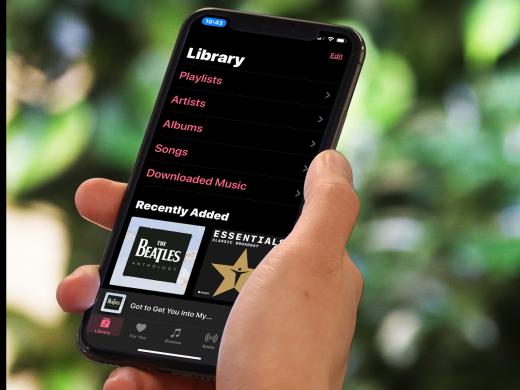
Okay, our music app just so happens to be open. And we have been placed on our Library heading at the top of our Library tab. So let's begin by first exploring our Library screen here. Then we'll check out our Artists list. Again, we're on our heading here at the top of our Library tab. So we will just right swipe from here. And we'll right swipe.
VoiceOver: Playlist button
Douglas: Great, here is our Playlist button. Now if we were to double tap our Playlist button, we would be given a list of all of the playlists that we've created. Now playlists are a great way of creating mixes of all of our favorite artists and songs. So we'll just right swipe from here.
VoiceOver: Artists button.
Douglas: Okay, here is our Artists button and you guessed it, double tapping our Artists button will give us a list of all of our artists. Now we're actually gonna come back and check out our Artists list once we have finished exploring the rest of our screen. However, we'll go ahead and just right swipe for now.
VoiceOver: Albums button
Douglas: Okay, I think we're kind of getting the idea. If we were to double tap our Albums button, we would see a list of all of our albums, and that's pretty great. But we'll go ahead and just right swipe from here.
VoiceOver: Songs button
Douglas: Yeah, and we could double tap our Songs button if we wanted to swipe through a list of all of our songs, which is cool. And we'll go ahead and just right swipe from here.
VoiceOver: Downloaded Music button
Douglas: Great, and here is our Downloaded Music button. Now our Downloaded Music button will give us a list of the music that is currently downloaded to our device. And this can be really handy because if we happen to be away from our wifi connection, and we don't want to use up all of our cellular data, we will want to come here to ensure that we are only playing our downloaded music and we're not streaming our music from iCloud. That pretty much does it for our Library list.
However, if we were to continue to right swipe from here, we would begin right swiping through all of the items or albums that we have recently added to our music library. And this can really help to save us some time if we are maybe just wanting to listen to our music that we just added. Now, we aren't going to swipe through our recently added list here because we are going to check out some great tips for quickly moving through our Artists list. So we will just left swipe back to our Artists button here. We'll just left swipe a few times here.
VoiceOver: Songs button.
Douglas: And there's our songs again.
VoiceOver: Albums button.
Douglas: Left swipe back to our Albums.
- [Phones] Artists button.
Douglas: Great, and here we are of course on our Artists button. So we'll go ahead and just double tap here.
VoiceOver: Artists section index adjustable. Swipe up or down with one finger to adjust the value.
Douglas: Yeah, our artists list has opened and we have been placed right on our section index here along the right side of our screen. Now it's good to know that our artists will be listed alphabetically by their first name. We can simply just begin right swiping to check out all of our artists. And that's really great, however our section index gives us a super fast way of moving through our artist list.
Now when we first open our artists list, VoiceOver announced that we could swipe up and down our screen with one finger to adjust the value. And this means that every time we swipe up, we will move backwards alphabetically through of course all of our artists here. And we could swipe down to move forward alphabetically through our artists list here. All right so let's go ahead and check it out. Since we're at the very top of our alphabet here, how about we just swipe down to quickly move forward a bit here. We'll go ahead and just swipe down. And we can actually just swipe,
VoiceOver: Cap B selected.
Douglas: There's B, we'll slide down quickly here.
VoiceOver: Cap C selected, Cap D, Cap, Cap
Douglas: See how easy it is to move through all of our alphabet here.
VoiceOver: Cap L selected.
Douglas: There's L, and yeah, there's M of course. And all of our artists that begin with the letter M are now visible to us. And we can simply just begin right swiping to check out our M artists here. So let's go ahead and do it. We'll just right swipe a few times here. And we'll just right swipe.
VoiceOver: Mandy Patinkin button Marc Cohen button. Marcy Playground, Martina McBride button.
Douglas: And just keep right swiping if you'd like. So that's pretty cool, but let's say we want to quickly move to our artists that begin with the letter F. We will again just touch our section index along the right edge of our screen here. And we'll just touch it here.
VoiceOver: Section index adjustable. Swipe up or down with one finger to adjust the value.
Douglas: Yeah, and let's just swipe up until we find the letter F here. So go ahead and just swipe up here.
VoiceOver: Cap L selected, Cap K selected, Cap J selected, Cap I selected, Cap H selected.
Douglas: And a couple more times here.
VoiceOver: Cap F selected.
Douglas: Great and of course here we are on F. So we can just right swipe to find our artists that begin with the letter F here. So let's go ahead and just right swipe a couple times here.
VoiceOver: Fiddler on the Roof Cast button
Douglas: And there's an album there.
VoiceOver: Five for Fighting button.
Douglas: And a couple more times here.
VoiceOver: Fleetwood Mac button, Foreigner button, Frank Sinatra button.
Douglas: Yeah, here is Frank Sinatra. And now of course if we double tap, we would be given a list of all of our Frank Sinatra albums here. So let's go ahead and check out how this looks. We'll just double tap here, and we'll just double tap.
VoiceOver: Play button.
Douglas: All right our artist Frank Sinatra album list has opened for us. And we have been placed right on our play button for actually playing our album here. I'll tell ya, it really doesn't get any easier than that. Now we only have one album by Frank Sinatra here. It's actually divided into two parts, and we could just simply right swipe to one of these here and of course we would just double tap to see a list of all of the songs in our Frank Sinatra album. And I'll tell ya, that is pretty great.
You know, that pretty much covers how to move through our music library. And if you're like me and end up with a ton of music, well no worries, because our section index makes it super simple to quickly find exactly what we're looking for. Again, my name is Douglas Walker. Take care and I'll see you next time.
-
Handouts
Music Library Basics Quick-Start Guide (PDF)
This quick-start guide helps you navigate the Music Library on your device.
Entertainment Series
- Video · 9 minutes

- Video · 4 minutes
- Video · 10 minutes
- Video · 6 minutes
Explore
-
"The gift that keeps on giving"
Audio · 4 minutes
-
I'm feeling overwhelmed
Resource guide
-
Diabetic Retinopathy? First Steps Forward
Article · 5 minutes
-
What's Cooking?
Discussion
- Explore more
Members also liked
- Video · 3 minutes

- Video · 12 minutes

- Video · 10 minutes

- Video · 10 minutes
Join the Hadley Community
Hadley's resources are always available to you. Create a no-cost Hadley account to go further:
-
Pick up where you left off Everything you start is automatically saved across Hadley.
-
Personalized recommendations We'll suggest resources based on your interests.
-
Join live discussions Live and lively discussions on technology, cooking, and more, all geared toward the community of people living with vision loss.
-
Find peer support Connect with people who understand what you're going through.