
iPhone/iPad VoiceOver: Audio Description Basics
Hello, my name is Douglas Walker. Today we will be turning on our Audio Description autoplay setting. Now in the past, I really haven't found myself watching many movies. However, all of that has changed now that we're finding more and more movies in iTunes that are available with Audio Descriptions. And because of this, we will be taking a look at how to turn On our Audio Description autoplay, and that will ensure that any movies that have Audio Descriptions will automatically play for us.
Now, if you're not familiar with what it means for a movie, to have Audio Descriptions, well movies with Audio Descriptions describes what is happening on the screen for those of us with a visual impairment. You know, even though I have some remaining vision I sometimes miss all of the little subtle things in a movie, especially if it's kind of a dark movie, plus I really like how all of the titles and all of the captions are read aloud. I'll tell you Audio Descriptions have become a huge game changer for me.
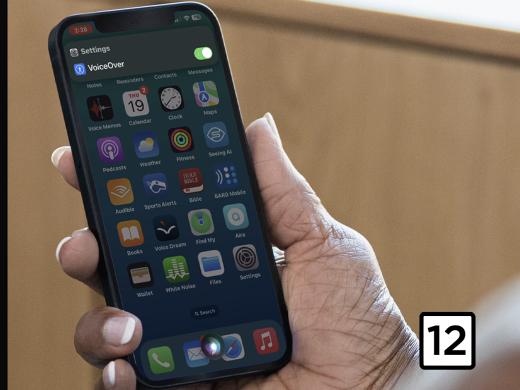
Now, our Audio Descriptions autoplay setting can be found within our Settings App inside of our Accessibility settings. And we just so happen to have our Settings App open. And we're right here in our Accessibility settings. Now, our Audio Descriptions button is right here in our Accessibility lists. So we'll go ahead and just right swipe to Audio Descriptions here. And we'll just right swipe a few times.
VoiceOver: Accessibility features help you customize your iPhone for your individual needs.
Douglas: Yep, and that's great. So we'll just quickly swipe through this list here.
VoiceOver: Vision headings.
Douglas: Vision.
VoiceOver: VoiceOver On.
Douglas: VoiceOver.
VoiceOver: Zoom Off button.
Douglas: New Zoom.
VoiceOver: Magnifier On.
Douglas: Zoom Magnifier settings.
VoiceOver: Display and Text Size button Motion button. Spoken Content button.
Douglas: Spoken Content.
VoiceOver: Audio Descriptions Off button.
Douglas: Yeah. And here is our Audio Descriptions button and VoiceOver announced that it's currently turned Off. So we'll go ahead and just double tap to open up our Audio Descriptions settings here. So we'll just double tap
VoiceOver: Audio Descriptions Off, double tap to toggle setting.
Douglas: Yeah, and here we are. And we've actually been placed on our On, Off toggle button here. So we will just double tap to turn On our Audio Descriptions autoplay here and we'll just double tap.
VoiceOver: On.
Douglas: Alright, our autoplay setting is now turned On. And this is great because now anytime we play a movie or a TV program with Audio Descriptions, our Audio Descriptions will automatically play for us. And hey, that is exactly what we want. Yeah, we are ready to begin binge watching.
Now if you would like more information about how to find audio described movies. Well, you just might want to check out our Audio Descriptions in iTunes workshop where we share some great tips on how to search for and download tons of audio described movies. Again, my name is Douglas Walker. Take care and I'll see you next time.
-
Handouts
Audio Description Basics Quick-Start Guide (PDF)
This quick-start guide shows you how to watch movies and TV shows using Audio Descriptions.
Entertainment Series
- Video · 10 minutes
- Video · 9 minutes

- Video · 9 minutes

- Video · 6 minutes
Explore
-
Safety, Self-Defense, and Vision Loss
Audio · 30 minutes
-
I can’t drive anymore
Resource guide
-
Dialing the Phone Made Easier
Article · 3 minutes
-
Book Nook
Discussion
- Explore more
Members also liked
- Video · 3 minutes

- Video · 10 minutes

- Video · 12 minutes

- Video · 5 minutes
Join the Hadley Community
Hadley's resources are always available to you. Create a no-cost Hadley account to go further:
-
Pick up where you left off Everything you start is automatically saved across Hadley.
-
Personalized recommendations We'll suggest resources based on your interests.
-
Join live discussions Live and lively discussions on technology, cooking, and more, all geared toward the community of people living with vision loss.
-
Find peer support Connect with people who understand what you're going through.