
iPhone/iPad VoiceOver: Music Player Basics
Hello, my name is Douglas Walker. Today, we will be exploring our music player. Now, if we're new to our music player or what Apple calls our Now Playing screen, it can be kind of tricky to move between our mini player and our Now Playing screen. So we will check out some handy tips that will make listening to our music so much more enjoyable.
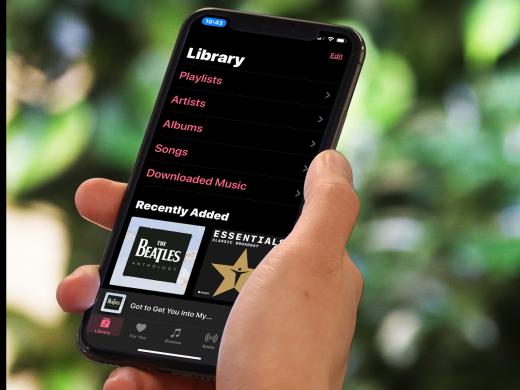
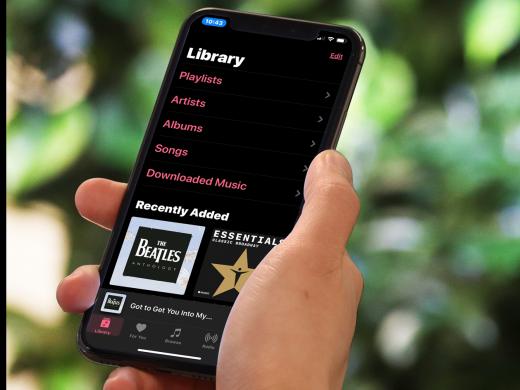
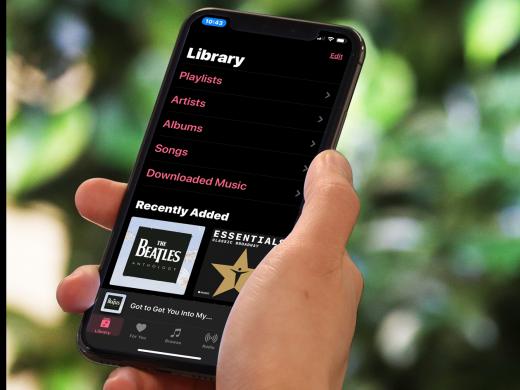
All right, our music app is open, and we just so happen to be in a Beatles album. Yeah, anyone that knows me knows that I am a huge Beatles fan. Anyway, our Beatles "White Album" is open, and we are in our list of songs where we could simply just right swipe to a song and just double tap to play it. Yeah, and as tempting as that might be, today is all about exploring our music player. Okay, our Now Playing screen is currently collapsed, and it has collapsed into our mini player which is located right across the bottom edge of our screen and just above our tabs here.
Now, we'll need to be placed in our mini player before we can actually expand it into of course our Now Playing screen. Now, we could just of course right swipe through all of the songs in our album, and we would eventually find it. Or we could just left swipe from our tabs. However, we could also simply just touch above our tabs here to find our mini player. So let's go ahead and do it. We'll just touch to find our mini player here.
VoiceOver: Mini player. Double tap to expand the mini player.
Douglas: Great, we got lucky and touched it there, and VoiceOver announced that we could just double tap to expand our mini player here. Now if we right swipe from here, we will find our Play button. And right swiping again will give us our Skip button for skipping our current song that we're on here. But let's go ahead and just double tap to expand our mini player here. So we'll just double tap here.
VoiceOver: Dismiss Now Playing Screen button.
Douglas: Okay, our mini player has expanded, and our Now Playing screen is all open here, and we've been placed on our Dismiss Now Playing Screen button that actually runs across the entire top of our screen here. Of course, if we were to double tap our Dismiss Now Playing Screen button, our Now Playing screen would simply just collapse back down into our mini player, and we'd be right back in our album song list. But we don't want that because we to check out our player controls here. So how 'bout we go ahead and just right swipe, and we'll explore all of our player controls. We just right swipe here.
VoiceOver: Mini player, album artwork, image, the Beatles.
Douglas: Great, and here is an image of our album artwork or what the cover of our album looks like here, and that's cool. We'll just go ahead and right swipe though here, we'll right swipe.
VoiceOver: "Back in the USSR".
Douglas: Yeah, and here is our current song title, and hey, that's good to know. So we'll go ahead and just right swipe.
VoiceOver: The Beatles button.
Douglas: Okay, and here we find the name of our artist. And we love our Beatles, and we'll go ahead and just right swipe.
VoiceOver: More Button.
Douglas: Okay, and here is our More button. Now, we aren't going to fully explore our More button, but double tapping here gives us the ability to do things like delete our song or album from our music library, or even add our current song to a playlist if we like. Yeah, our More button here will give us some more kind of advanced features which is really nice. All right, we will go ahead, and we'll just right swipe here.
VoiceOver: Track position, three seconds of two minutes, 42 seconds adjustable. Swipe up or down with one finger to adjust the value.
Douglas: Yeah, and here is the track position of our song. And we heard VoiceOver announce that this is an adjustable bar. So we know that each time we swipe up, we will jump forward by roughly 15-second increments through our song here. And of course swiping down will jump us back by roughly the same amount of time. So that could be really nice for us there. Okay, so we'll go ahead and just right swipe here.
VoiceOver: Previous Track button.
Douglas: Okay, here is our Previous Track button. And of course, if we were to double tap, we would be taken back to our previous track in our album list. Or if we've already started playing our current song, we will be taken back to the beginning of our current song. Now, our Previous Track button also acts like a rewind button. And to rewind our song here, we would just double tap and hold. Now, when we've finished rewinding, we will simply just lift our finger from our screen, and that's pretty cool for us. Okay, we will just write swipe here.
VoiceOver: Play button.
Douglas: Great, and here is our Play button. And you guessed it, we would just double tap here to play our song. Yeah, and so we'll go ahead and right swipe here.
VoiceOver: Next Track button.
Douglas: Super, and here is our Next Track button. And of course, double tapping our Next Track button will take us to the next song in our album. And we could always double tap and hold here if we wanted to fast-forward through our current song as well. Okay, let's right swipe.
VoiceOver: Volume 56% adjustable. Swipe up or down with one finger to adjust the value.
Douglas: Great, and here is our Volume adjustable bar here. So we could simply just swipe up or down to adjust our song's volume here if we like. Okay, I love these next three features. So we'll go ahead and just right swipe to it here.
VoiceOver: Lyrics button.
Douglas: Yeah, and this is super cool. Here is our Lyrics button. And if we double tap here, our song's lyrics will actually scroll as our song plays. And we could even swipe through them if we like and check them all out with Voiceover as well. I tell you, this is one of my favorite features here. All right, just a couple more buttons here. So we'll go ahead and right swipe.
VoiceOver: Playback Destination button.
Douglas: Okay, here is our Playback Destination button. Now, this is a really great feature because this button allows us to stream our music to another device such as our Apple TV, our HomePod, or even our Bluetooth headphones. So it's really nice that we have been given the ability to choose between our different devices from right here in our music player. Okay, just one more button here. So we will go ahead and just right swipe.
VoiceOver: Up Next button.
Douglas: Yeah, here is our Up Next button. And if we double tap here, we will be given a list of the songs that are up next in our current album. So we could easily skip ahead if we like there. All right, that pretty much covers all of the features and controls in our music players. So hey, let the listening begin. Again, my name is Douglas Walker. Take care and I'll see you next time.
-
Handouts
Music Player Basics Quick-Start Guide (PDF)
This quick-start guide helps you learn to use your device's music player.
Entertainment Series
- Video · 4 minutes
- Video · 9 minutes

- Video · 10 minutes
- Video · 6 minutes
Explore
-
Tapping Back into Laughter After Vision Loss
Audio · 28 minutes
-
It's hard to ask for help
Resource guide
-
Using Your Phone without Reading the Screen
Article · 5 minutes
-
Tech It Out
Discussion
- Explore more
Members also liked
- Video · 10 minutes

- Video · 3 minutes

- Video · 12 minutes

- Video · 5 minutes
Join the Hadley Community
Hadley's resources are always available to you. Create a no-cost Hadley account to go further:
-
Pick up where you left off Everything you start is automatically saved across Hadley.
-
Personalized recommendations We'll suggest resources based on your interests.
-
Join live discussions Live and lively discussions on technology, cooking, and more, all geared toward the community of people living with vision loss.
-
Find peer support Connect with people who understand what you're going through.