
Groups
Hi, my name is Vikki Vaughan, and today we'll discuss a really fun part of Facebook, connecting with others through groups. Groups are a part of Facebook that allows us to communicate about shared interest with other people. In this workshop, we'll explore how to join or leave an existing group.
This series is designed for people who use a screen reader. If you're not a screen reader user, be sure to check out Hadley's low vision version of this series.
You know, you can create a group for anything, our family reunion, our book club, or our favorite hobby, but we don't have to create a group to enjoy this part of Facebook. There are loads of fun groups that would love to have us as members. Let's start off by searching for an existing group.
Now, I'm a big fan of the National Library Service for the Blind, or NLS. Let's look and see if there are any Groups associated with NLS. We'll start at the top of our Facebook page with the shortcut Control + Home.
Screen Reader: Banner landmark visited link Facebook.
Vikki: Now, we'll use our heading shortcut H, as in hot, to move to our first heading, the Facebook menu, in our left pane.
Screen Reader: Navigation landmark, Facebook menu, heading level 2.
Vikki: Now, let's press our Tab key several times to move to the Groups link. Let's Tab.
Screen Reader: List with one items Vicky Hadley visited link.
Vikki: And we'll Tab again.
Screen Reader: List with seven items Find Friends link.
Vikki: And one more time.
Screen Reader: Groups link.
Vikki: Let's press our Spacebar to activate the Groups link.
Screen Reader: List of Groups navigation, landmark Groups, heading level 1.
Vikki: Now, we'll Tab twice until we reach the Groups Search Edit field. So let's Tab.
Screen Reader: Edit Group Settings button.
Vikki: And with our next Tab, we'll land in the Search Edit field.
Screen Reader: Search Groups combo box collapsed has auto-complete editable search Groups blank.
Vikki: This is where we enter our search terms. Let's type National Library Service for the Blind, then we'll press Enter.
Screen Reader: National Library Service For The Blind selected, collapsed, result filters region Groups, heading level 1.
Vikki: Let's use our Heading shortcut to move to our search results. We'll press H.
Screen Reader: Filters, heading level 2.
Vikki: And we'll press H again.
Screen Reader: Search Results main landmark Groups, heading level 2.
Vikki: We heard our screen reader announce that we're in our Search Results heading. Let's Tab through the results.
Screen Reader: Teachers of the Blind and Visually Impaired link.
Vikki: No, that's not the one, so let's Tab a couple of more times.
Screen Reader: Visit link. The National Library Service For The Blind Book Club link.
Vikki: We hear there's a National Library Service Book Club. Let's check it out. We'll Tab to the Join button.
Screen Reader: Visit link.
Vikki: And press the Spacebar to activate this button.
Screen Reader: Join group, the National Library Service For The Blind Book Club button.
Vikki: Let's press the Tab key.
Screen Reader: Alert you joined the National Library Service For The Blind Book Club. Visit link.
Vikki: The label on this button has changed from Join to Visit. Let's press our Spacebar to activate this button.
Screen Reader: Main landmark, the National Library Service For The Blind Book Club link, heading level 1.
Vikki: Cool. We've landed on the NLS Book Club Groups page. Let's Tab a couple of times to explore this page.
Screen Reader: 166 members link.
Vikki: The next press of our Tab takes us to the Joined button.
Screen Reader: Joined button.
Vikki: This confirms that we joined the group. Let's press our H key to move through some of the posts on this page.
Screen Reader: Most Relevant, heading level 2 button.
Vikki: We'll press H again to move to the first post
Screen Reader: Meg link, heading level 2.
Vikki: We use our navigation shortcuts like Tab, our Arrow keys, and the H key to explore this group page. This is a great way to catch up on any group rules, check out the most current topics of conversation between group members, and find out about upcoming discussions. If we're unable to join a group's page, it might be because the group's administration doesn't allow outside accounts to join their group. A good example might be a private family reunion group. If you'd like to learn more about creating your own group, be sure to check out the Resource section below this workshop. Now, there might be times when we no longer wish to be a member of a group. Let's explore how to leave a group. We'll start out by moving to the top of our homepage with Control + Home
Screen Reader: Banner landmark visited link Facebook.
Vikki: Let's move to the Groups button by pressing the Tab key five times.
Screen Reader: Banner landmark, search Facebook combo box collapsed has auto-complete editable search Facebook blank. Facebook navigation landmark list with four items: Home visited link, Watch link, Marketplace Link, Groups link.
Vikki: Great, we've landed on our Groups button. Now, let's open it by pressing the Enter key.
Screen Reader: List of Groups navigation, landmark Groups, heading level 1.
Vikki: We'll use our heading shortcut to move to a heading entitled Groups you've joined. Let's press H once.
Screen Reader: Groups you manage, heading level 3.
Vikki: And then once again
Screen Reader: Groups you've joined, heading level 3.
Vikki: Let's Tab through this list of Groups we've joined. We'll press Tab.
Screen Reader: The National Library Service For The Blind Book Club, Last active 17 hours ago link.
Vikki: And what do you know? The first group on our list is the NLS Book Club we've just joined. Let's select it with our Spacebar.
Screen Reader: Preview of a group main landmark. Main landmark, the National Library Service For The Blind Book Club link, heading level 2.
Vikki: Now, let's Tab three times to move to the Joined button.
Screen Reader: Main landmark, the National Library Service For The Blind Book Club link heading level 2. 166 members link. Joined button.
Vikki: We've landed on our Joined button. We'll press our, you guessed it, Spacebar, to activate it.
Screen Reader: Manage notifications, one of three.
Vikki: We've expanded a dropdown menu with three options. Let's press our Down Arrow key to move down to the Leave group option.
Screen Reader: Unfollow group, two of three. Leave group, three of three.
Vikki: We'll press our Spacebar to activate this command.
Screen Reader: Space, Leave group dialog. Leave group. Heading level 2, leave group. Heading level 2, leave group, button close. Do you want to leave the National Library Service For The Blind Book Club? You can also turn off notifications for new posts or report this group.
Vikki: A dialog box has appeared, and we're asked if we want to leave the group. Facebook also lets us know that we can turn off notifications for this group or report this group. For more information about these options, check out the resources below this workshop. We're sure we want to leave this group, so let's Tab to the Leave Group button. We'll press Tab.
Screen Reader: Close button.
Vikki: Let's press Tab again.
Screen Reader: Cancel button.
Vikki: If we change our minds, we can select the Cancel button. Since we want to leave this group, let's Tab again to the Leave Group button.
Screen Reader: Leave Group button.
Vikki: We've landed on our Leave Group button. Let's press our Spacebar.
Screen Reader: Unavailable. Six, the National Library Service For The Blind Book Club Facebook document. Main Landmark, the National Library Service For The Blind Book Club link heading level 1.
Vikki: We're back on the NLS Book Club group page, and the Join button has changed and now reads Join group. In today's workshop, we explored one of Facebook's most popular features: Groups. We learned how to join a group and leave a group. I'm Vikki Vaughan, and I thank you for joining me.
-
Handouts
Instructions for creating a group on Facebook using a screen reader.
Instructions for joining a group on Facebook using a screen reader.
Turning Off Group Notifications
Instructions for turning off Facebook Group Notifications using a screen reader.
How to Report Issues to Facebook
Instructions for reporting an issue with a Facebook post.
Groups Quick-Start Guide (PDF)
This quick-start guide shows you how to connect with others through groups.
Facebook Screen Reader Series
- Video · 14 minutes

- Video · 9 minutes

- Video · 9 minutes

- Video · 13 minutes

Explore
-
COVID-19 and Vision Loss Part 2
Audio · 24 minutes
-
I'm feeling overwhelmed
Resource guide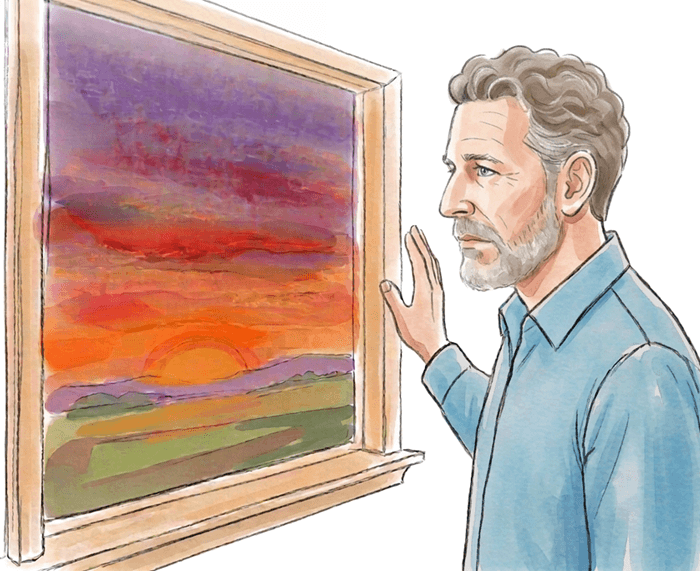
-
Is It Expired? 5 Ways to Know with Vision Loss
Article · 4 minutes
-
Embracing Braille
Discussion
- Explore more
Members also liked
- Video · 5 minutes

- Video · 8 minutes

- Video · 7 minutes
- Video · 9 minutes
Join the Hadley Community
Hadley's resources are always available to you. Create a no-cost Hadley account to go further:
-
Pick up where you left off Everything you start is automatically saved across Hadley.
-
Personalized recommendations We'll suggest resources based on your interests.
-
Join live discussions Live and lively discussions on technology, cooking, and more, all geared toward the community of people living with vision loss.
-
Find peer support Connect with people who understand what you're going through.