
Google Docs Screen Reader: Converting your Docs to Word Files and PDF
Hello, my name is Ricky Enger. And today we're going to find out how to save our Google Docs files to other formats like Microsoft Word and PDF. We're using the Chrome browser along with NBDA as our screen reader, but things are going to be pretty similar no matter which browser and screen reader we're using.
You know, Google Docs is really powerful and it has everything we need to create our documents and keep them organized. Still, there are going to be times when we need to make our documents available in other formats so that programs besides Google Docs can open them. Well, how do we do that? And how complicated and time-consuming is it gonna be?
Luckily the process is really quick and straightforward. Let's check it out.
We'll first wanna open the document that we'd like to save in a different format. So I'm starting from the docs.google.com home page, and now I'll open this document that describes how to share a link to a Google Docs file.
Screen Reader: Google Docs, recent documents list. Google Docs sharing file publicly Google Docs opened last opened by me 9:25 am more actions. Pop-up button, one of two.
Ricky: That resource is actually mentioned in another workshop in this series, and it was created here in Google Docs. So let's open our file.
Screen Reader: Google Docs sharing file publicly Google Docs. Application braille support enabled on page one.
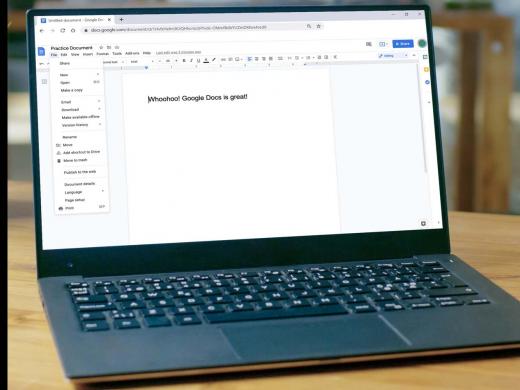
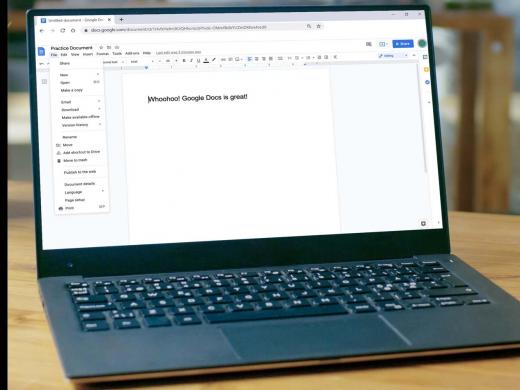
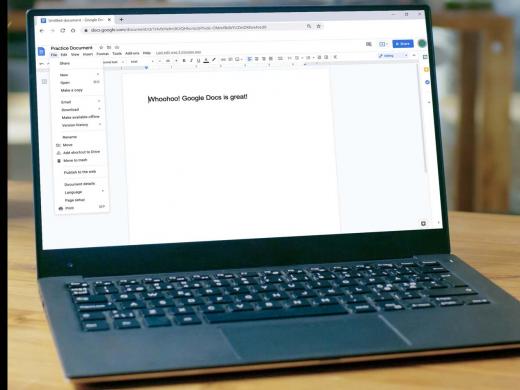
Ricky: Okay, great, we're in our document. Now the option we want is going to be under the file menu. So we'll press Alt plus F, F for file.
Screen Reader: File sub menu one of nine.
Ricky: And now we'll press the letter D for download.
Screen Reader: Microsoft word.docs X.
Ricky: Awesome, we're focused on Microsoft word, which means that if we press Enter here, we're going to download this file in the Microsoft Word format. That format always has a dot D O C X after the file name, so that's why we hear that in our menu. We're eventually going to save this file as a word document, but let's explore other formats here before we do that. So we'll press our down arrow.
Screen Reader: Open document format dot OD O.
Ricky: Okay, let's continue with our down arrow key.
Screen Reader: Rich text format dot RTF R.
Ricky: Okay, and down arrow?
Screen Reader: PDF document dot PDF P.
Ricky: Nice, let's find these last three with our down arrow key.
Screen Reader: Plain text dot text T, webpage dot HTML, zipped H. EPUB publication dot epub B.
Ricky: And that's our last option. It's totally fine if some of these formats are not familiar, it's just good to know what's available so that if someone asks us to provide something in a particular format, we now know what Google Docs supports.
All right then, we'll use our down arrow key one more time, even though we're at the end of our list here.
Screen Reader: Microsoft Word dot docs X.
Ricky: And there we go, we're right back at the beginning of our list, and this is actually the format we want, so we'll press Enter.
Screen Reader: Documents, download complete, Google Docs sharing file publicly.docs. Press Shift plus F six to cycle to the downloads bar area.
Ricky: All right, we just got lots of information there. Essentially, we heard that our file has been downloaded and we can press Shift plus F six to move to the browsers downloads bar. So let's do that.
Screen Reader: Downloads bar grouping, Google Docs sharing file publicly.docs grouping, Google Docs sharing file publicly dot docs button Google Docs sharing file publicly.docs.
Ricky: Wow, that's a lot of words, but all we really need to know is that we're focused on the file we've just downloaded, and now we can press Enter to open it. So let's press Enter.
Screen Reader: Google Docs sharing file publicly.docs protected the word, Microsoft Word document edit multiline heading level, one page, one section, one Google Docs screen reader.
Ricky: And there we go, we've just downloaded our Google Doc and opened it in Microsoft Word. By default, our file is going to open in protected view, which means we can't actually make changes to it unless we save it again here in Microsoft Word and enable editing.
This is a nice feature because we're not going to accidentally make changes to a document that's already perfect. If we send this document to someone else, they'll have this perfect copy too, which will remain in protected mode unless they save it and enable editing. And if we download our Google Doc in a different format, like a PDF or a plain text document, it's going to be the same easy process. Nice.
I'm Ricky Enger. And I'm glad you could spend a little time with me learning to download Google Docs in other formats. See you next time.
-
Handouts
Converting Docs to Word and PDF Quick-Start Guide (PDF)
This quick-start guide helps you change a Google Doc into another file type.
Google Docs: Screen Reader Series
- Video · 7 minutes
- Video · 12 minutes
- Video · 9 minutes

- Video · 6 minutes
Explore
-
Artificial Intelligence (AI) and Vision Loss: Tools You Should Know
Audio · 37 minutes
-
I can’t drive anymore
Resource guide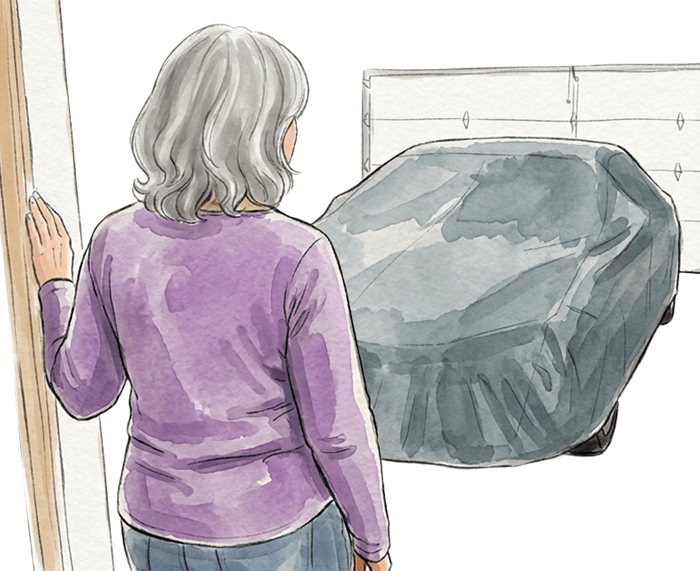
-
The Truth About Guide Dogs
Article · 4 minutes
-
Resource Roundtable
Discussion
- Explore more
Members also liked
- Video · 5 minutes

- Video · 5 minutes

- Video · 8 minutes

- Video · 9 minutes

Join the Hadley Community
Hadley's resources are always available to you. Create a no-cost Hadley account to go further:
-
Pick up where you left off Everything you start is automatically saved across Hadley.
-
Personalized recommendations We'll suggest resources based on your interests.
-
Join live discussions Live and lively discussions on technology, cooking, and more, all geared toward the community of people living with vision loss.
-
Find peer support Connect with people who understand what you're going through.