
Google Docs Screen Reader: Sharing Your Files with Others
Hello, my name is Ricky Enger, and today, we're going to explore one of the most useful features in Google Docs, sharing a file. We're using the Google Chrome browser along with NVDA as our screen reader, but things are going to be pretty similar no matter which browser and screen reader we're using.
There are very few times when creating a grocery list is exciting, but today is one of those times. It's exciting because not only can we edit this grocery list from anywhere since it's stored in the cloud, but we can share it with others so they can add their shopping requests as well. This way, if olives are mysteriously missing when one family member makes the list, someone else in the family can make sure they get added. So let's walk through how to share our list, and then we'll check out what it's like to work with someone else on the document in real time.
We'll take a look at sharing our file privately, and if you'd like to know how to share a file that anyone can access, check out the resources section for those instructions. All right, so we've created our grocery list, and we're inside the document. We'll find our sharing option under the file menu. So we'll press Alt + F, F for file.
Screen Reader: File sub menu one of nine.
Ricky: And now we'll press S for share.
Screen Reader: Loading dialogue, list of people this item is shared with. There is one person or group in the list menu.
Ricky: Okay, we're in an edit box, and we're ready to type the email of the person we're going to share with. So we'll type that, and we'll press Enter.
Screen Reader: [email protected], [email protected], table.
Ricky: Fun Hadley pets, yes, in this household, even the pets have Gmail accounts, and they can add to the grocery list too. All right, let's Tab and see what's next.
Screen Reader: Editor, change permission menu button collapse sub menu.
Ricky: Here, we can set permissions for the document. Right now, the person we're inviting is an editor, meaning they can do just as much with this document as we can. This is what we want, so we won't do anything here. If we did need to change permissions, we could press our space bar to open the menu, and we'd find options to set our permissions to viewer, meaning the person we're inviting can view our content, but not edit it. There's also an option for commenter, which allows a person to add comments to the document, but not alter it in any other way. Okay, let's press Tab again.
Screen Reader: Notify people check box checked.
Ricky: This means Google will send an email to notify someone that our document has been shared. We'll leave that box checked and we'll press Tab.
Screen Reader: Message edit multiline blank.
Ricky: Here, we can type a brief message just stating the purpose of our file, so we'll type that.
Screen Reader: Family, grocery, list.
Ricky: And we'll Tab.
Screen Reader: Table grocery list, row one column one.
Ricky: And there's the name of our file, so we'll Tab.
Screen Reader: Send feedback to Google button.
Ricky: We don't need that, so we'll Tab.
Screen Reader: Cancel button.
Ricky: And that's where we'd cancel if we didn't want to share this file after all. Let's Tab one last time.
Screen Reader: Send button.
Ricky: Yay, that's what we want, so we'll press our space bar.
Screen Reader: Person added, person added, dialogue, document, document content edit multiline Cameron's coffee.
Ricky: And there we go. Our invitation has been sent, and we're right back in our document where we have a couple of items.
Screen Reader: Cameron's coffee, green leaf lettuce, yellow onions, blank. Diva Kitty has joined the document.
Ricky: Okay then, I guess we're about to see what the cat would like to add to the grocery list because she has just opened the document. But how can we both work on this at the same time? Well, Google is going to warn us if Diva Kitty begins editing near the same place we're working in the document. Right now, we're at the bottom, and if anything is happening elsewhere in the document, we'll find out later when we review it.
Screen Reader: Blank, Diva Kitty is editing in your selection. Diva Kitty is editing this paragraph.
Ricky: Okay, great. There's our warning that editing is taking place. Diva Kitty must've moved to the bottom of the document as well.
Screen Reader: Diva Kitty has left the document.
Ricky: And now looks like she's done editing. So we previously had coffee, green leaf lettuce, and yellow onions. Let's jump to the top of the document with Ctrl + Home, and we'll go through our list to see what has changed.
Screen Reader: Biggest cat tower ever, Cameron's coffee, green leaf lettuce, yellow onions, rocking lobster cat treats.
Screen Reader: Okay, pretty sure there are a couple of new additions to our list, right? Best of all, we didn't have to pass the document back and forth and work on it one at a time. And when it's time to shop, everyone will have what they need, awesome. I'm Ricky Enger, and I'm glad you could spend a little time with me learning to share a document in Google Docs. See you next time.
-
Handouts
Sharing a File in Google Docs as a Link (PDF)
Sharing Your Files with Others Quick-Start Guide (PDF)
This quick-start guide helps you learn to work with friends, family members, and colleagues on the exact same document, instead of sending files back and forth.
Google Docs: Screen Reader Series
- Video · 6 minutes
- Video · 12 minutes
- Video · 9 minutes

- Video · 7 minutes
Explore
-
"I wasn't living my truth"
Audio · 5 minutes
-
I can’t drive anymore
Resource guide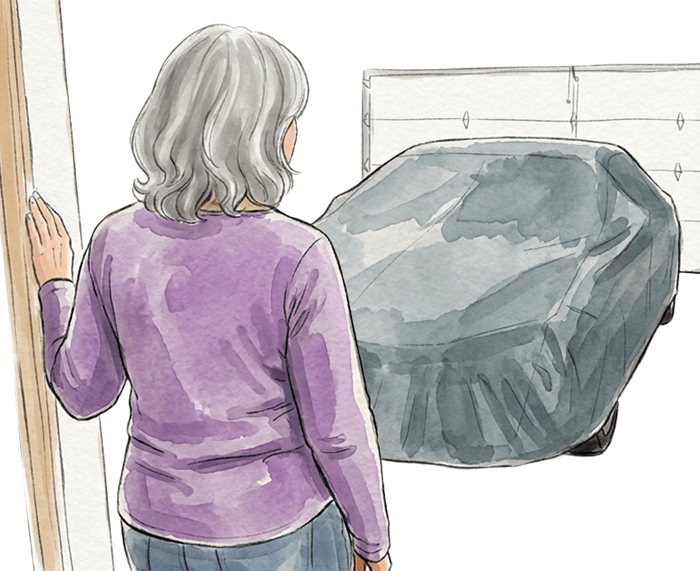
-
Travel with Vision Loss: 11 Tips from Experienced Travelers
Article · 8 minutes
-
Resource Roundtable
Discussion
- Explore more
Members also liked
- Video · 5 minutes

- Video · 5 minutes

- Video · 8 minutes

- Video · 9 minutes

Join the Hadley Community
Hadley's resources are always available to you. Create a no-cost Hadley account to go further:
-
Pick up where you left off Everything you start is automatically saved across Hadley.
-
Personalized recommendations We'll suggest resources based on your interests.
-
Join live discussions Live and lively discussions on technology, cooking, and more, all geared toward the community of people living with vision loss.
-
Find peer support Connect with people who understand what you're going through.