
Identifying Money with Seeing AI for Android
Vikki: In this workshop, we'll explore identifying money using one of the most popular apps for people with visual impairments. Seeing AI uses the camera on our phone to scan the money and read its denomination aloud. Not only can the app identify money, it can also read text, identify products, and describe pictures.
Best of all, Seeing AI is completely free. If you don't have it yet, head over to the Google Play Store on your phone, type in Seeing AI, and it should come right up. You can also find a link to the app and the resources below this workshop. This series is designed for people with low vision using Android devices. If you use an Apple device, you'll be happy to know. We also have a Seeing AI series that's made just for your phone. If you use your device with a screen reader, be sure to check out our series for using Seeing AI with voiceover on your iPhone or talk back on your Android phone. Seeing AI has lots of different functions such as reading text, describing photos, and identifying money.
We access these functions by selecting the appropriate tab on our main screen. If you'd like to learn more about the layout of the app, be sure to check out the Exploring the App workshop. In this series. There we take a deeper dive into the different parts of Seeing AI.
Now it's time to identify our money. When we open Seeing AI on our phone, our focus is on the read tab. We're going to tap on the more tab on the far right side toward the bottom of the screen.
Seeing AI VoiceOver: More.
Vikki: The first time we select a channel, we land in the help window, which describes how the channel works. It only happens the first time, and once we select the X to close this window, it won't come up again. We're currently in the product channel.
Seeing AI VoiceOver: Product.
Vikki: Let's tap on the currency channel located in the middle of our row. It looks like a dollar bill.
Seeing AI VoiceOver: Currency.
Vikki: For today's workshop, we'll place our money on a flat surface. Let's hold the camera above the bill.
Seeing AI VoiceOver: $5.
Vikki: Wow, isn't that neat? Our app quickly announced that we have a $5 bill. What about when we're at the checkout in the grocery store? It's great to know that we can hold the bill out in front of us and Seeing AI will quickly scan and announce the denomination of our bill $20. It doesn't matter which side of the bill is scanned, our app can identify it with ease.
Isn't it wonderful to have this handy tool available in a free app? We no longer need a separate device to independently identify our money. I'm really impressed. I bet the cashier at the checkout counter will be too. I'm Vikki Vaughan, and I thank you for joining me as we explore identifying currency with the Seeing AI app.
-
Handouts
Seeing AI Android: Identifying Money Quick-Start Guide (PDF)
This quick-start guide shows you how to use Seeing AI to scan money and read its denomination.
-
Websites
Download the Seeing AI App (Android)
Link to the Seeing AI app
Money Organization and Paying the Bill workshop
Hadley workshop on bill folding strategies for identifying currency
Seeing AI Android Low Vision Series
- Video · 7 minutes
- Video · 7 minutes
- Video · 6 minutes
- Video · 6 minutes
Explore
-
"I keep trying"
Audio · 3 minutes
-
I can’t drive anymore
Resource guide
-
Volunteering After Vision Loss
Article · 4 minutes
-
Book Nook
Discussion
- Explore more
Members also liked
- Video · 8 minutes
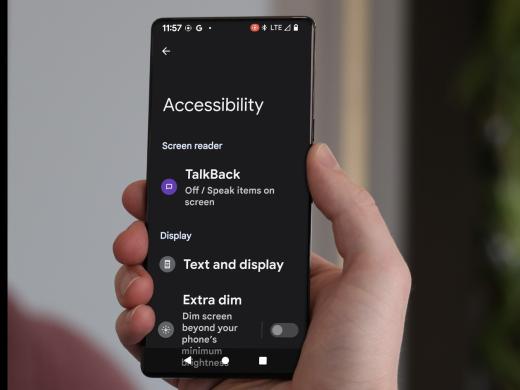
- Video · 5 minutes
- Video · 9 minutes
- Video · 4 minutes

Join the Hadley Community
Hadley's resources are always available to you. Create a no-cost Hadley account to go further:
-
Pick up where you left off Everything you start is automatically saved across Hadley.
-
Personalized recommendations We'll suggest resources based on your interests.
-
Join live discussions Live and lively discussions on technology, cooking, and more, all geared toward the community of people living with vision loss.
-
Find peer support Connect with people who understand what you're going through.