
Reading Documents with Seeing AI for Android
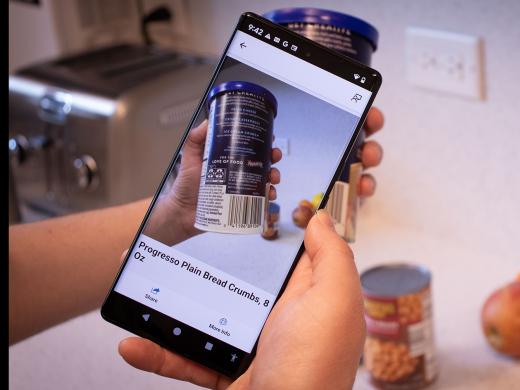
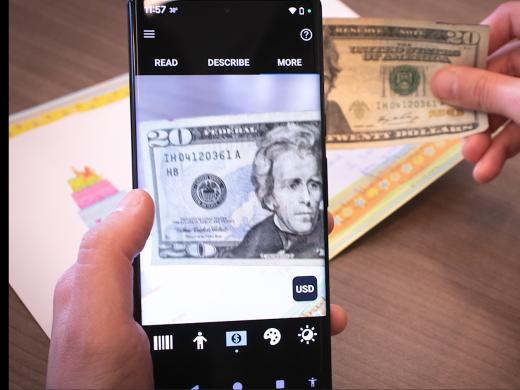
Vikki: In this workshop, we'll explore reading a document. We'll be using one of the most popular apps for people with visual impairments on the market today. Seeing AI is an app that uses the camera on our phone to read text aloud. This app not only reads text, but also identifies products, describes pictures and identifies currency.
Best of all, Seeing AI is completely free. If you don't have it yet, head over to the Google Play Store on your phone, type in Seeing AI, and it should come right up. You can also find a link to the app and the resources below this workshop. This series is designed for people with low vision using Android devices. If you use an Apple device, you'll be happy to know that. We also have a Seeing AI series that's made just for your phone. If you use your device with a screen reader, be sure and check out our series for using Seeing AI with voiceover on your iPhone or talk back on your Android phone.
Seeing AI has lots of different functions such as reading text, describing photos, and identifying products. We access these functions by selecting the appropriate tab on our main screen. If you'd like to learn more about the layout of the app, be sure to check out the Exploring the App workshop. In this series there, we take a deeper dive into the different parts of Seeing AI.
Seeing AI is already open on this phone, so let's jump right in and try reading a document. When we open the app, our focus is usually on the read tab. If we're somewhere else in the app, we tap on the read tab on the far left side toward the bottom of the screen.
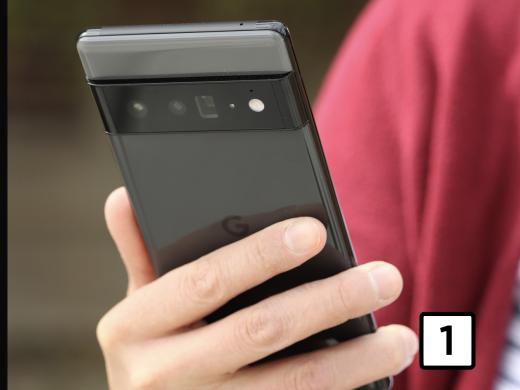
Since we use the camera on our phone to take a picture of the document, it's helpful to remember that the camera on our phone is located on the backside of our phone. Along the top, we'll want to hold our phone so that the camera is in portrait mode, so the short side of the phone with the charging port is facing us.
Now, taking a photo of a document can be quite challenging for those of us with low vision. To help with this, seeing AI guides us on how to position the phone. A good technique is to place the document on a flat surface, such as a table. If the material is larger than the phone, we want to place our phone camera side down in the center of the document. If the material is smaller than the phone, the only thing we really need to keep in mind is that our camera is looking for the edges of the item. Thankfully, our document detection tool can help us with that. Let's tap the tool to turn on the detect function.
Seeing AI VoiceOver: Document detection on.
Vikki: The distance we should lift the phone will depend on the size of the object being scanned. For a business card, our phone will be held three to four inches away and a full size document will be 10 to 12 inches away. Today we're reading a document on a full size sheet of paper. There are so many items we can read with Seeing AI from menus and bills to greeting cards and magazines. Seeing AI can even read handwriting.
Another amazing tidbit, even if the document is turned upside down, Seeing AI will scan it and read it with no problem. Now let's slowly lift the phone straight up from the document. Seeing AI will begin giving us tips about which edges of the document are visible and which are not. Use this feedback to move the camera so all edges are visible,
Seeing AI VoiceOver: Top and left edges not visible. When all edges of the document are visible,
Vikki: Seeing AI will say, hold steady, and then it will snap the photo.
Seeing AI VoiceOver: Hold steady processing.
Vikki: If you're having trouble getting Seeing AI to take the picture automatically, you can select the take picture button to snap the photo. It's a round white button located in the lower middle part of our screen.
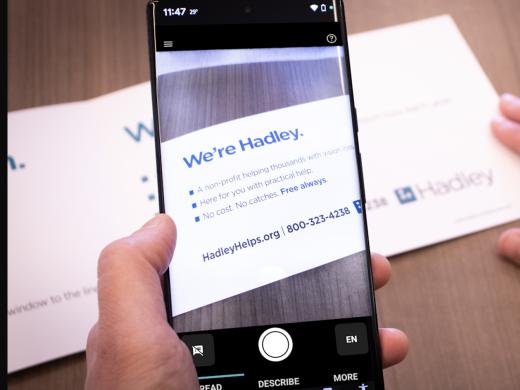
Now that Seeing AI has scanned the document, let's start reading. To hear our document read aloud, we tap the play button in the bottom right corner of our screen. This brings up the rewind, play, pause, and fast forward controls at the bottom of the screen. Let's try it out. We'll press the play button, listen for a bit, and then press the pause button.
Seeing AI VoiceOver: Hadley opens doors for Michael Koneff. Hadley has been a lifeline. I felt alone and was in a dark place until Hadley brought me out of it. Michael Koneff, Michigan. My neighbors are amazed by my yard states, Michael Koneff. Michael’s.
Vikki: Wow, that sounds interesting, doesn't it? It sounds like Seeing AI just read a page from Hadley's Thrive Magazine, but that's not all Seeing AI can do. We can scan more pages as well as save and share this document. We can also use the AI feature to ask questions about the document. If you'd like to learn more, be sure to check out the resource section below this workshop. I'm Vikki Vaughan and I thank you for joining me as we explored reading a document with the Seeing AI app.
-
Handouts
Sharing a Document and Asking AI a Question (PDF)
Learn the steps for sharing a document that has been scanned by the Seeing AI app and using the Asking AI a Question feature in Seeing AI.
Seeing AI Android: Reading Documents Quick-Start Guide (PDF)
This quick-start guide shows you how to use Seeing AI to read documents like magazine pages, menus, and bills.
-
Websites
Download the Seeing AI App (Android)
Link to the Seeing AI app
Seeing AI Android Low Vision Series
- Video · 6 minutes
- Video · 7 minutes
- Video · 7 minutes
- Video · 4 minutes
Explore
-
"I needed to share with people that I trusted"
Audio · 5 minutes
-
I'm feeling overwhelmed
Resource guide
-
Vision Loss and Fall Prevention: 5 Home Changes
Article · 4 minutes
-
Embracing Braille
Discussion
- Explore more
Members also liked
- Video · 4 minutes

- Video · 8 minutes
- Video · 5 minutes
- Video · 5 minutes
Join the Hadley Community
Hadley's resources are always available to you. Create a no-cost Hadley account to go further:
-
Pick up where you left off Everything you start is automatically saved across Hadley.
-
Personalized recommendations We'll suggest resources based on your interests.
-
Join live discussions Live and lively discussions on technology, cooking, and more, all geared toward the community of people living with vision loss.
-
Find peer support Connect with people who understand what you're going through.