
Reading Documents with Seeing AI and Android TalkBack
[Ricky] Today we're gonna check out how to use an app along with the camera on our phone to read documents. We can read things like restaurant menus, handouts and flyers, those credit card offers that are always too good to be true. Yeah, there's so much printed material we need to access, and with the Seeing AI app, we'll be able to get all that text spoken aloud. It's really cool.
We're using talkback in this workshop so that we can do everything on our phone without looking at the screen. If you'd rather do things on your Android device without talkback, check out our series on using Seeing AI with Low Vision. And if you're using Apple, we have a couple series just for you as well. Now, if you're checking out these workshops and you've not used talk back much before, it may help to get a little more familiar with it before you dive into this series. And hey, we've got you covered with a great group of workshops on learning everything you need to know to get up to speed with TalkBack. We're gonna jump right in and start reading a document, but if you haven't had a chance to explore the app a little bit and get familiar with it, we do that very thing in our workshop on exploring the app. So go ahead and check out that one first if you haven't already.
Alright, so let's talk about reading documents. We're gonna use this mode when we wanna read something in detail. So rather than just getting a quick general idea of what's there, we actually wanna capture the text so that we can review it later, share it, that kind of thing. We've got seeing AI open on our phone here and we need to make sure we're in the right place in the app before we can start reading our document. First we need to make sure our read tab is selected, so we'll touch the bottom left corner of our screen and then we'll slide up just a bit.
- [TalkBack] Selected. Read tab one of three, enlist three items.
- [Ricky] And there we go. We're in the right place here. Now if you didn't notice whether your phone said selected, you can always make sure this read tab is selected by double tapping here. Okay, we're almost done right now.
Our phone is gonna read any text it finds under the camera, but when we wanna just grab the entire page of text quickly, there's one more step we need to turn our document detection mode on. Our button is along the left edge of the screen about two inches up from the bottom. So we can just touch the bottom left corner of the screen and then slide straight up.
- [TalkBack] Document detection off button out of list. Double tap to activate.
- [Ricky] Yeah, and then we'll double tap to turn it on.
- [TalkBack] vDocument detection on
- [Ricky] There we go. And remember that if finding buttons this way is just not working for you, you can always swipe left from the read tab until you find it. Okay, awesome. Now let's get to the fun part, which is scanning our document. We've got a standard full size sheet of paper here with some print on it. We'll be using our phone in portrait mode, so the short side of the rectangle with the charging port is facing us. Next, we're just gonna place the phone camera side down right in the center of the document. Alright, our next step is to lift the phone straight up about 10 to 12 inches from the document. Sometimes we might not get this part quite right, but seeing AI will give us a few pointers. So here we go, lifting up and we're about four inches up right now.
- [TalkBack] Top edge not visible.
- [Ricky] Hey, that's good to know. Seeing AI will give us that feedback, whether it can't see any edges or maybe just the top left corner isn't visible. So we need to move our camera forward a bit. Now let's go ahead and lift the phone slowly up to about 10 to 12 inches from the page.
- [TalkBack] Processing close, close button outta list, double tap to page one of one, navigate up button, double tap to activate.
- [Ricky] Yay. So as soon as seeing AI gets that perfect view, it will snap the photo and we can just hold the phone normally. By the way, if you're ever having trouble getting your document into that perfect view for seeing ai, you can always use the take picture button, which you can find by swiping right from the document detection button to snap a photo. You might miss a word or two if seeing AI can't quite grab everything, but you'll still get a very good idea of what's on the page. Okay, this is really cool. But now how do we actually read the document?
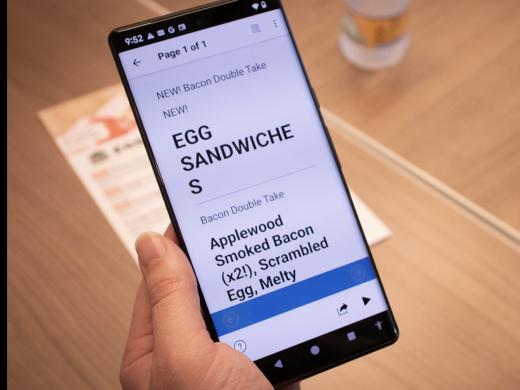
Once we have a picture of it, we can use our talk back two finger triple tap gesture, which will read everything on our screen. This works great. But if we do that, we're gonna first hear the buttons at the top of the screen for adding a page, checking out some more page options and so on. If we only wanna hear our document and nothing else, let's head down to the very bottom right corner of our screen. So we'll just touch that corner.
- [TalkBack] Play button. Double tap to activate.
- [Ricky] Yep. And we'll double tap that.
- [TalkBack] "Hadley has been a lifeline. I felt alone and was in a dark place until Hadley brought me out of it." Michael Koneff, Michigan." "Him on track with-"
- [Ricky] Wow. Awesome. And I've just double tapped this same button in the bottom left corner to stop. So we are reading a page from Hadley's Thrive Newsletter. What's really cool about this document feature is that it will work even if we have our document upside down. Now, today, we read a document that was a standard page, but what about smaller things like business cards, or those postcard-sized ads for local businesses you might get in the mail? Or hey, maybe something even larger than a standard sheet of paper. Seeing AI can read all of these. The only thing you really need to keep in mind is that the smaller the document, the closer the camera should be. And if you wanna learn more about what's possible once a document has been scanned, like adding more pages, sharing the text with yourself or someone else, or even asking specific questions about what's in the document, check out our resources section by scrolling down the workshop page to learn more.
And when you wanna read short pieces of text as we did in our short text workshop, you can just find that document alignment button a couple of inches up from the bottom left corner, and double tap it to turn it off again. In the meantime, have fun using this document feature with flyers, restaurant menus, books, whatever you can get your hands on.
I'm Ricky Enger, and I'm glad you could spend a little time with me learning about reading documents with Seeing AI. See you next time.
-
Handouts
Seeing AI Android: Additional Document Features (PDF)
This document lists the steps for saving a document that has been scanned and read by the Seeing AI app. It also provides instructions in the use of the Asking AI a Question feature in Seeing AI.
-
Websites
Seeing AI Android TalkBack Series
- Video · 8 minutes
- Video · 9 minutes
- Video · 7 minutes
- Video · 5 minutes
Explore
-
"I have my bad days and my better days"
Audio · 3 minutes
-
I'm having trouble reading
Resource guide
-
Getting Started with BARD: A Friendly Guide for Readers with Vision Loss
Article · 4 minutes
-
Tech It Out
Discussion
- Explore more
Members also liked
- Video · 7 minutes
- Video · 8 minutes
- Video · 5 minutes
- Video · 9 minutes

Join the Hadley Community
Hadley's resources are always available to you. Create a no-cost Hadley account to go further:
-
Pick up where you left off Everything you start is automatically saved across Hadley.
-
Personalized recommendations We'll suggest resources based on your interests.
-
Join live discussions Live and lively discussions on technology, cooking, and more, all geared toward the community of people living with vision loss.
-
Find peer support Connect with people who understand what you're going through.