
Android Low Vision: Magnify Full and Partial Screen with Triple Tap
Today, we're going to look at how to use the magnification triple tap feature and switch between full and partial screen magnification.
Triple tap lets us use a quick gesture to zoom in on the screen so we can make things larger and easier to see. It can be a handy way to turn on magnification instead of looking for the accessibility button on the screen, and switching between full screen and partial magnification gives us even more options.
Our first step is to make sure magnification is set up. We learned how to set up our magnification shortcut to triple tap in another workshop in this series where we covered full screen magnification and quick zoom. Now, let's see how to set up our magnification type to choose how we want to magnify.
We'll start by heading to our Settings app, which is right here on the home screen so we'll tap on it to open it. Next, we'll scroll down to find Accessibility.
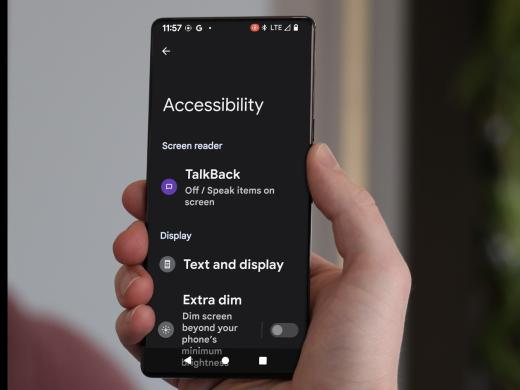
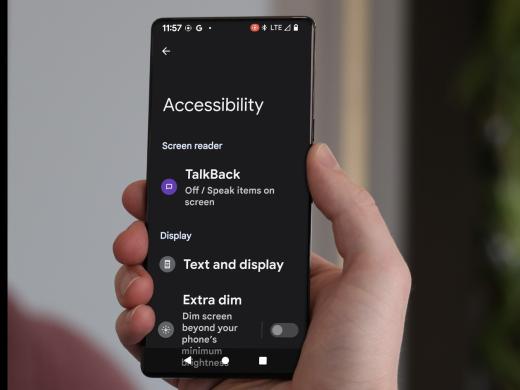
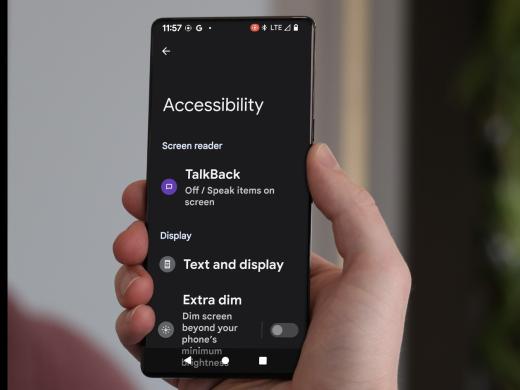
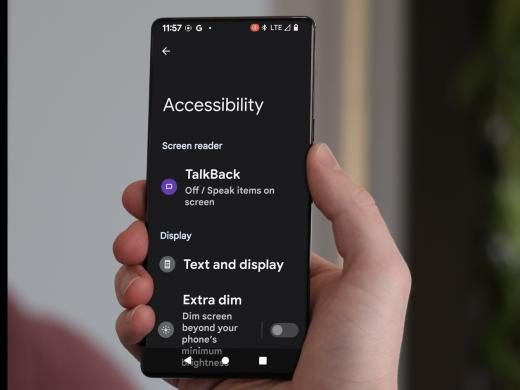
And here it is. So, we'll tap on Accessibility to open it. And now that we're in the Accessibility features, we'll scroll down to find Magnification and we'll tap on Magnification to select it. And now we can scroll down to see our magnification options. On this phone, we can see that the Magnification shortcut is already set to triple tap screen and just below that, we see Magnification type. Let's tap on that button.
This opens another screen where we have a few choices. In another workshop, we chose full screen and we could choose part of screen. But let's scroll down a bit further and we'll choose Switch between full and partial screen. So, let's just touch the button to select it and then tap on the Save button down at the bottom right corner of our screen to set it.
Depending on how your phone is set up, you might get a popup here asking if you'd like to use a different magnification shortcut. With triple tap, the phone can be just a bit slower to respond when we touch or tap the screen once. It's waiting to see whether there will be three taps before it reacts. This little delay isn't a big deal though, so select Continue anyway at the bottom right corner of our screen.
Okay, now we're back on our previous screen and Switch between full and partial screen has been selected. So, let's try it out.
We'll start by going to our home screen and to do this, we'll move down to the bottom of the screen to find our home button which is right in the center of the navigation bar. If your phone is set up to use gestures, you can swipe up with one finger from the bottom of the screen to get to the home screen. To learn more about gesture navigation or to switch from gesture navigation to the navigation bar, check out the resources by scrolling down below this workshop. On this phone, we'll go to the home screen by tapping the home button inside our navigation bar.
Now, we're on our home screen. Let's move to the bottom of the screen and swipe up with one finger to open our list of apps. Great, here they are. And now we'll find our Chrome app, which on this phone is right here at the top in our list of commonly used apps. We'll tap on it to open it.
Now that Chrome is open, let's quickly triple tap with one finger on the screen to turn on magnification. The keyword here is quickly so we'll tap, tap, tap.
Now, magnification has been turned on. The content on the screen has enlarged. We also notice a small floating button appears in the lower right corner of the screen and after a few seconds, it disappears. This is called the switch control and we'll use it to switch between magnifying the full screen and part of the screen. If we haven't touched the screen for a while, we'll need to tap the screen so it reappears. To learn how to extend the duration of the switch control, check out the resources below this workshop.
So, we'll tap the screen to make the switch control appear, and let's be sure to tap on a blank part of the screen. If we tap on a button or a live link, we open the item and our magnification might go away. Though, we can always bring it back again. Let's tap right here.
Great. Now, we'll just tap on the switch control. And we notice that the highlighted area has switched to a square that's smaller, kind of like the lens on a magnifying glass. To move the magnifying lens around the screen, there's a control in the bottom right corner of the square.
So, we'll just place and hold our finger on the control, then we'll move the lens around to magnify different areas of the screen. Using the lens can be helpful for zooming in on different parts of the screen while we can still see the layout of the entire screen. If we want, we can touch the switch control again to switch back to full screen magnification.
And when we're done, we can use our triple tap again to turn magnification off. And there we go. In this series, we've learned several ways to magnify things on our screen. And getting used to these different gestures can be awkward at first. But don't worry, once we practice them, it really is surprising how quickly they become second nature. Thanks for learning with me today. Until next time.
-
Handouts
Magnify Full and Partial Screen with Triple Tap Quick-Start Guide (PDF)
This quick-start guide shows you how to use the triple tap to switch between full and partial screen magnification.
-
Websites
Get around on your Android phone
Information on how to switch from gesture navigation to the navigation bar.
Information on how to extend the view duration of the Switch control.
Android: Low Vision Features Series
- Video · 4 minutes
- Video · 8 minutes
- Video · 4 minutes
- Video · 5 minutes
Explore
-
Well Connected Call-In Community for Older Adults
Audio · 27 minutes
-
I'm having trouble reading
Resource guide
-
5 Ways to Make Technology for Vision Loss More Affordable
Article · 4 minutes
-
What's Cooking?
Discussion
- Explore more
Members also liked
- Video · 7 minutes
- Video · 7 minutes
- Video · 6 minutes
- Video · 6 minutes
Join the Hadley Community
Hadley's resources are always available to you. Create a no-cost Hadley account to go further:
-
Pick up where you left off Everything you start is automatically saved across Hadley.
-
Personalized recommendations We'll suggest resources based on your interests.
-
Join live discussions Live and lively discussions on technology, cooking, and more, all geared toward the community of people living with vision loss.
-
Find peer support Connect with people who understand what you're going through.